MyLeitnerBox is built around boxes: each box is a container for flashcards about one topic you want to master with the Leitner method. Name your box so it’s obvious what it’s for later (e.g., “Spanish verbs — A2” or “Biology — cell division”).
How to get started
First, open the main menu and navigate to the Boxes page:
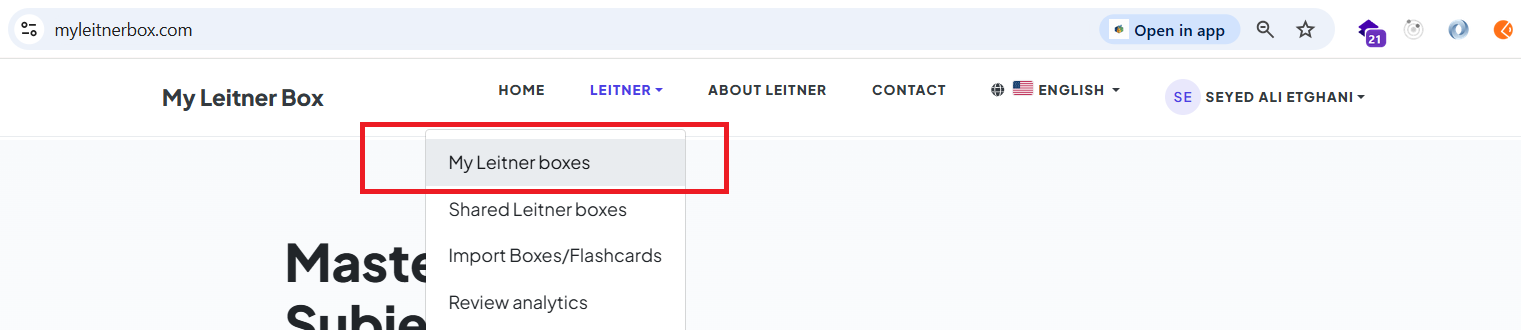
Alternatively, you can go directly to: https://www.myleitnerbox.com/leitner/
On this page, click the "Create New Box" button:
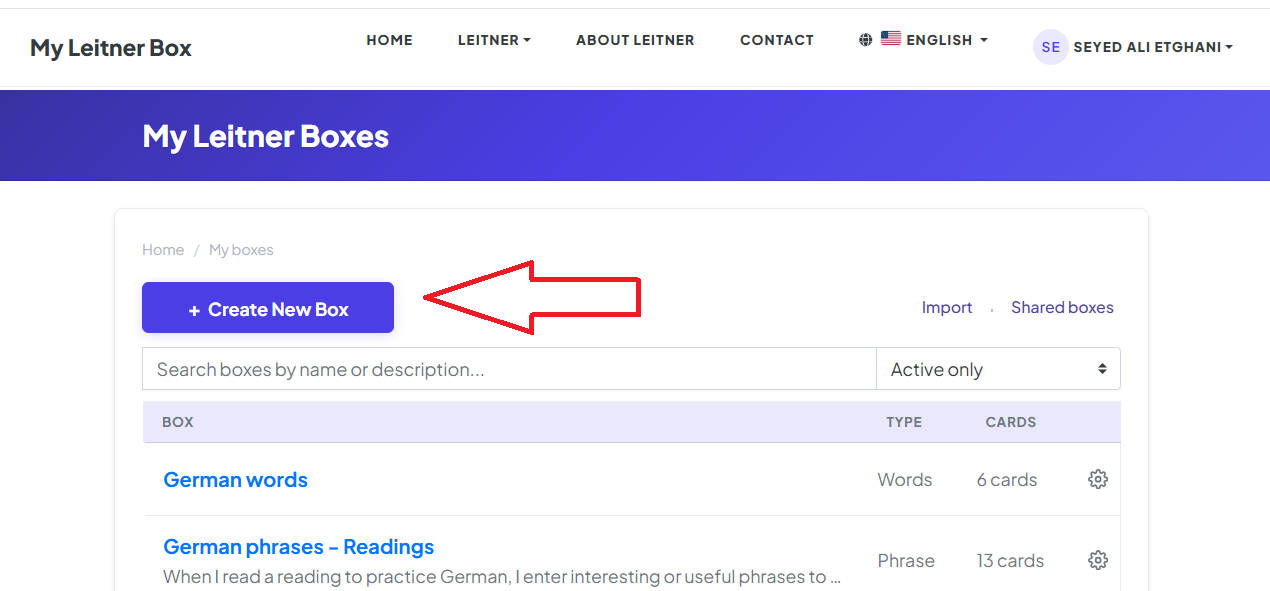
Once clicked, the box creation modal will appear:
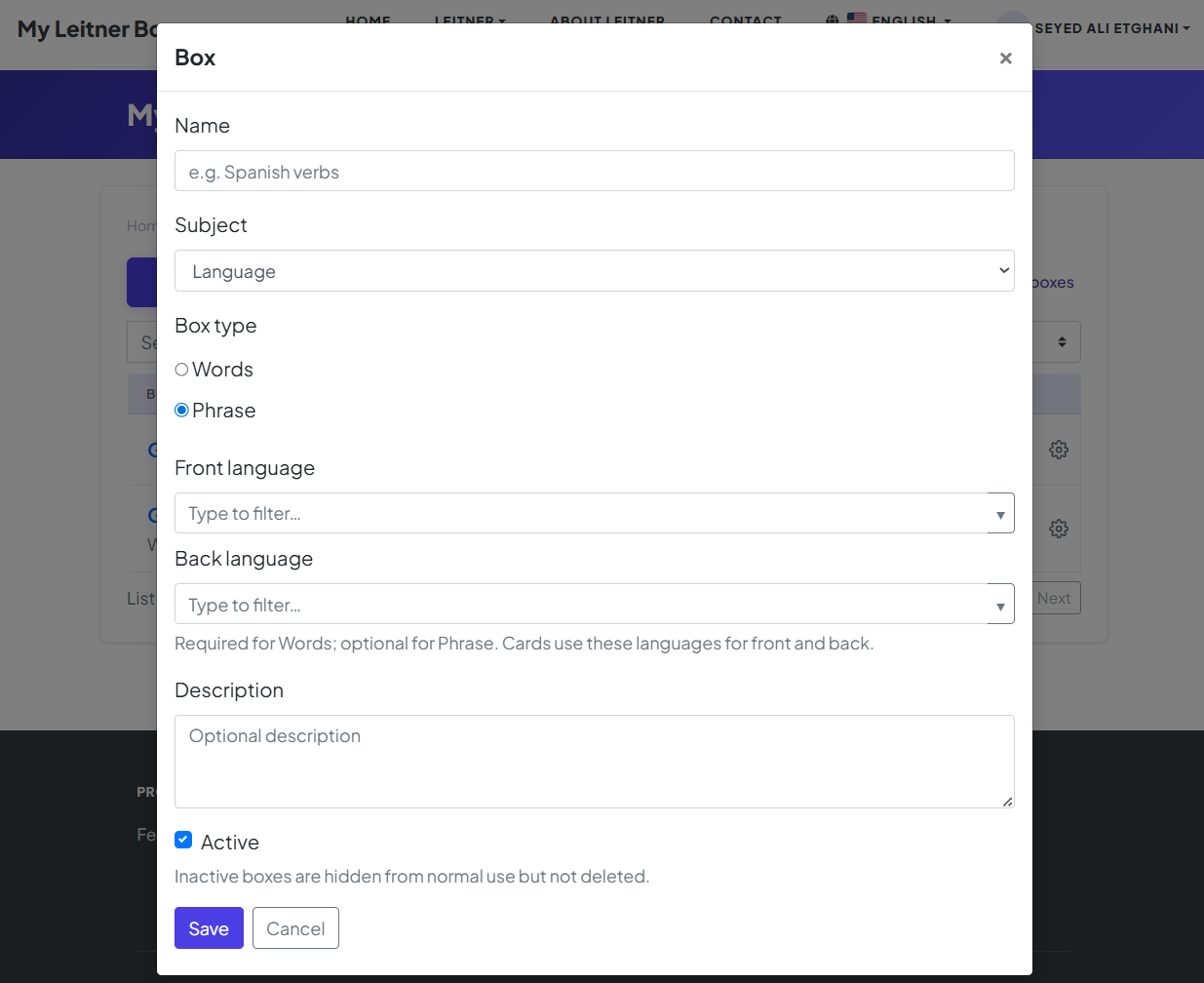
Categories (Subject Type)
You can choose from different categories depending on what you’re learning. That choice affects options later (especially for language-related setups).
If you choose Language:
-
Box type (Phrases or Words): Phrase: Better for full sentences and longer prompts.
-
Words: Better for vocabulary-style cards.
-
-
Front and Back Languages: For word boxes, specifying front and back languages is required.
-
For phrase boxes, it is optional but recommended so sorting, hints, and future reports stay meaningful.
-
If you choose “Other” as the subject:
-
Subject Label: Enter a clear label (e.g., “Piano chords” or “Nursing — pharmacology”). This helps you stay organized and keeps your reports and filters useful as you add more boxes.
Description (Optional)
There is a short description field where you can explain what the box is about. It’s optional, but it helps when you have many boxes or want to share context with your "future self."
What's Next?
Your box is now ready and waiting! The next step is to populate it with knowledge.
To learn how, check out the next part of our guide: [Getting started with My Leitner Box, Part 2: Add flashcards]