After you create a box, the next step is to fill it with knowledge. The kind of card you create depends on the box category you chose during setup.
This guide covers the three main flashcard types and how to get the most out of them.
How cards connect to your box
Whatever type you use, new cards are added directly to your box and enter your Leitner workflow. They will appear in your review sessions based on your schedule and how well you remember them.
1. Normal Phrases (General Topics)
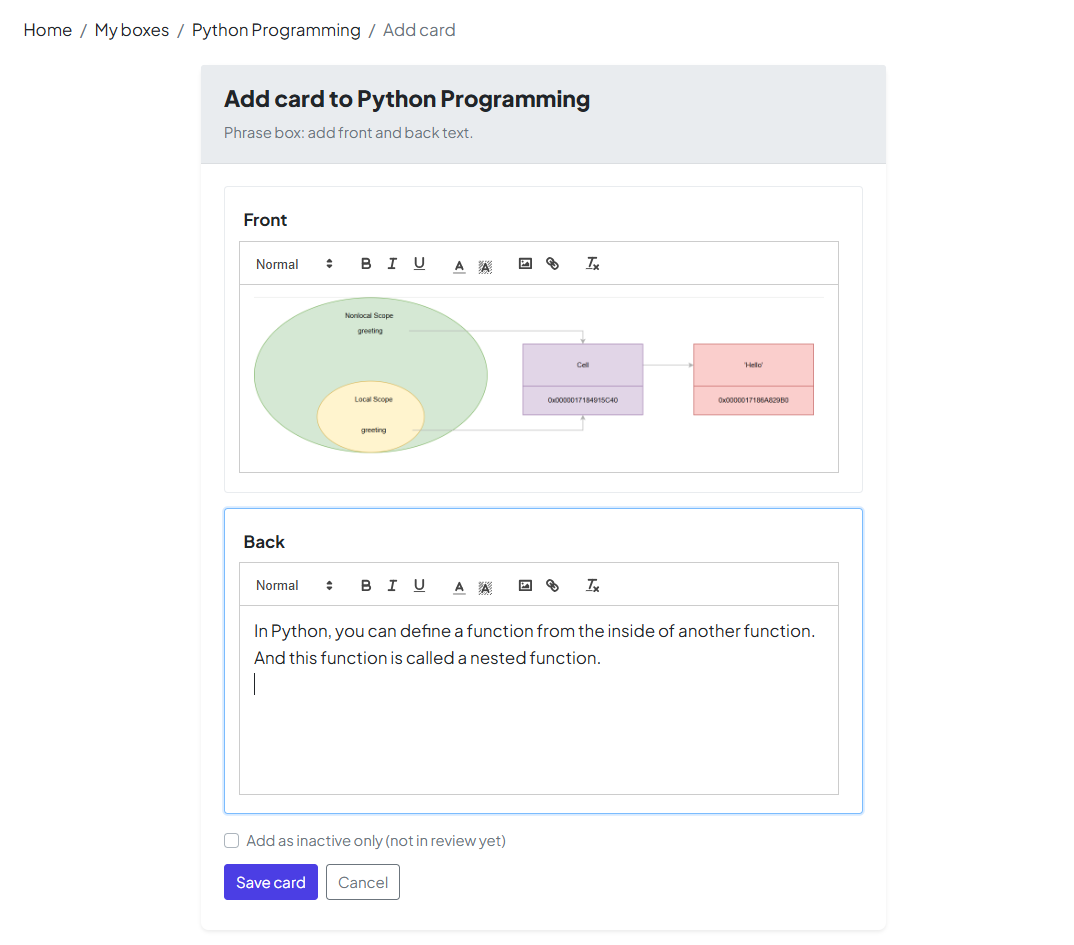
Best for: History, Science, or any topic where you want a simple Front/Back setup without language-specific tools.
-
Rich Text: Use the built-in editor to bold key terms or create lists.
-
Images: Upload photos or diagrams to illustrate ideas when text isn't enough.
-
Recall: In review, you’ll see the Front first and try to remember the Back.
2. Language — Phrases
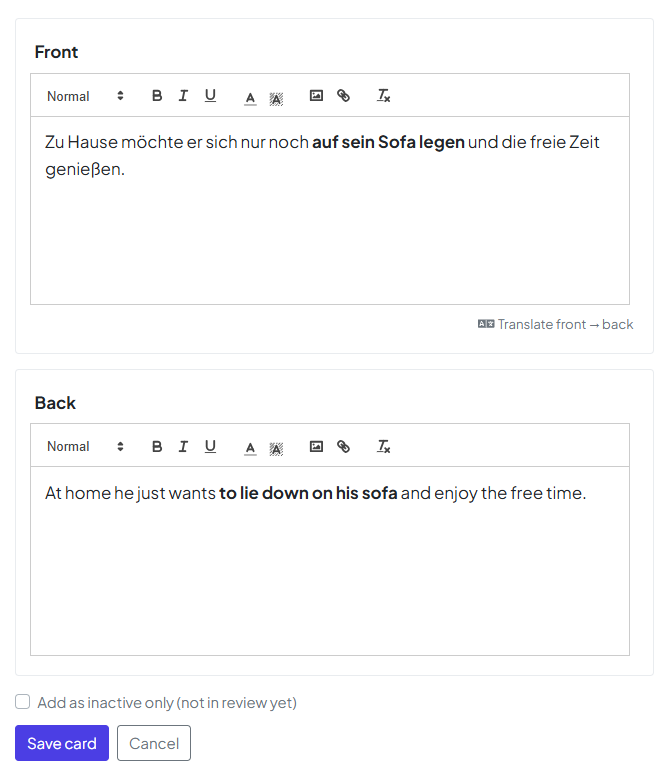
Best for: Learning in full sentences. This includes everything in "Normal Phrases" plus language-aware tools.
-
Automatic Translation: Quickly generate translations for your phrases.
-
Text-to-Speech (TTS): If you set your languages during box creation, you can use AI-based audio to hear the correct pronunciation.
-
Note: If you skipped language selection during box setup, these options may be limited.
3. Words (Vocabulary)
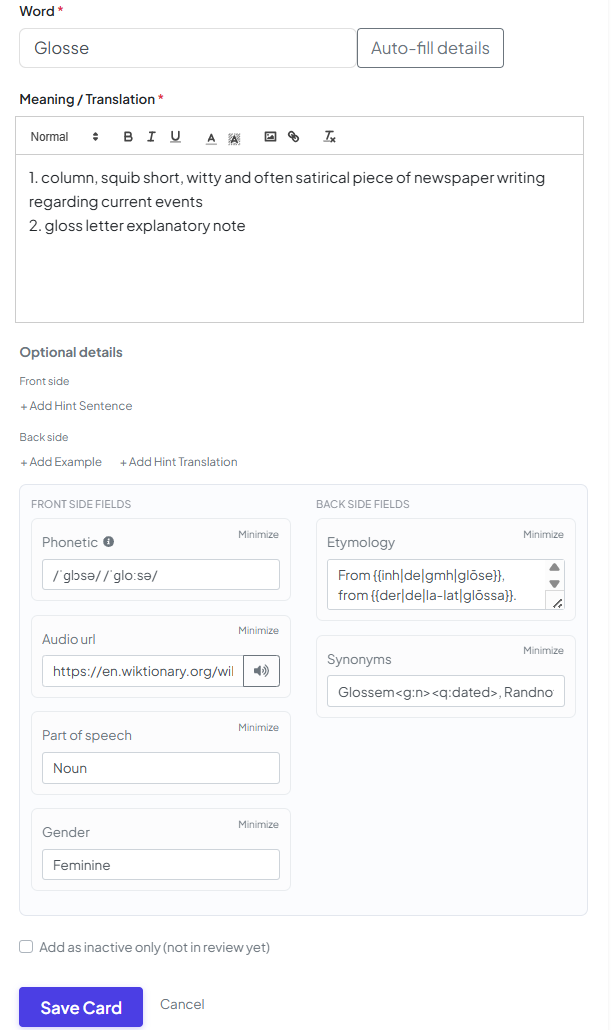
Best for: Deep vocabulary study. These cards provide more fields than a simple Front/Back to give you a 360-degree view of a word.
-
More Context: We recommend filling in as many optional fields as possible—extra context makes words much easier to remember.
-
Smart Assistance: To save time, use the Auto fill button. The app will pull structured information (definitions, examples, etc.) from Wiktionary so you don’t have to type everything by hand.
Where do new cards go?
After saving, cards typically start in Section 1.
💡 Pro Tip: Don't overwhelm yourself! If you import 100 cards at once, Section 1 can become an "enormous pile" that makes your daily reviews feel impossible. Consider marking some cards as Inactive at first, then activate them gradually as you master the current batch.
What’s next?
You now have the tools to build a powerful deck. The natural next step is to put your memory to the test!
→ [Getting started with My Leitner Box, Part 3: Run a review session]