🎬 Introduction
Yes , you can import your existing flashcards into MyLeitnerBox, whether they come from Anki, Quizlet, a CSV/Excel file, or another study app.
This guide walks through the full import flow, including how to create a new box or add cards to a box you already have.
1. Open the Import Menu
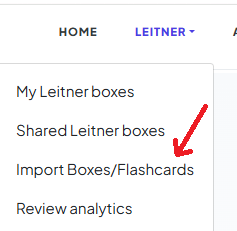
In the main menu, click on “Leitner”.
Then select “Import Boxes/Flashcards”.
2. Choose Import Source
You will be redirected to the “Import a Box” page.
| Source | What you provide |
|---|---|
|
Anki |
An .apkg deck file (max 30 MB) |
|
Quizlet |
Pasted text, or a .txt file (tab between term and definition) |
|
CSV file |
Any .csv spreadsheet — then map columns |
|
Excel file |
A .xlsx file (first sheet) |
|
JSON file |
A JSON array of objects |
|
Structured text |
FRONT/BACK blocks separated by --- |
|
Brainscape |
Brainscape CSV (Question/Answer) |
|
RemNote |
RemNote JSON (isFlashcard: true items) |
|
Vaia |
Vaia/StudySmarter CSV (Question/Answer) |
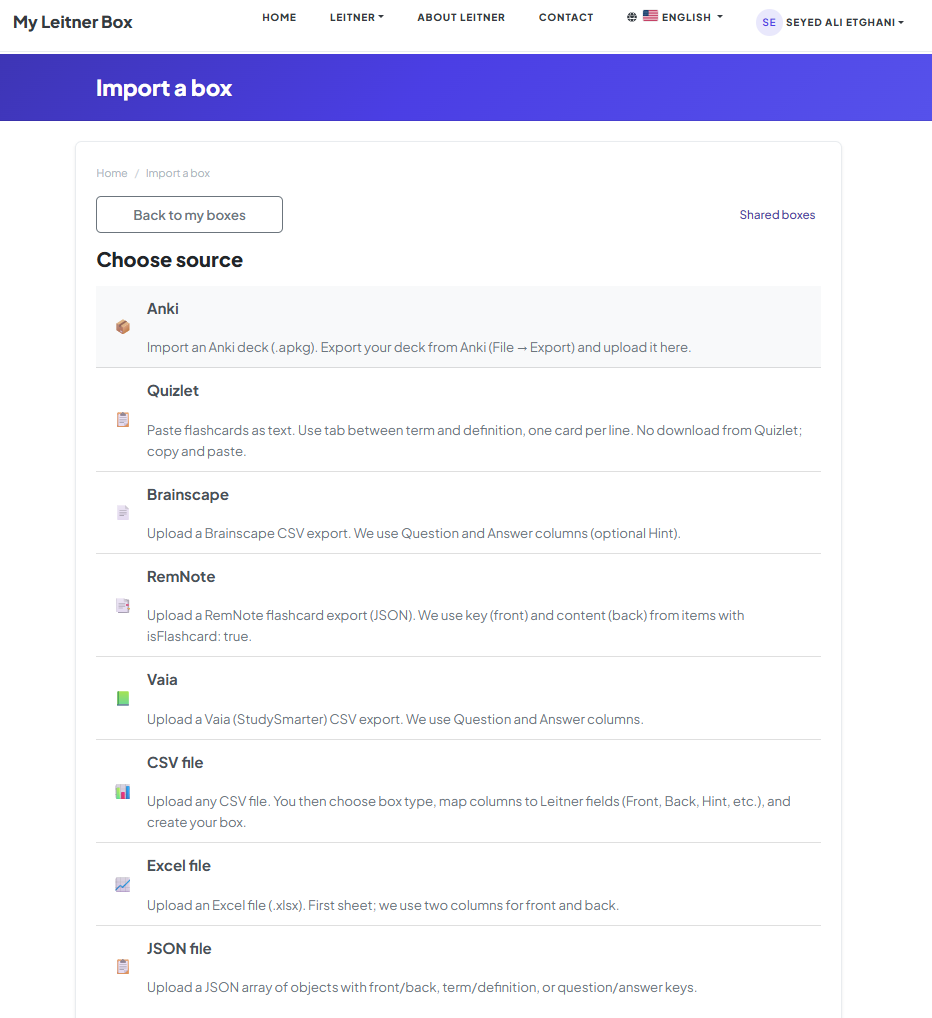
In this example, we will import an Anki deck.
3. Upload Your File
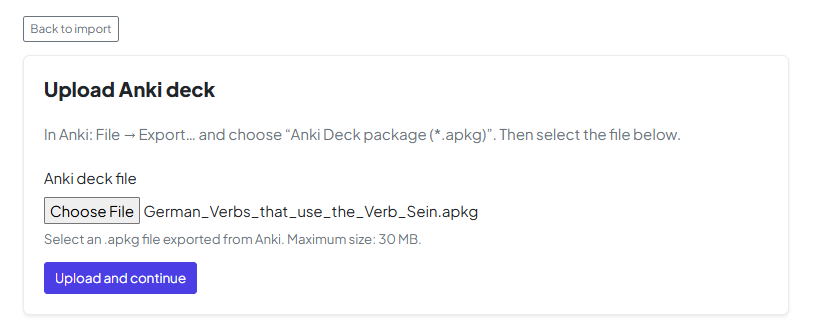
Upload your flashcard file using the file upload option.
4. Preview Your Data
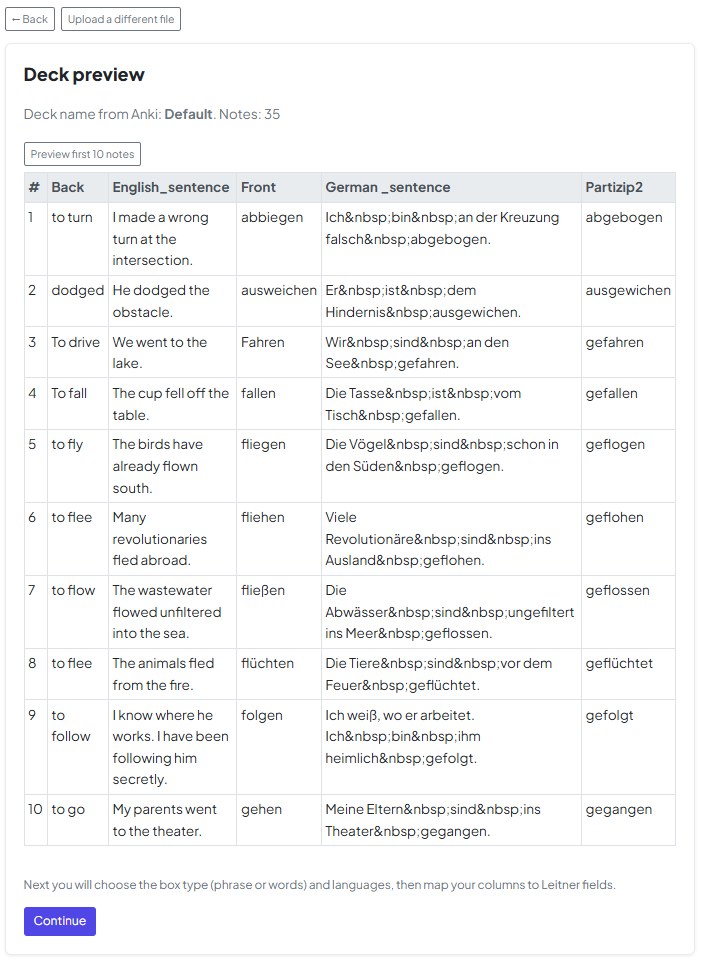
After uploading, you will see a preview of your data.
This step allows you to verify that the content has been imported correctly.
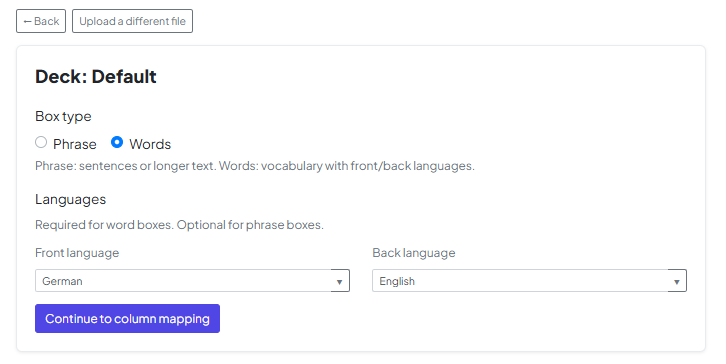
5. Configure Card Type & Language
Choose whether your deck consists of "Words" (vocabulary) or "Phrases" (longer text). At this stage, you must also set the Front and Back languages to ensure features like Text-to-Speech work correctly.
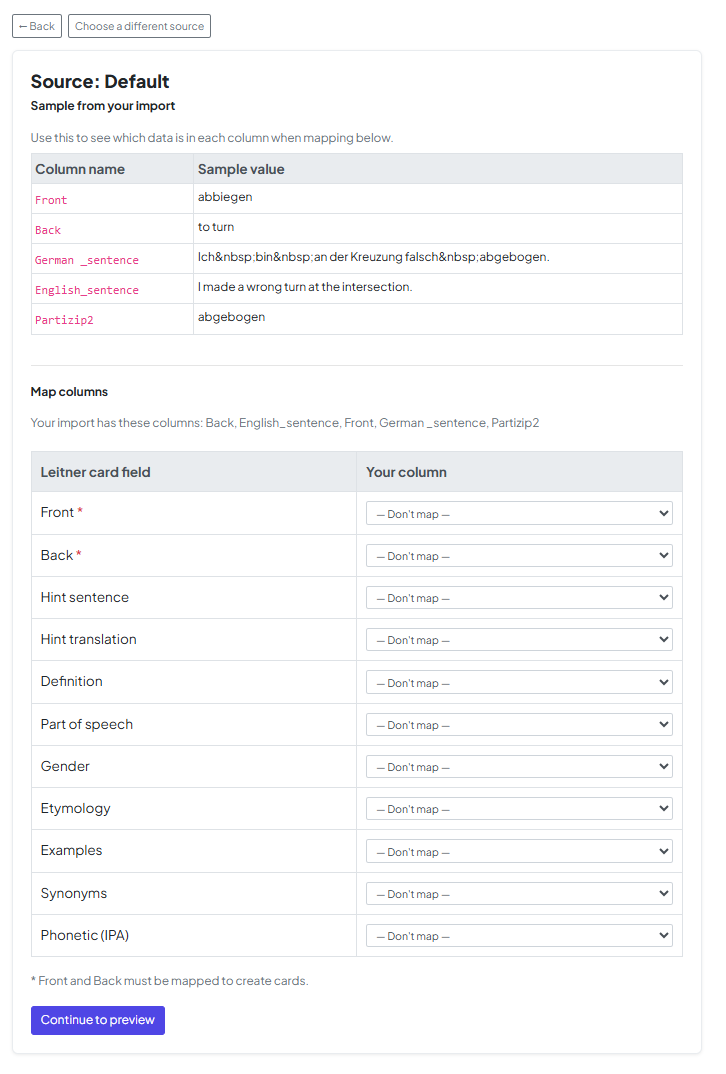
6. Map Flashcard Columns
Now, align the data from your file with the fields in MyLeitnerBox. You can map your file's columns to specific fields like Front, Back, Hint, or Definition.
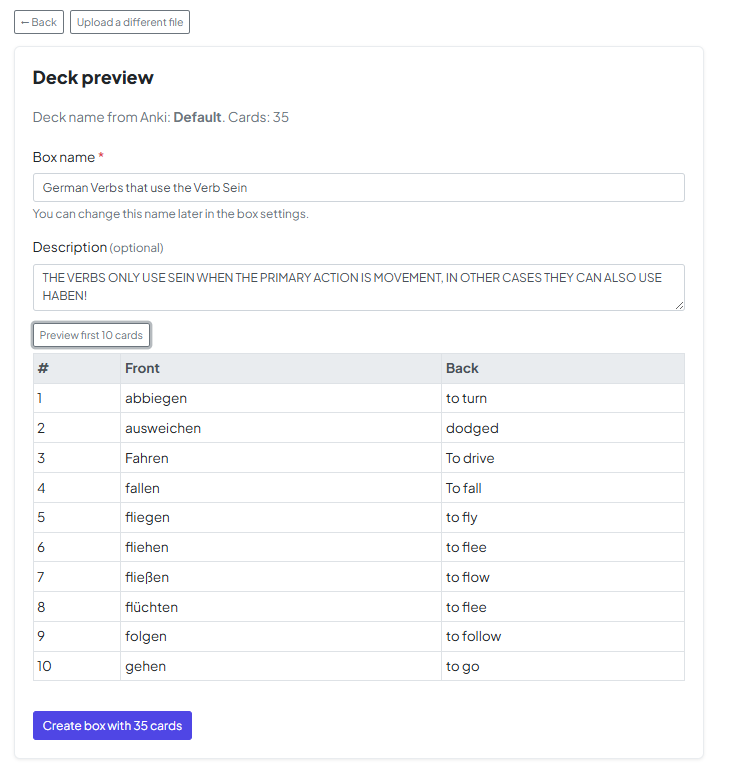
7. Name Your Box
Choose a name and optionally add a description for your new box.
8. Activate Your Flashcards
🎉 Your box has been created!
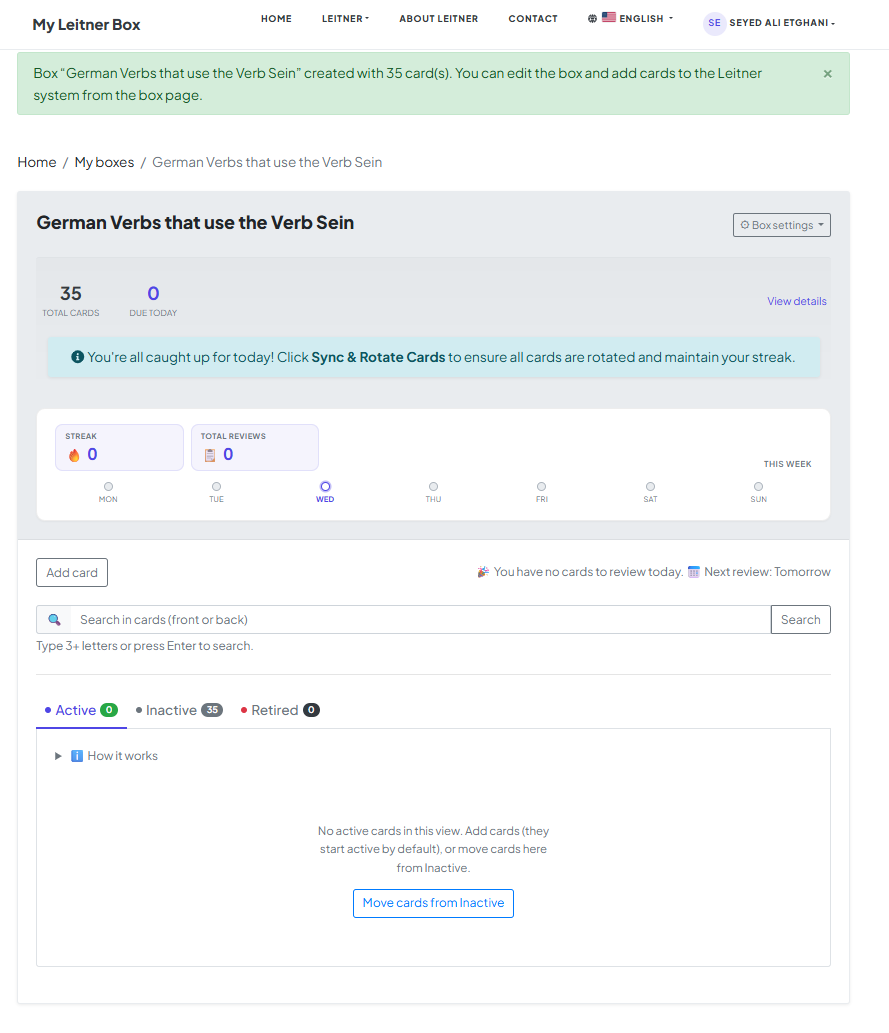
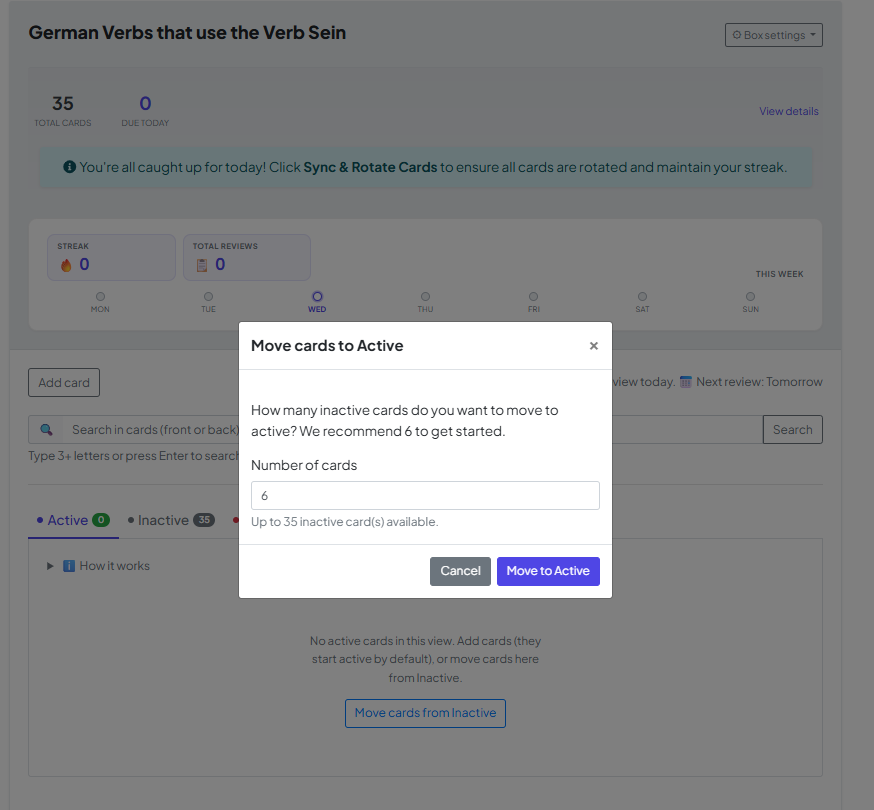
By default, all imported flashcards are in Queued mode.
To start using them:
- Click on “Move cards from Queued”
- Select how many cards you want to activate
9. Start Learning
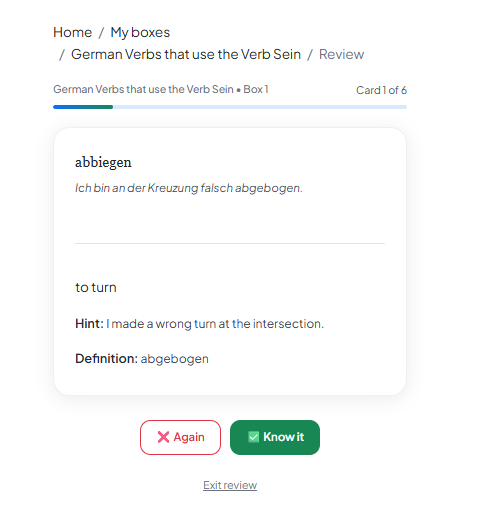
That’s it! Your flashcards are now ready.
You can start your review session and begin learning.
Happy learning! 😊
