ガイド

ガイドを参照 (変更するには選択してください)

ライトナーメソッドの仕組み

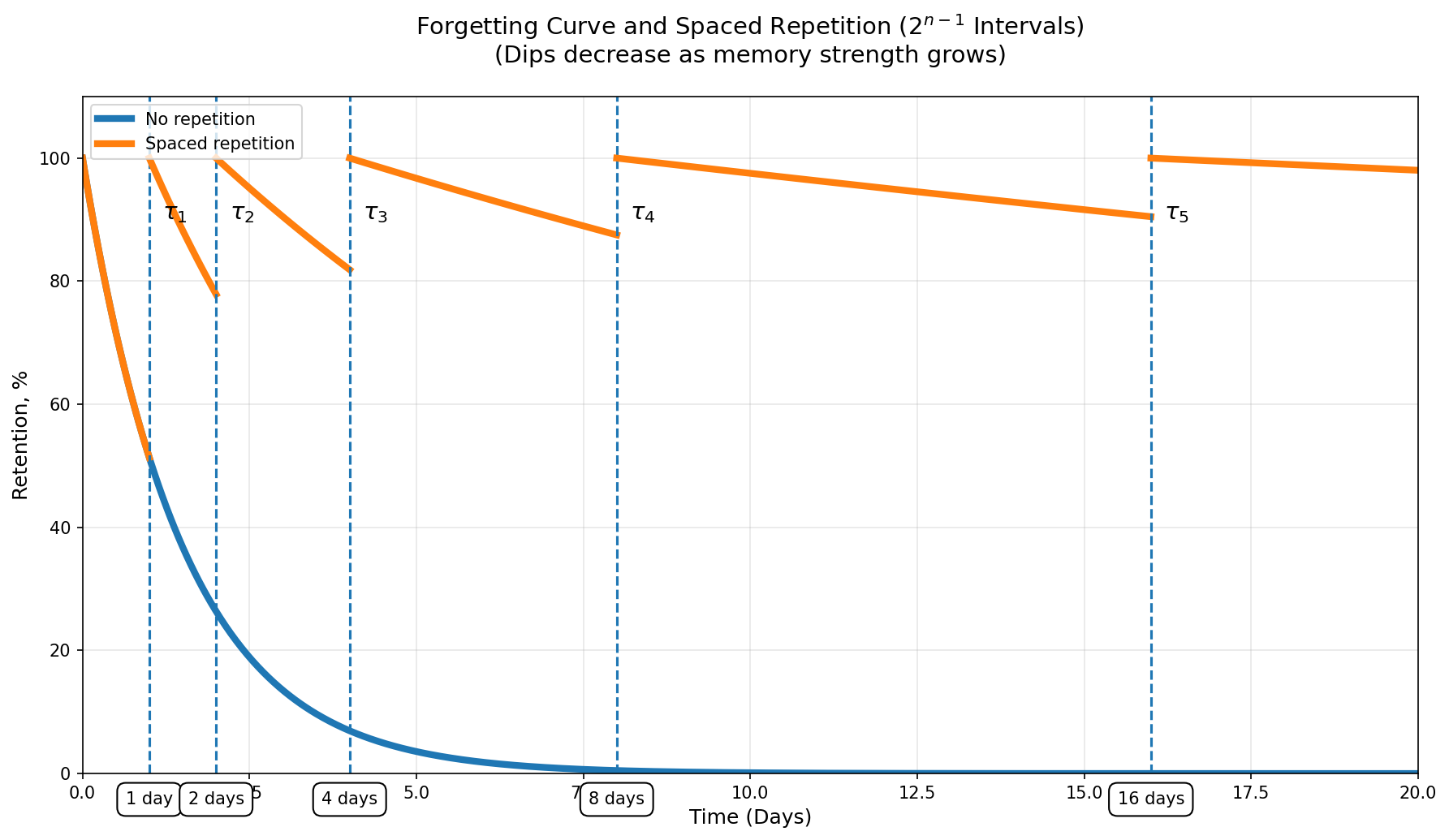
MyLeitnerBox は Leitner メソッドに基づいていますが、間隔をあけて繰り返すための明確なセクション/サブセクション構造で実装されています。

コア構造

    <リ>

    ここでは 5 つのセクションを使用します。

    <リ>

    各セクション n には 2^(n-1) サブセクションが含まれます。

    <リ>

    レビューサイクルの長さは次のようになります。

    <リ>

    セクション 1: 2^(1-1) = 1 サブセクション

    <リ>

    セクション 2: 2^(2-1) = 2 サブセクション

    <リ>

    セクション 3: 2^(3-1) = 4 つのサブセクション

    <リ>

    セクション 4: 2^(4-1) = 8 サブセクション

    <リ>

    セクション 5: 2^(5-1) = 16 サブセクション

カードが上位のセクションに移動すると、カードが確認される頻度が減ります。

カードの状態

  • 非アクティブ: カードはボックス内に存在しますが、まだ有効なレビューが行われていません。
  • アクティブ: カードはセクション/サブセクションにあり、レビューに参加しています。
  • 引退: カードは完全なシステムを完了しました (セクション 5 を卒業しました)。

レビューロジック

  • カードは、現在のセクションの最後のサブセクションに達したときに期限切れになります。
  • レビュー中:
    • 修正 ->次のセクション、サブセクション 1 に進みます。
    • 不正解 ->セクション 1、サブセクション 1 にリセットします。
  • セクション 5 でカードが正解した場合、そのカードは廃止になります。

これが機能する理由

この数式ベースの間隔 (2^(n-1)) は、記憶が強くなるにつれて間隔を増やしますが、難しいカードは最も頻繁なレビュー サイクルに戻されます。実際には、弱いカードに多くの時間を費やし、マスターされたカードにはあまり時間を費やしません。

フラッシュカードを MyLeitnerBox にインポートする方法

🎬 はじめに

はい。既存のフラッシュカードは、Anki、Quizlet、CSV/Excel ファイル、または他の学習アプリからのものであっても、MyLeitnerBox にインポートできます。

このガイドでは、新しいボックスを作成する方法や、既存のボックスにカードを追加する方法など、完全なインポート フローについて説明します。

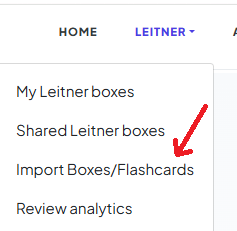
1.インポート メニューを開きます 

メイン メニューで、「ライトナー」 をクリックします。
次に、[ボックス/フラッシュカードをインポート]を選択します。

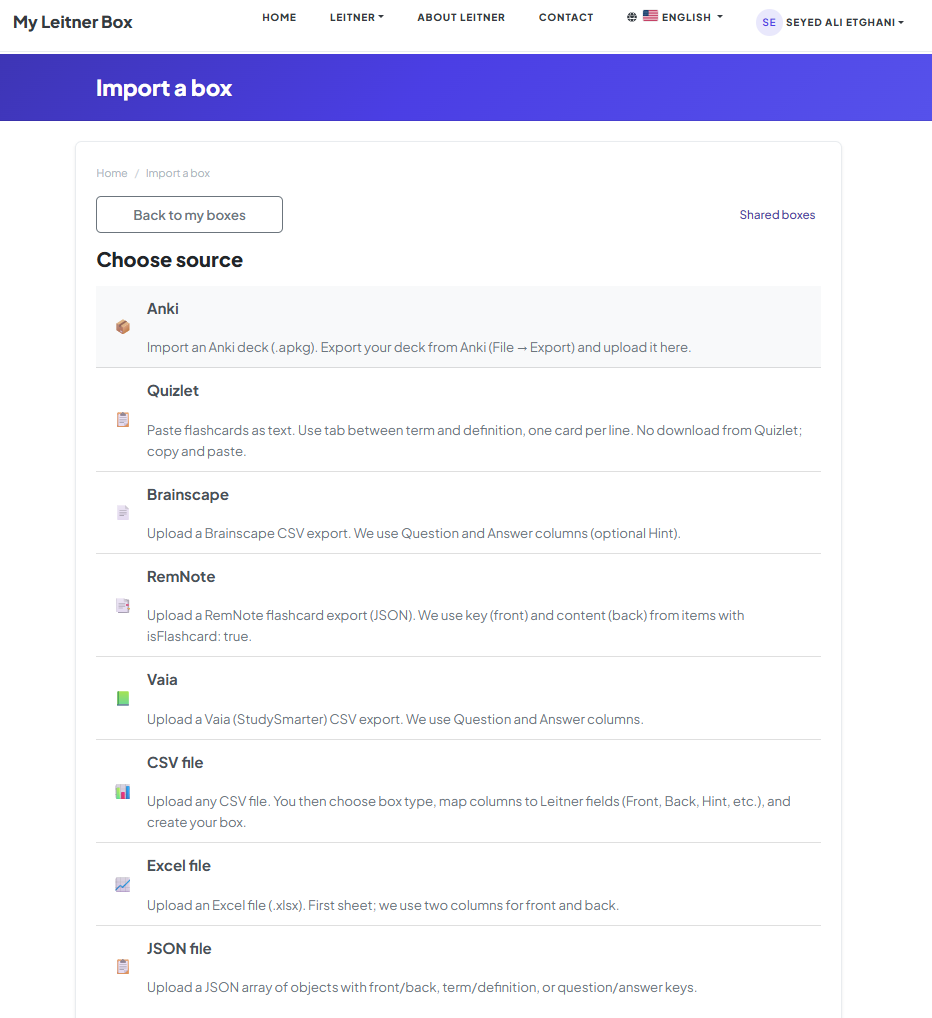
2.インポート元を選択 

「ボックスのインポート」 ページにリダイレクトされます。

<テーブル> <頭> ソース あなたが提供するもの <本体>

アンキ

.apkg deck ファイル (最大 30 MB)

クイズレット

貼り付けたテキスト、または .txt ファイル (用語と定義の間のタブ)

CSV ファイル

任意の .csv スプレッドシート —次に列をマップします

Excel ファイル

.xlsx ファイル (最初のシート)

JSON ファイル

オブジェクトの JSON 配列

構造化されたテキスト

--- で区切られた FRONT/BACK ブロック

ブレインスケープ

Brainscape CSV (質問/回答)

レムノート

RemNote JSON (isFlashcard: true items)

ヴァイア

Vaia/StudySmarter CSV (質問/回答)


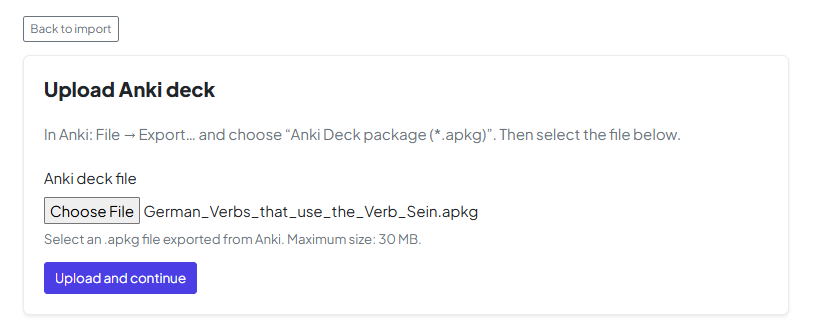
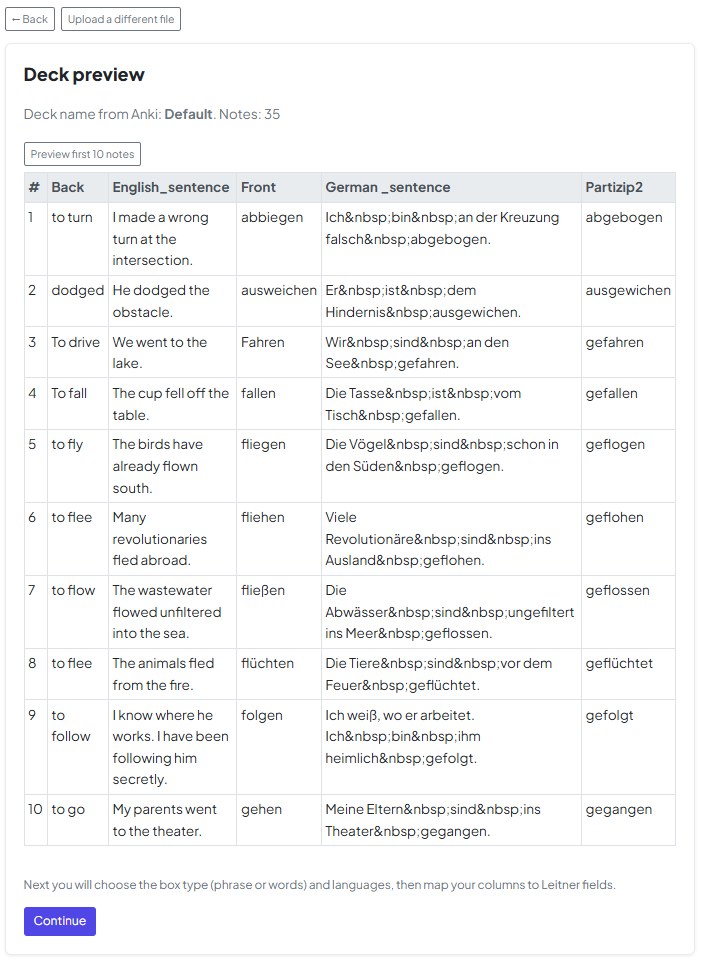
この例では、Anki デッキをインポートします。

3.ファイルをアップロード 

ファイル アップロード オプションを使用して、フラッシュカード ファイルをアップロードします。

4.データをプレビューする

アップロード後、データのプレビューが表示されます。
このステップにより、コンテンツが正しくインポートされたことを確認できます。

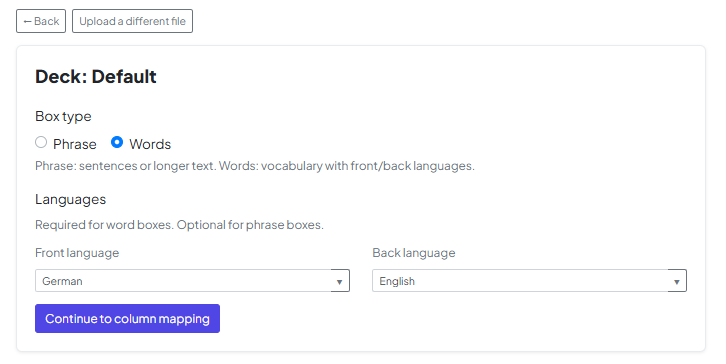
5.カードの種類とカードの設定言語

デッキを 「単語」 (語彙) または 「フレーズ」 (長文) のどちらで構成するかを選択します。この段階では、Text-to-Speech などの機能が正しく動作するように、フロント言語とバック言語も設定する必要があります。

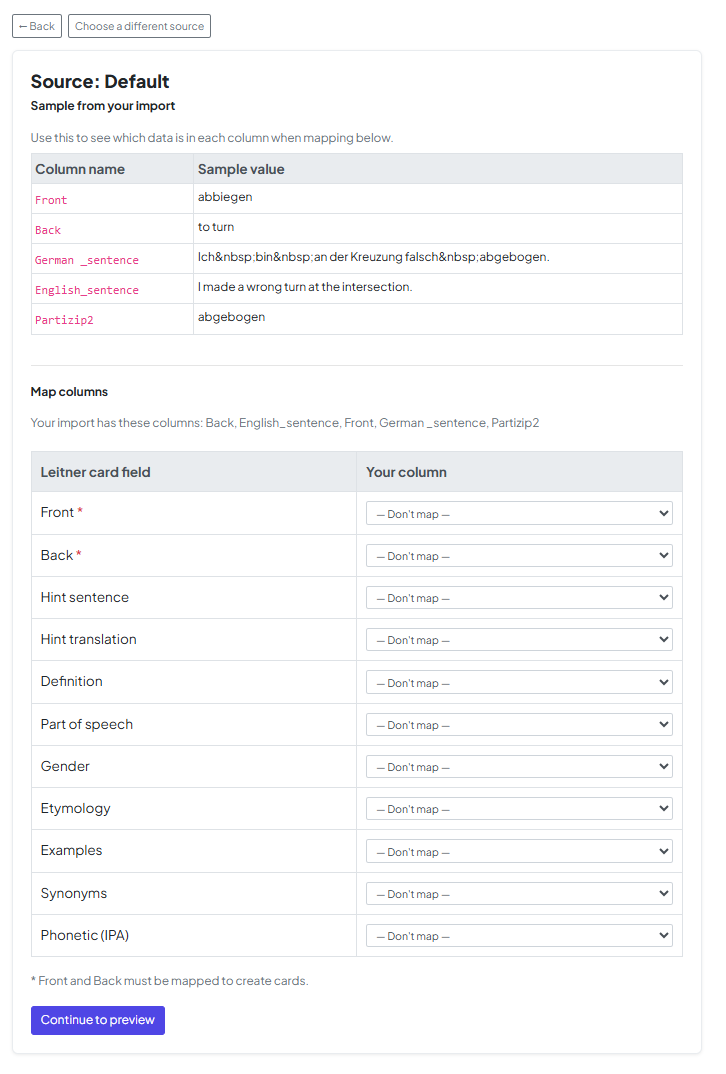
6.フラッシュカードの列をマップする

次に、ファイルのデータを MyLeitnerBox のフィールドに合わせます。ファイルの列をヒント、または定義などの特定のフィールドにマッピングできます。

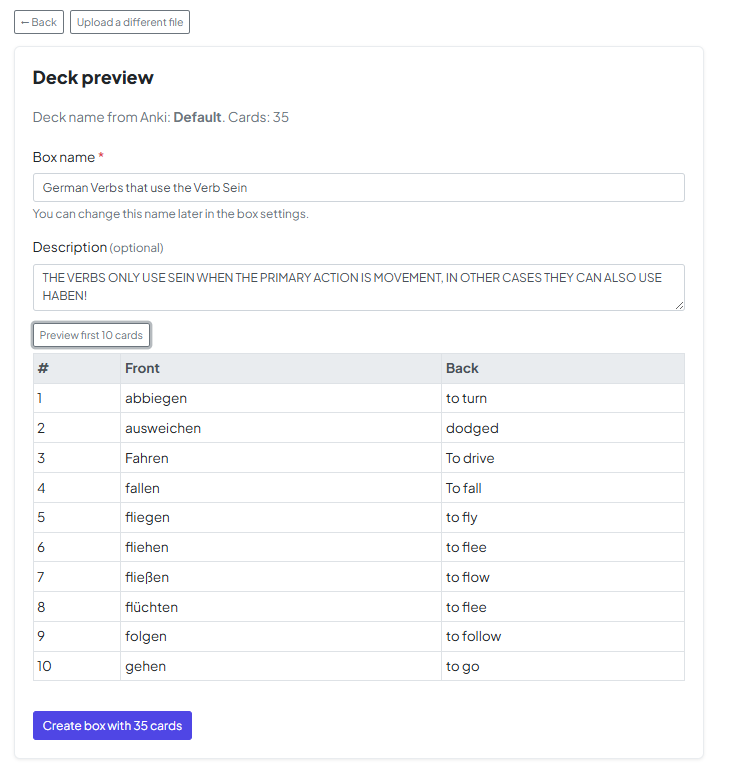
7.ボックスに名前を付けます 

新しいボックスの名前を選択し、必要に応じて説明を追加します。

8.フラッシュカードを有効にする 

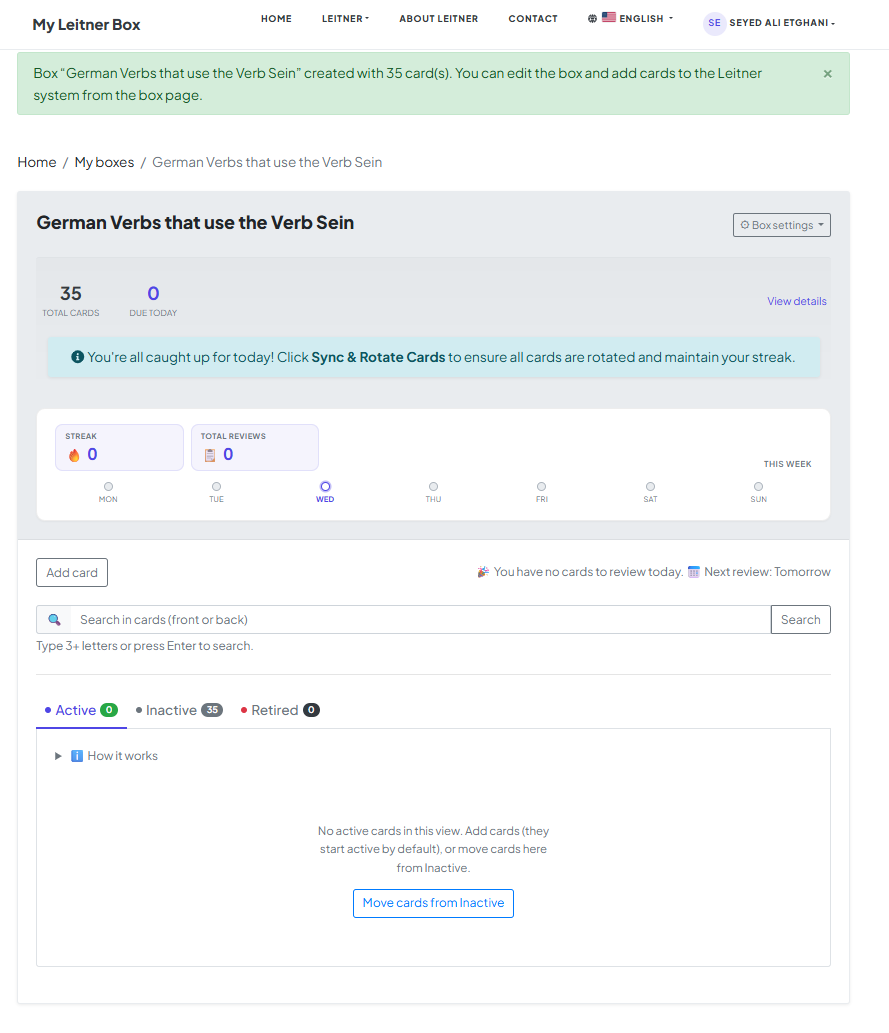
🎉 ボックスが作成されました!

デフォルトでは、インポートされたすべてのフラッシュカードはキュー モードになっています。

使用を開始するには:

  • 「キューにあるカードを移動」をクリックします
  • 有効化するカードの数を選択します

9.学習を開始

以上です!これでフラッシュカードの準備が整いました。

レビュー セッションを開始して学習を始めることができます。


楽しく学習しましょう! 😊

My Leitner Box の使用を開始する、パート 1: ボックスを作成する

MyLeitnerBoxボックスを中心に構築されています。各ボックスは、ライトナー メソッドでマスターしたい 1 つのトピックに関するフラッシュカードのコンテナです。ボックスに名前を付けると、後で何に使用するかが明確になります (例: “スペイン語動詞 — A2” または “Biology — cell分裂”)。

開始方法

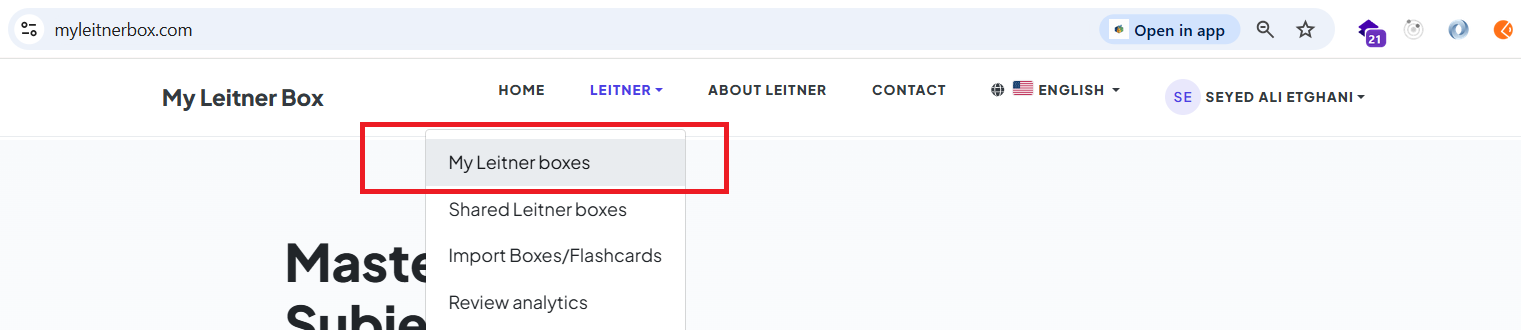
まず、メイン メニューを開き、ボックス ページに移動します。

または、https://www.myleitnerbox.com/leitner/ に直接アクセスすることもできます。

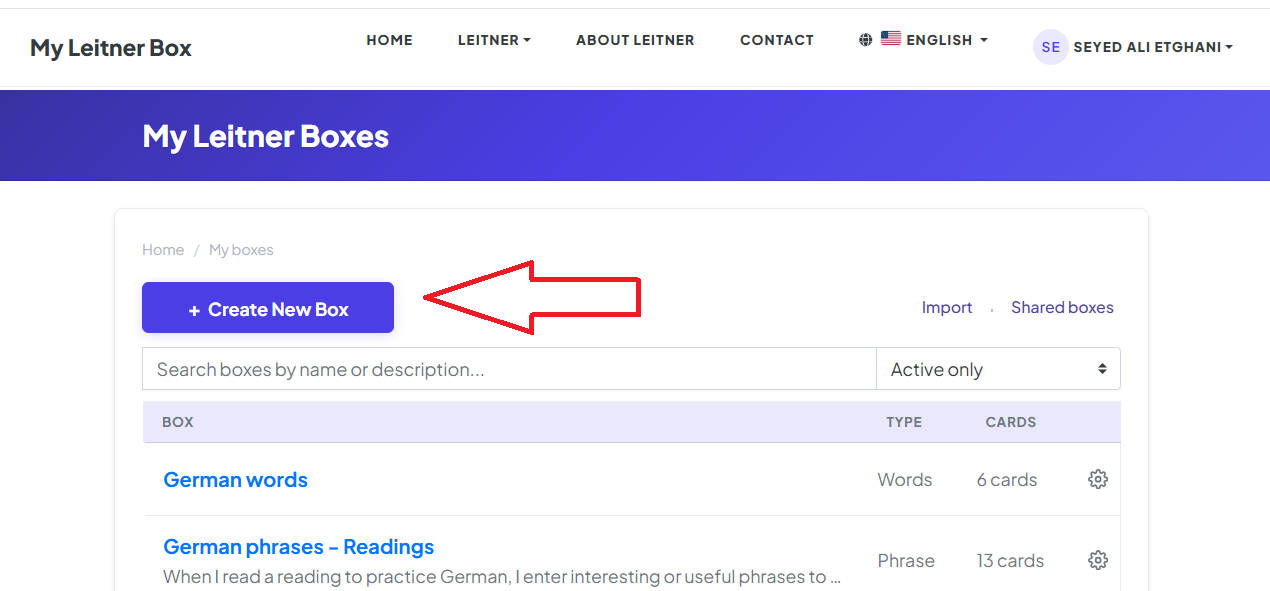
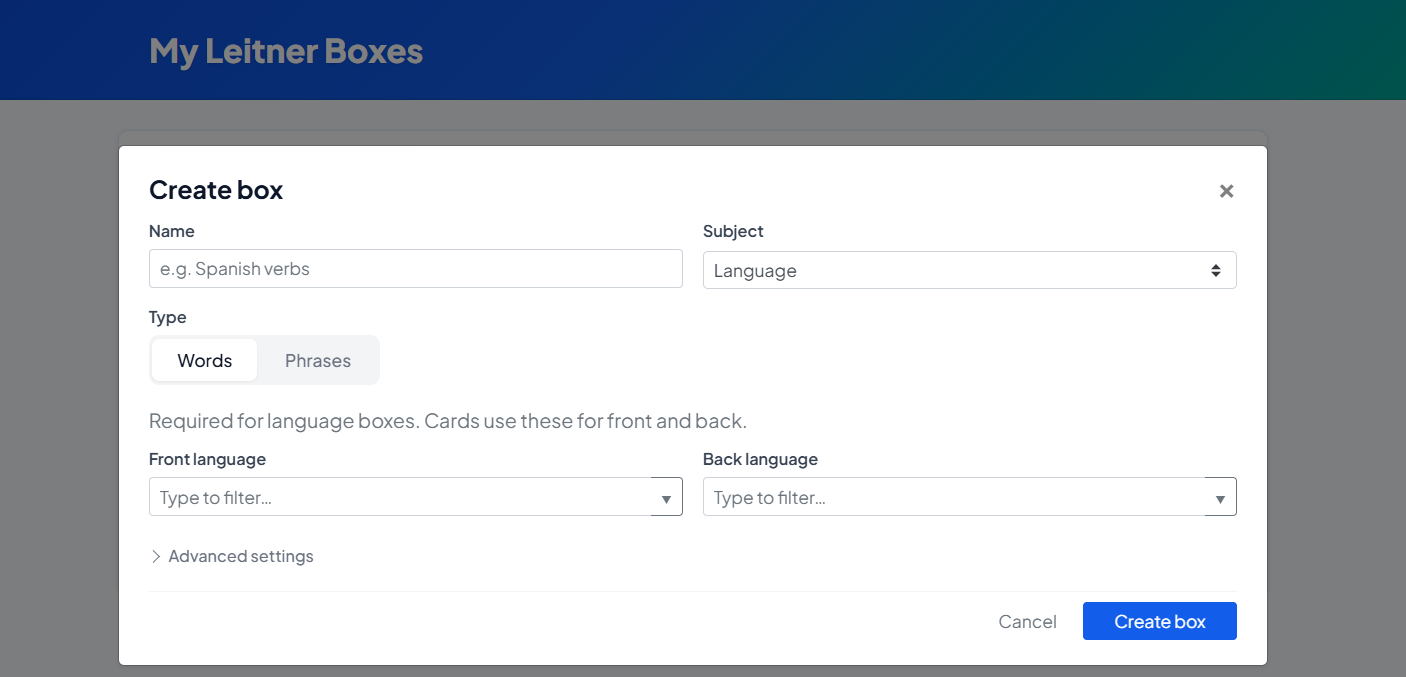
このページで、[新しいボックスの作成] ボタンをクリックします。

クリックすると、ボックス作成モーダルが表示されます。

カテゴリ (件名の種類)

学習内容に応じて、さまざまなカテゴリから選択できます。この選択は、後のオプション (特に言語関連の設定) に影響します。

言語を選択した場合:

    <リ>

    ボックスの種類 (フレーズまたは単語): フレーズ: 完全な文や長いプロンプトに適しています。

      <リ>

      単語: 語彙スタイルのカードに適しています。

    <リ>

    表と裏の言語: 単語ボックスの場合、表と裏の言語を指定することが必須です。

      <リ>

      フレーズ ボックスの場合、これはオプションですが、並べ替え、ヒント、将来のレポートが意味のあるものとなるように推奨します。

「その他」を選択した場合は、件名として:

    <リ>

    件名ラベル: 明確なラベルを入力します (例: 「ピアノ コード」 または 「看護 — 薬理学」)。これにより、ボックスを追加する際にレポートやフィルタを整理整頓し、有用な状態に保つことができます。

説明 (オプション)

ボックスの内容を説明できる短い説明フィールドがあります。これはオプションですが、ボックスがたくさんある場合や、「将来の自分」とコンテキストを共有したい場合に役立ちます。


次は何ですか?

ボックスの準備が整い、お待ちしています。次のステップは、知識を入力することです。

その方法については、ガイドの次の部分をご覧ください: [My Leitner Box の使用を開始する、パート 2: フラッシュカードの追加]

My Leitner Box の使用を開始する、パート 2: フラッシュカードを追加する

ボックスを作成したら、次のステップはボックスに知識を入力することです。作成するカードの種類は、セットアップ時に選択したボックス カテゴリによって異なります。

このガイドでは、3 つの主要なフラッシュカード タイプと、それらを最大限に活用する方法について説明します。


カードをボックスに接続する方法

使用するタイプに関係なく、新しいカードがボックスに直接追加され、ライトナー ワークフローに入ります。これらは、あなたのスケジュールと、どれだけ覚えているかに基づいて、レビュー セッションに表示されます。


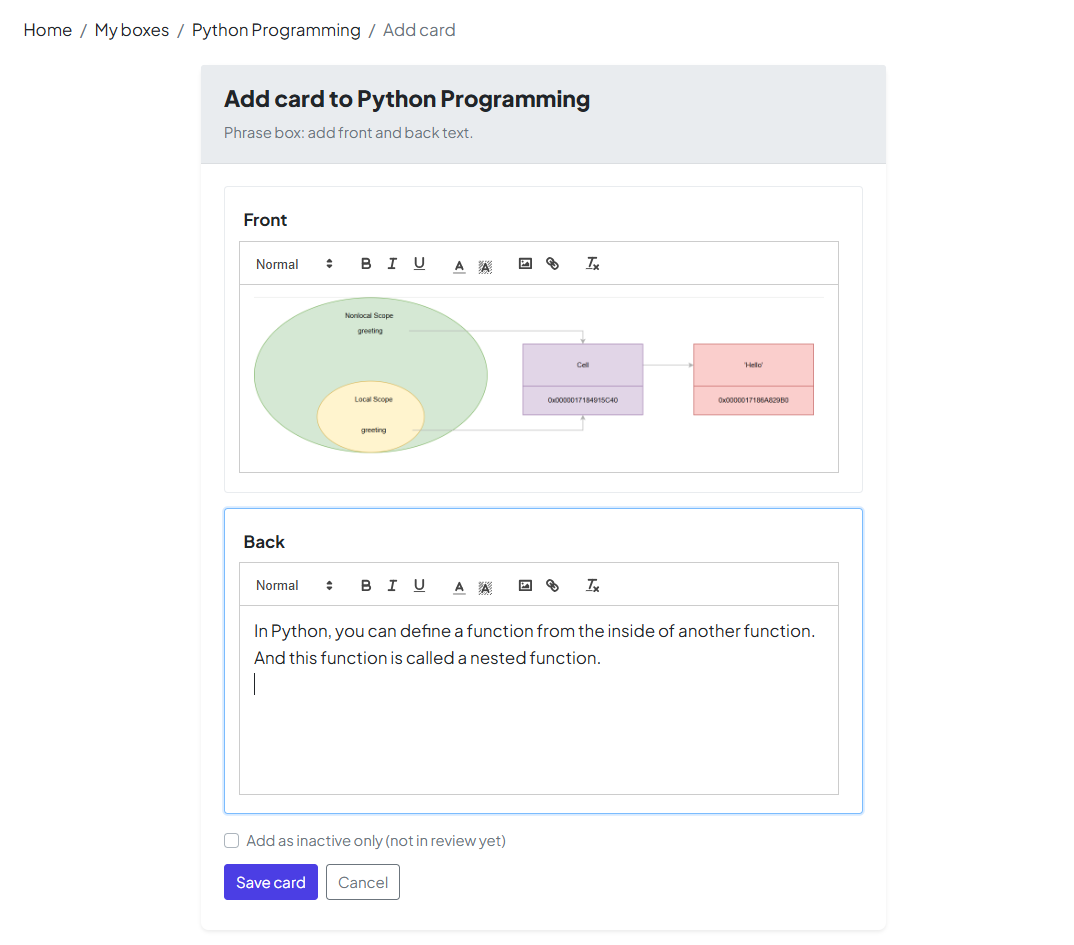
1.通常のフレーズ (一般的なトピック)

最適な用途: 歴史、科学、または言語固有のツールを使用せずに簡単な表と裏のセットアップが必要なトピック。

    <リ>

    リッチ テキスト: 組み込みエディタを使用して、重要な用語を太字にしたり、リストを作成したりできます。

    <リ>

    画像: テキストだけでは不十分な場合は、写真や図をアップロードしてアイデアを説明します。

    <リ>

    思い出す: 復習では、最初に表面を見て、裏面を思い出してください。


2.言語 -フレーズ

次のような場合に最適です: 全文で学習します。これには「通常のフレーズ」のすべてが含まれます。プラス言語対応ツール。

    <リ>

    自動翻訳: フレーズの翻訳をすばやく生成します。

    <リ>

    テキスト読み上げ (TTS): ボックスの作成時に言語を設定すると、AI ベースの音声を使用して正しい発音を聞くことができます。

    <リ>

    注: ボックスのセットアップ中に言語の選択をスキップした場合、これらのオプションは制限される可能性があります。


3.単語 (語彙)

こんな方に最適: 語彙を徹底的に勉強します。これらのカードには、単純な表/裏よりも多くのフィールドがあり、単語を 360 度見ることができます。

    <リ>

    詳細なコンテキスト: できるだけ多くのオプション フィールドに入力することをお勧めします。コンテキストを追加すると、単語を覚えやすくなります。

    <リ>

    スマート アシスタント: 時間を節約するには、自動入力ボタンを使用します。アプリはウィクショナリーから構造化情報 (定義、例など) を取得するため、すべてを手で入力する必要はありません。


新しいカードはどこに行くのですか?

保存後、カードは通常セクション 1 から始まります。

💡 プロのヒント: 無理をしないでください。 一度に 100 枚のカードをインポートすると、セクション 1 が「巨大な山」になる可能性があります。そのため、毎日のレビューが不可能に感じられます。最初に一部のカードをキュー中としてマークし、現在のバッチをマスターするにつれて徐々に有効にすることを検討してください。


次は何ですか?

これで、強力なデッキを構築するためのツールが手に入りました。当然の次のステップは、記憶力をテストすることです。

→ [My Leitner Box の使用を開始する、パート 3: レビュー セッションを実行する]

My Leitner Box の使用を開始する、パート 3: レビュー セッションを実行する

カードを追加したら、最も重要な部分であるレビューの準備が整います。ここでは、アクティブ リコールを練習し、進行状況に基づいて ライトナー セクション内でカードを移動します。

1.箱を開けて、今日の目標を確認してください

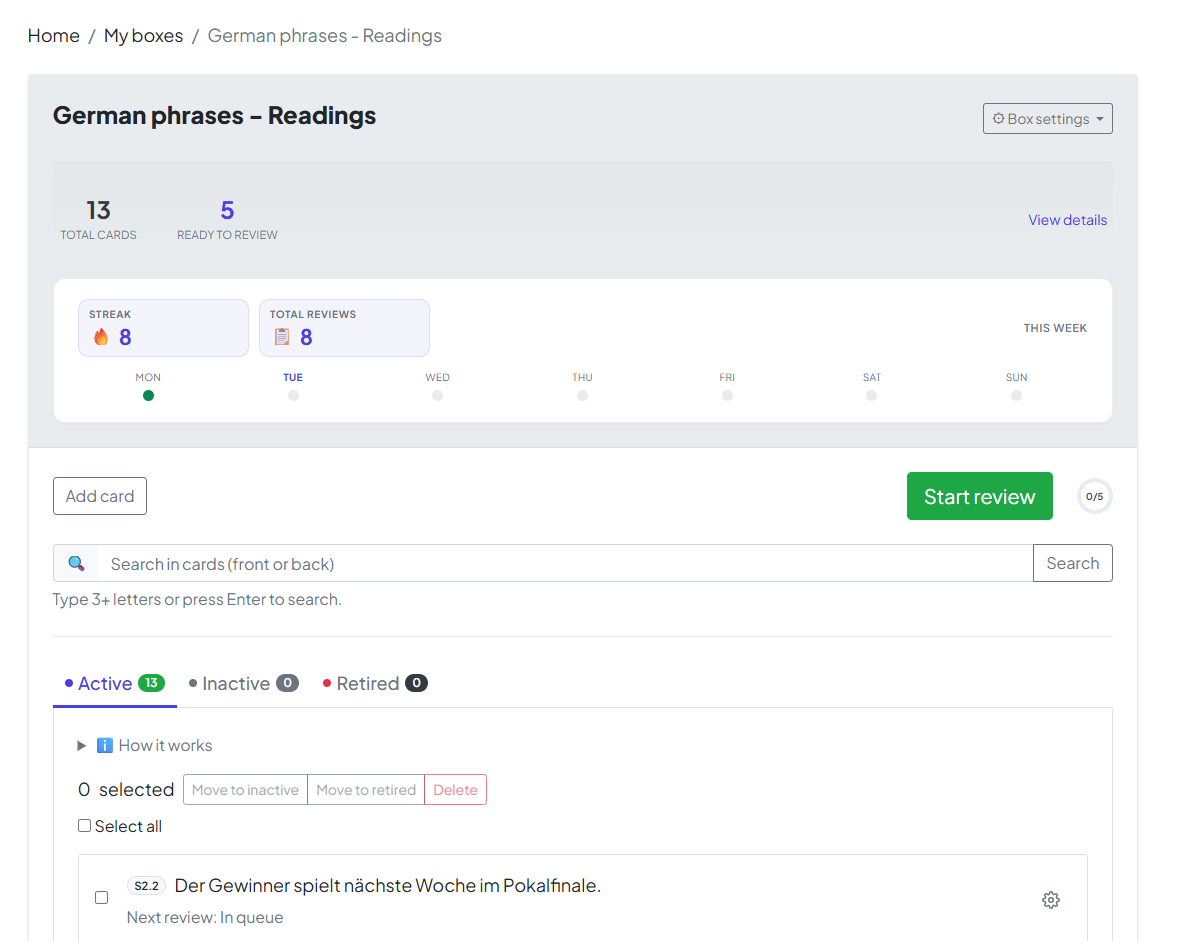
ボックス名をクリックして、ダッシュボードを開きます。上部に概要が表示されます。

    <リ>

    合計カード: このボックス内のすべてのカード。

    <リ>

    確認の準備ができました: 今日が期限のカードの数。これがゼロより大きい場合は、開始する準備ができています。

2.レビューの流れ

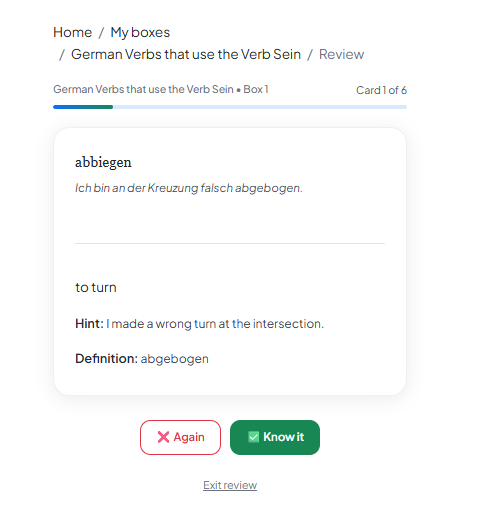
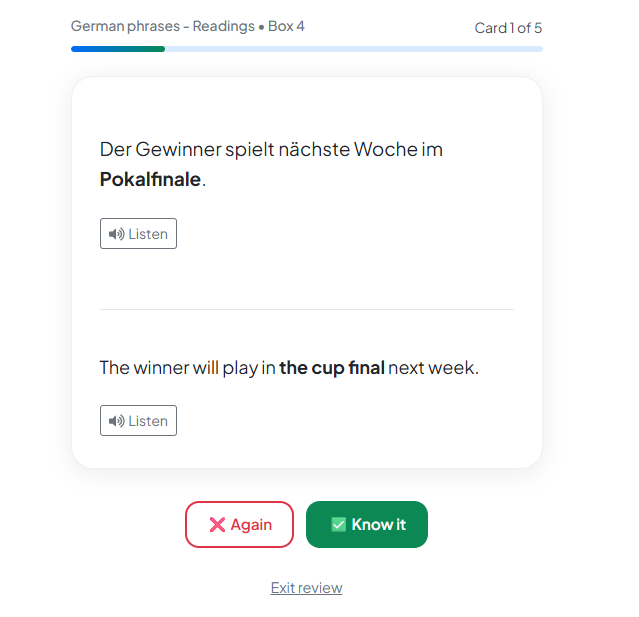
[レビューを開始] をクリックします。アプリでは最初にカードの表面が表示されます。答えを思い出してから、裏面を公開して自己採点してください。

🔊 プロのヒント: AI を活用したリスニング

[言語フレーズ] ボックスで、[聞く] ボタンを探します。私たちは高度な AI を使用してネイティブ レベルのテキスト読み上げを提供し、記憶とともに発音を習得できるように支援します。

注: このため、ボックスの作成時に言語を設定することが非常に重要です。これにより、AI にフレーズの発話方法が正確に指示されます。 


3.セッションを完了する

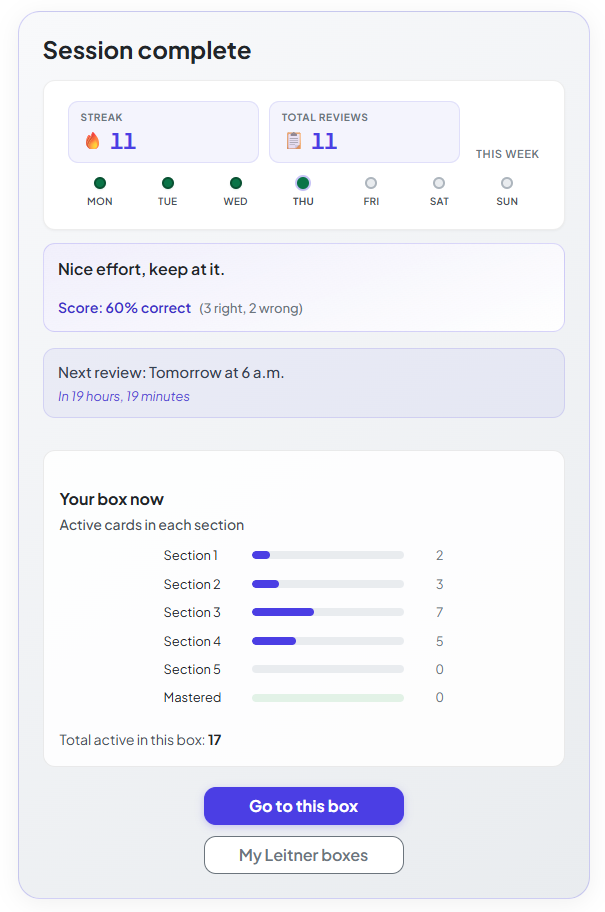
セッションは、現在のバッチ内のすべてのカードを終了したときにのみ完了します。 連続記録を維持し、完走統計を更新するには、フルランを完走する必要があります。

4. 「休息」期間

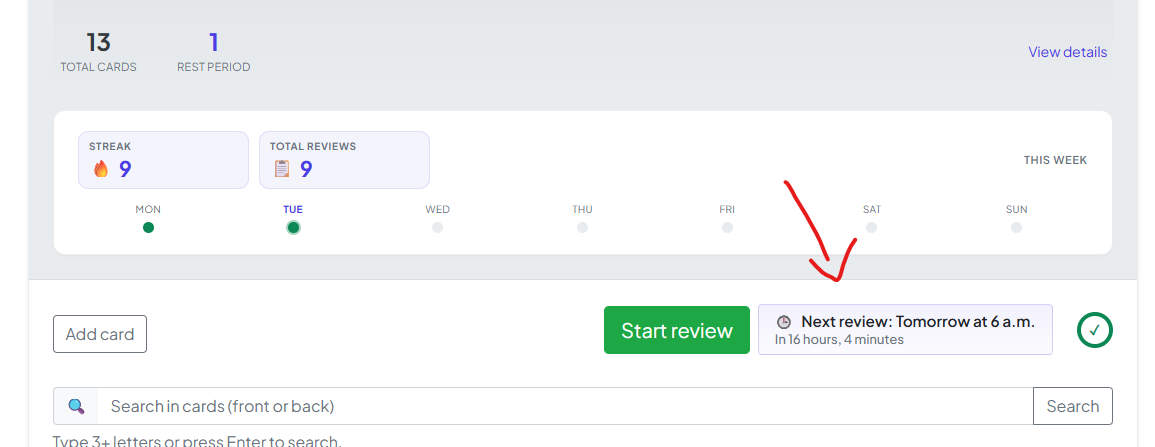
終了後、アプリは短い休憩期間を強制します。間隔をあけて繰り返すのは、1 日に同じカードを勉強しすぎない場合に最も効果的です。次のセッションが利用可能になると、ボックス ページが正確に表示されます。


準備は完了です!

これで完全なループが完成しました: Create → &rar; を追加します。レビューします。このサイクルに従うことで、今日学んだことが長期にわたって確実に残るようになります。

楽しく学習してください。私たちはあなたを応援しています!

レビュー分析をマスターする

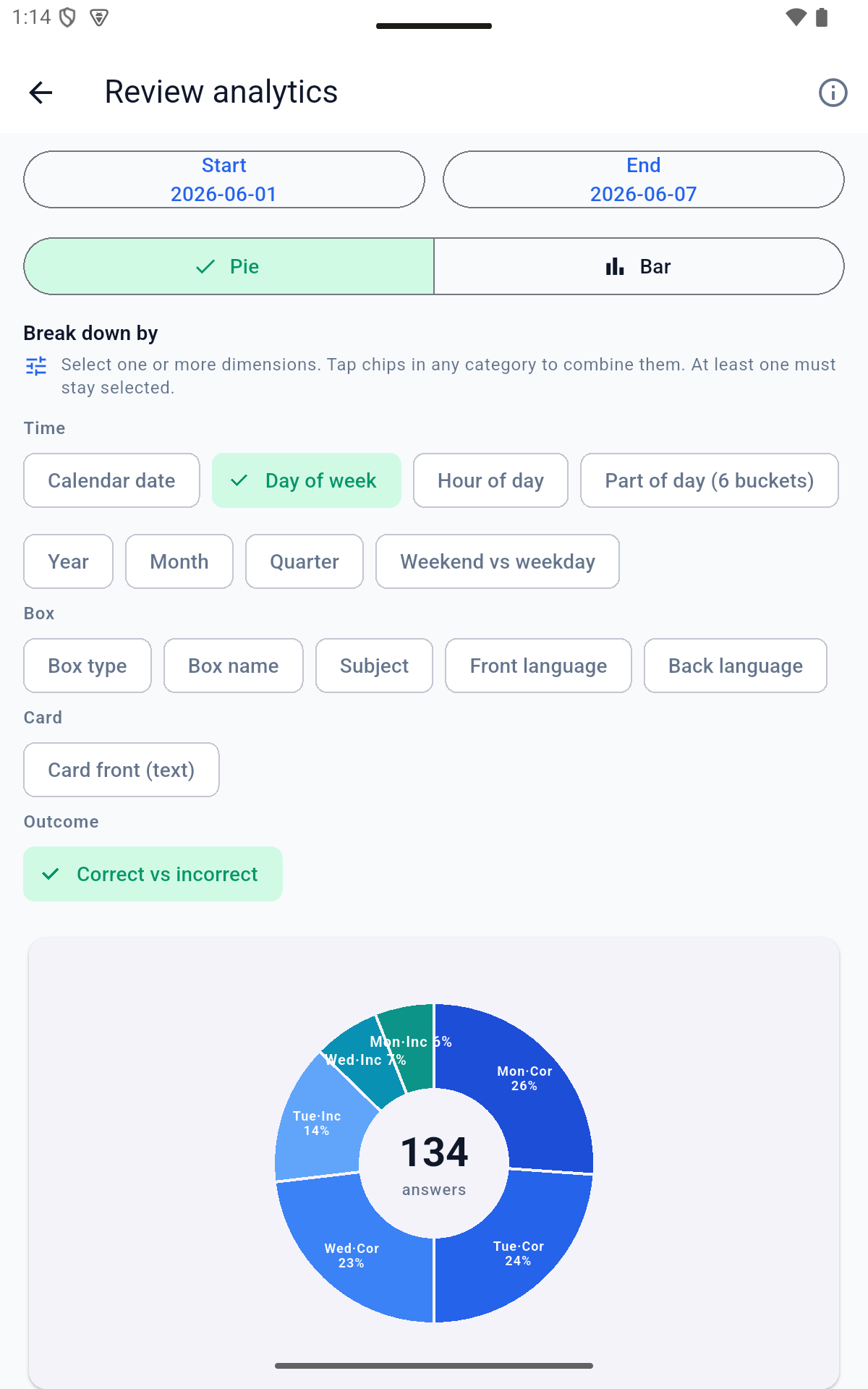
レビュー分析は、学習履歴を個人のロードマップに変換します。推測するのではなく、自分自身のデータを使用して、自分の「ゴールデン アワー」を見つけてください。集中力を高め、改善する必要がある箇所を正確に特定します。

1.ロックを解除する方法

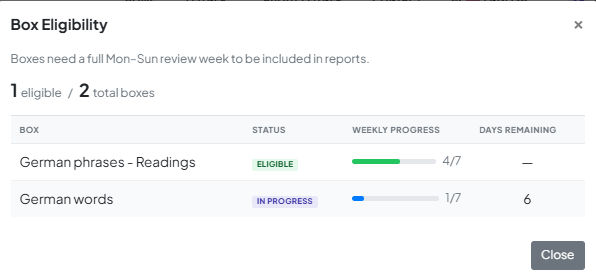
データが意味のあるものであることを確認するために、少なくとも 1 つのボックスで月曜から日曜までの丸 1 週間の一貫した習慣を確立すると、Analytics のロックが解除されます。

    <リ>

    情報バー: ページの上部にあるこのバーは、ステータスを追跡します。ロックを解除するために何が必要か、または現在どのボックスが含まれているかがわかります。

    <リ>

    資格パネル: 情報バーをクリックすると、所有しているすべてのボックスの内訳が表示されます。ステータス (対象、進行中、または保留中) と、連続記録の残り日数の視覚的なカウントダウンが表示されます。


ヒント: すべてをロック解除する必要はありません。 1 つのボックスの準備ができたらすぐにご利用いただけます。

2.洞察を生み出す

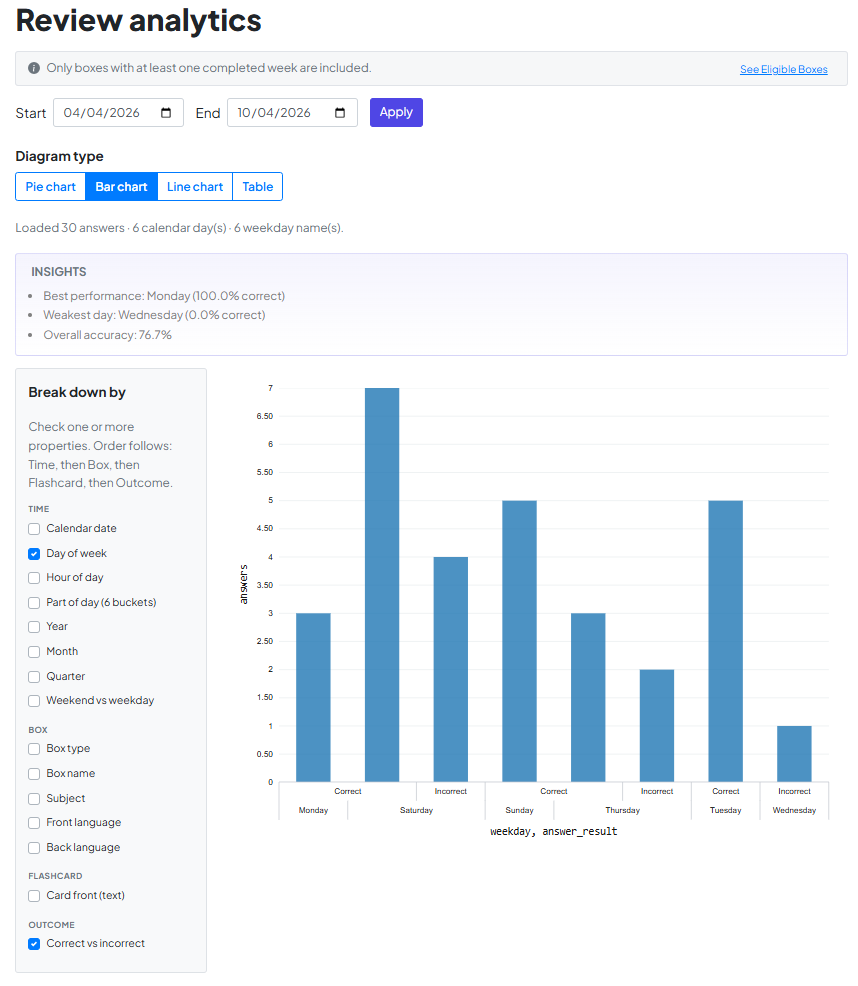
ロックを解除すると、データをスライスして細分化できるようになります。

    <リ>

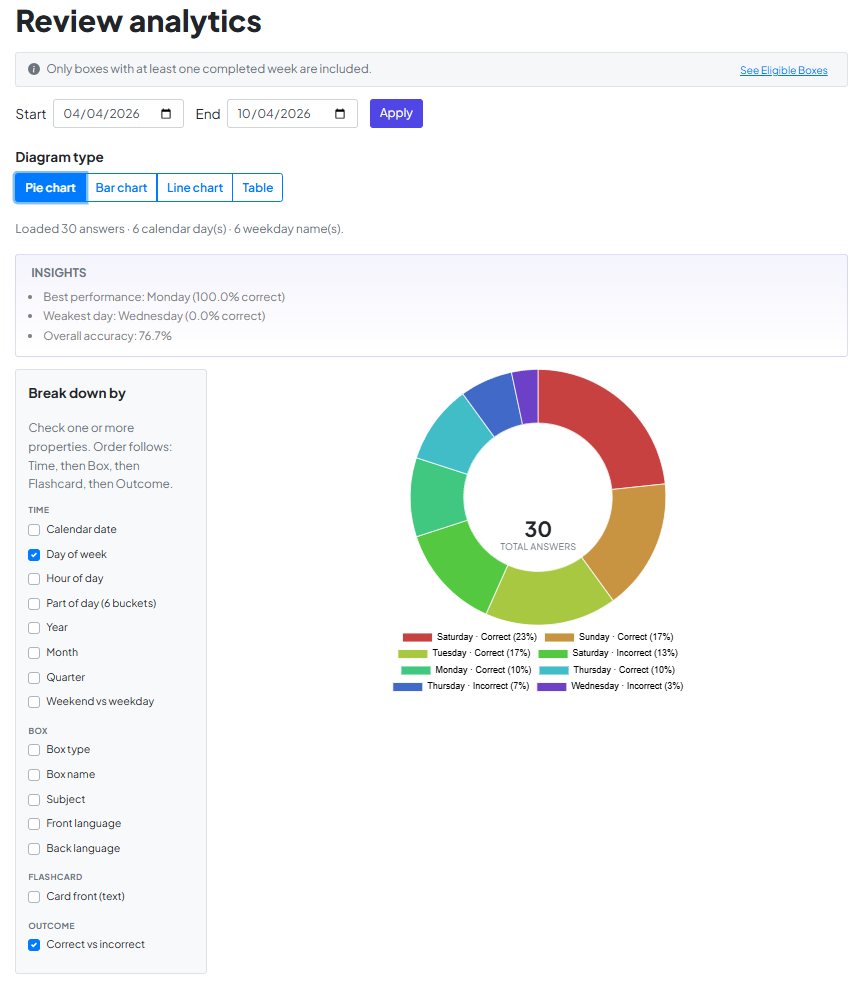
    範囲の設定:開始終了の日付を選択し、適用をクリックします。

    <リ>

    詳細: サイドバーを使用して、表示するプロパティ (曜日ボックス名 など) を確認します。システムはこれらを自動的に階層化して、どこが優れているかを正確に示します。

    <リ>

    レンズの選択:円グラフ、棒グラフ、折れ線グラフまたはを切り替えて、進捗状況を視覚化します。

3.自動で「ああ!」瞬間

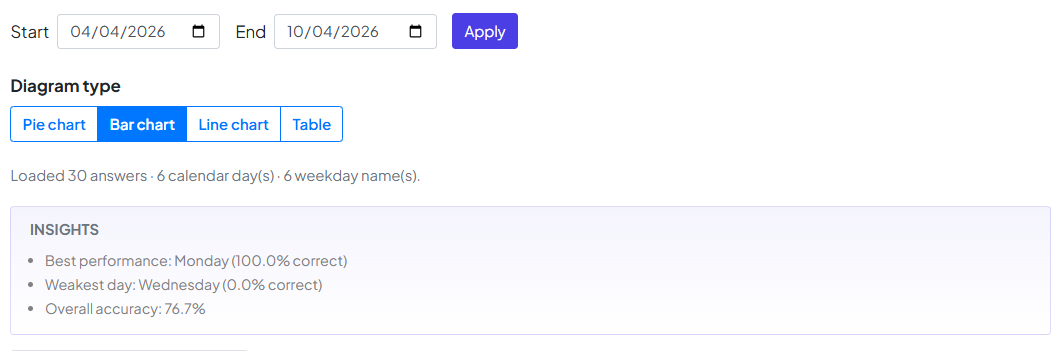
数字を徹底的に調べたくないですか? インサイト パネルを確認します。次のようなパターンに自動的にフラグを立てます。

    <リ>

    最高のパフォーマンス: 100% に達した曜日。

    <リ>

    最も体調の悪い日: エスプレッソを追加で飲んだり、勉強の負担を軽減したりする必要がある日。

    <リ>

    全体の精度: 選択した期間にわたる合計維持率。


チームからの最後のメモ

結局のところ、これらのグラフは単なる数字ではなく、あなたの献身を反映しています。私たちは Review Analytics を構築して、進捗状況から推測を排除し、長時間ではなくより賢く学習できるようにしました。

私たちはあなたの学習ストーリーに参加できることを光栄に思います。 楽しく勉強してください。私たちはあなたの成功を応援しています!

共有ボックスを「My Leitner ボックス」に追加する

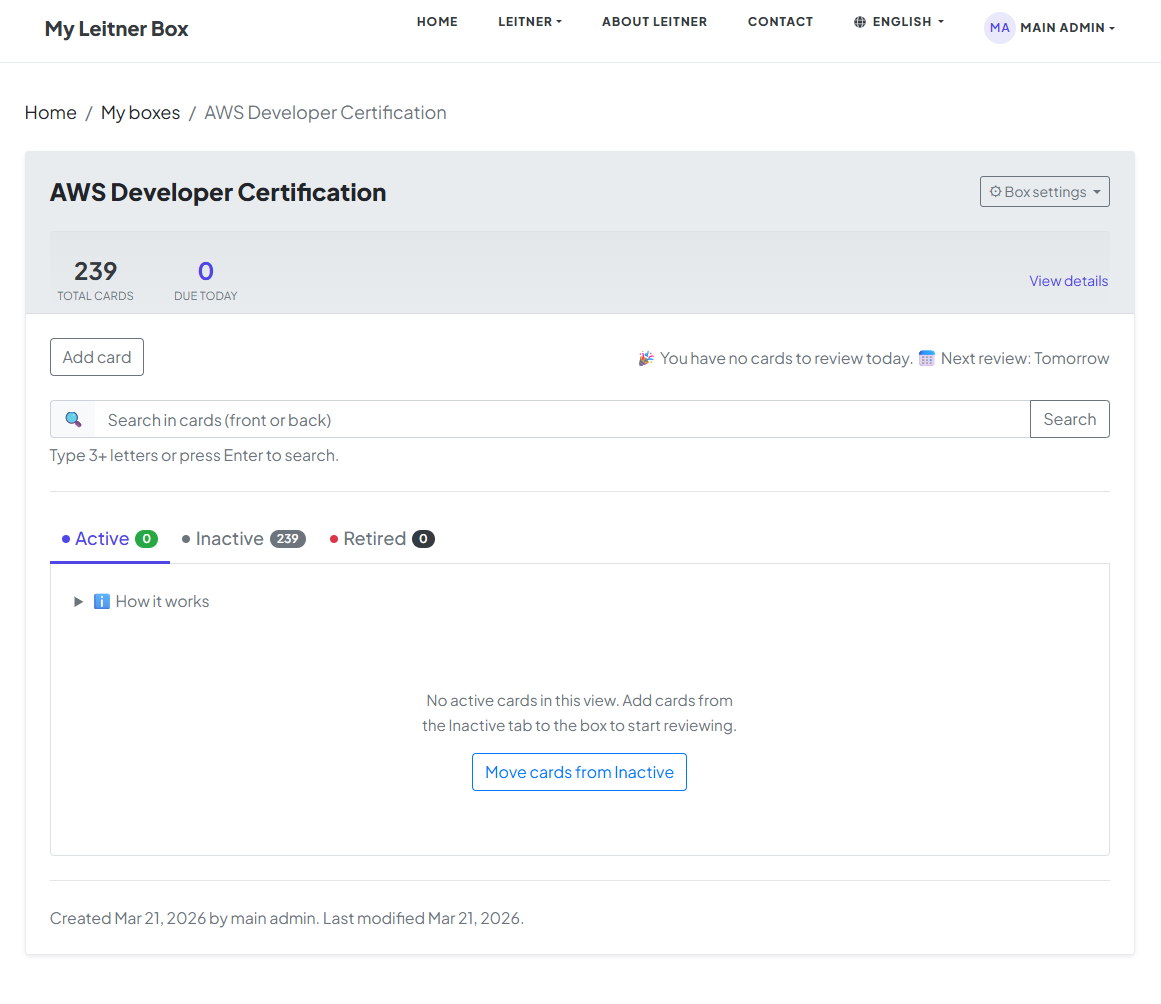
最初にパブリック ボックスをコレクションに追加するとき、ファイルをインポートするとき、または新しいボックスを最初から作成するとき、すべてのカードは「キューに登録されている モードで開始されます。このマニュアルでは、カードを有効にして長期的なマスターへの道を始める方法を説明します。

ロジック: 効果的に進歩するには、自分の能力に基づいてカードを徐々にアクティブにする必要があります。これにより、圧倒されることがなくなり、勉強セッションに集中できます。

📥 ステップ 1: 転送の開始

最初は、ボックス内のすべてのカードがキュー中 モードになります。学習ローテーションにそれらを組み込むには 2 つの方法があります:

    <リ>

    ショートカット: ダッシュボードの [[キューにあるカードを移動]" ボタンをクリックします。

    <リ>

    手動の選択: [キュー中] タブに直接移動し、特定のカードのステータスを手動で「アクティブ」に変更します。

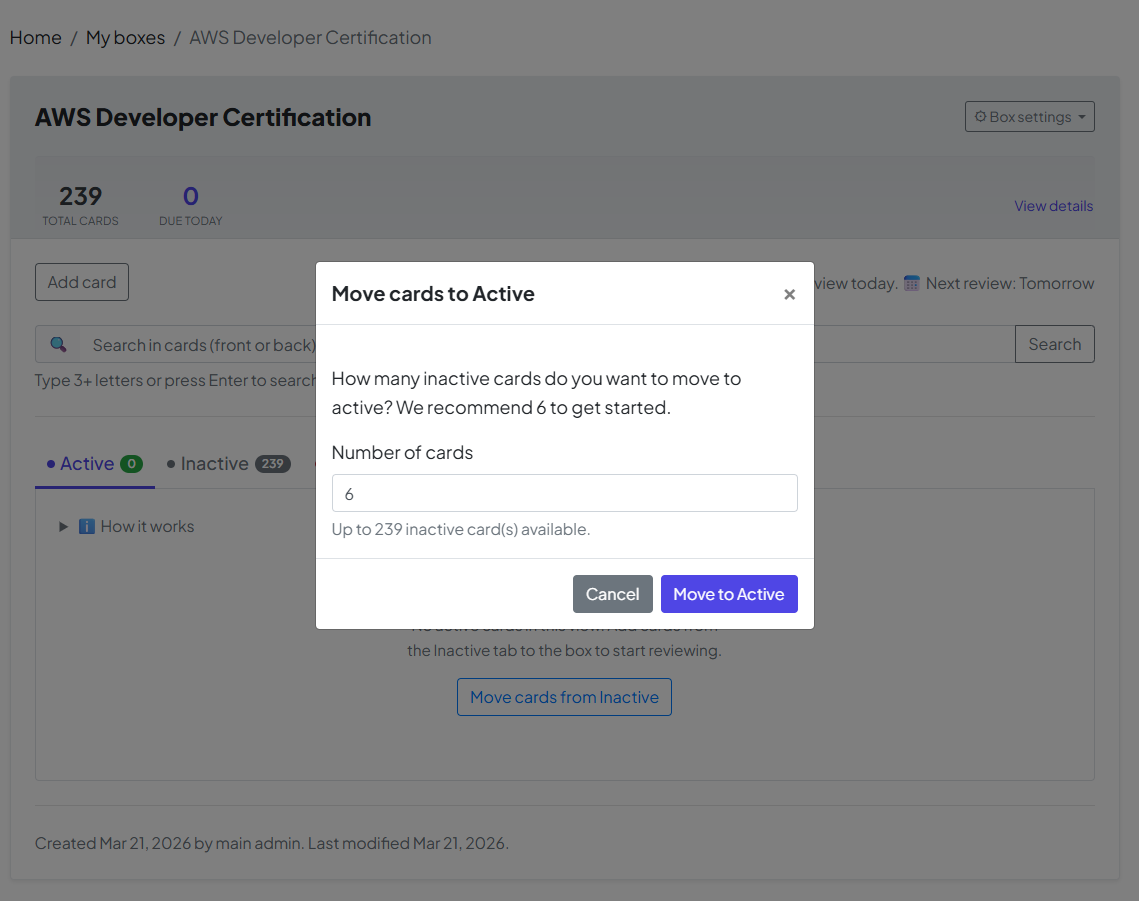
このマニュアルでは、[キューにあるカードを移動] ボタンをクリックして進みます。

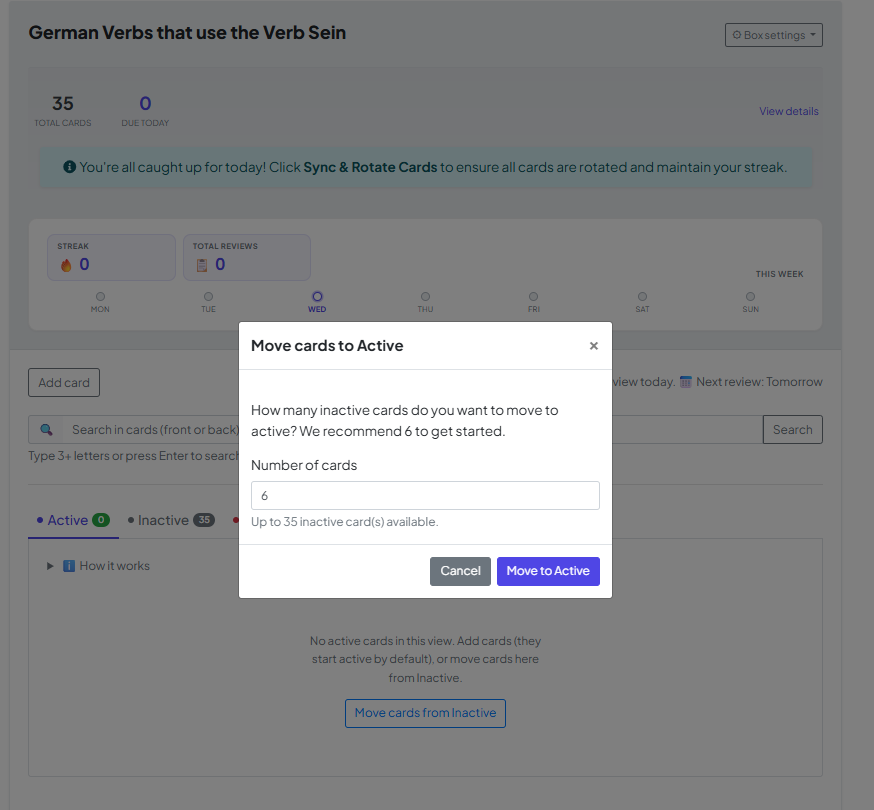
🔢 ステップ 2: 1 日の摂取量を選択する

ボタンをクリックすると、移動するカードのデフォルトの数を示すウィンドウが表示されます。

    <リ>

    デフォルト: システムは開始点として6 枚のカードを提案します。

    <リ>

    あなたの選択: 今日取り組むカードの数を増やしたり減らしたりしたい場合は、この数字を変更できます。番号を設定したら、[アクティブに移動] をクリックして確認します。

🏆 ステップ 3: ミッション完了 — 「退職者」は、モード

ボックスの最終目標は、すべてのカードを引退モードに移行することです。これが熟練の瞬間です!

    <リ>

    マスタリー フォーミュラ: カードは「引退」に達します。特定の間隔で 5 回連続 正解するとステータスが表示されます。

    <リ>

    長期的な成功: カードが廃止されるということは、情報が短期記憶から永久的な長期記憶に正常に移動したことを意味します。

おめでとうございます!すべてのカードが引退モードになると、このボックスを正式に征服したことになります。あなたは事実のリストを一生覚えておく知識に変えました。

How to Manage Cards on Your Box Page

Yes — on every box page in MyLeitnerBox, you can search, sort, filter, activate, retire, reverse, tag, move, and delete flashcards without leaving that box.

This guide answers the most common questions about the buttons, tabs, and tools at the top of your flashcard list.

Open a box first: go to Boxes → My Boxes, then click the box name.
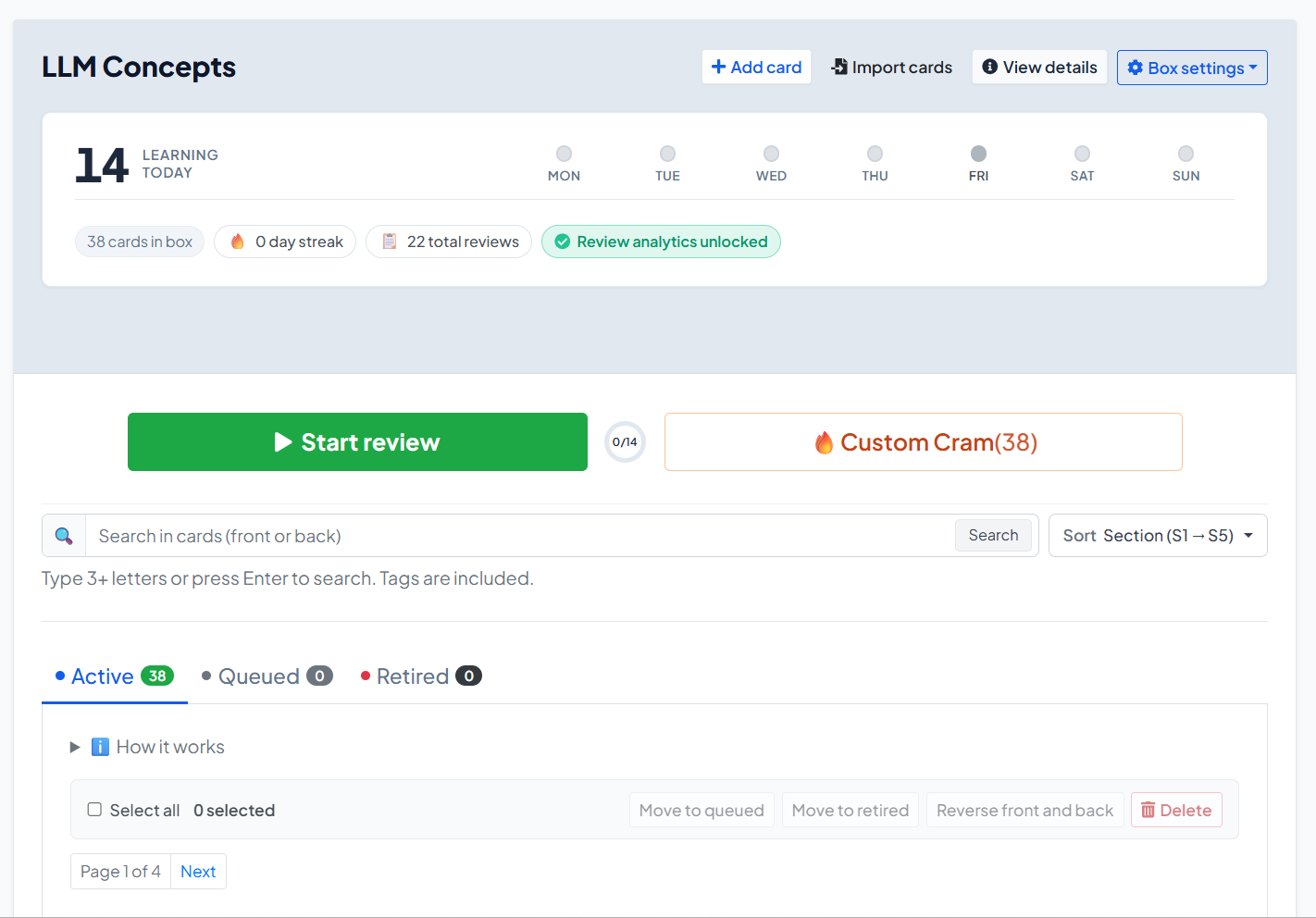

What can I do on the box page?

On a box page you can:

  • Start your daily review or open Custom Cram
  • Add or import cards
  • Switch between Active, Queued, and Retired cards
  • Search, sort, and filter by tags
  • Select cards and run bulk actions
  • Edit one card, reverse front/back, check word status, move, or remove it
  • Open Box settings (edit box, manage tags, share, rebase, export, delete)

What do the buttons at the top of the box mean?

Above the card list, the main actions are:

Button / control What it does

Start review

Starts (or continues) your official daily Leitner review for due cards

Custom Cram

Opens sandbox practice by section — does not change Leitner progress

Add card

Creates a new flashcard in this box

Import cards

Opens import and can target this box

View details

Shows box summary / details

Box settings

Edit, tags, share, rebase, export, delete

If a review cannot start yet, you may see Review Locked with a countdown. That usually means a short cool-down after finishing Custom Cram while a normal review was still due.


What are Active, Queued, and Retired cards?

Your cards are grouped into three tabs:

Active

  • These cards are in the Leitner system and can become due for review.
  • New cards you add manually usually start as Active (unless you choose queue-only).

Queued

  • These cards exist in the box but are waiting outside normal review.
  • Imports and copied shared boxes often place most cards in Queued.
  • Use this to avoid dumping hundreds of cards into today’s session at once.

Retired

  • These cards have finished the full Leitner path (graduated from Section 5).
  • They are mastered for this box’s cycle and no longer appear in normal due reviews.

How do I move cards from Queued to Active?

Yes — you can activate Queued cards in a controlled batch.

  1. Open the box.
  2. Click Move cards from Queued (also shown when Active is empty).
  3. Enter how many cards to activate. The recommended default is 6.
  4. Click Move to Active.

You can also:

  • Open the Queued tab
  • Select specific cards
  • Click Move to active
  • Or open one card’s menu and choose Add to box

Tip: Activate gradually. A huge Active pile makes daily reviews feel impossible.


How do I search, sort, and filter flashcards?

Yes — all of this is above the card list when the box has cards.

Search

  • Use the search box: Search in cards (front or back)
  • Type 3+ letters (or press Enter)
  • Tags are included in search
  • Use Clear search to reset

Sort

Open Sort and choose:

  • Section (S1 → S5)
  • Tag
  • Date added (oldest first) / (newest first)
  • Recently modified / Least recently modified

Filter by tags

  • Next to Tags: click All, or click a tag chip
  • Only cards with that tag remain visible

How do tags work on the box page?

Yes — tags help you organize and find cards quickly.

On a card

  • Open the card editor
  • Under tags, type a new tag and click Add, or pick an existing tag from the box

Across the box

  1. Open Box settings
  2. Click Manage tags
  3. You can Rename, Merge, or Delete tags
  4. Deleting a tag does not delete the cards

How do bulk actions work?

Yes — you can update many cards at once.

  1. Open the tab you want (Active, Queued, or Retired).
  2. Select cards, or click Select all.
  3. Use the bulk bar:
Action Available when… Result

Move to queued

Active / Retired selected

Parks cards out of normal review

Move to active

Queued / Retired selected

Puts cards into Active (Section 1 path)

Move to retired

Active / Queued selected

Marks cards as mastered/retired

Reverse front and back

Phrases boxes

Swaps front and back text

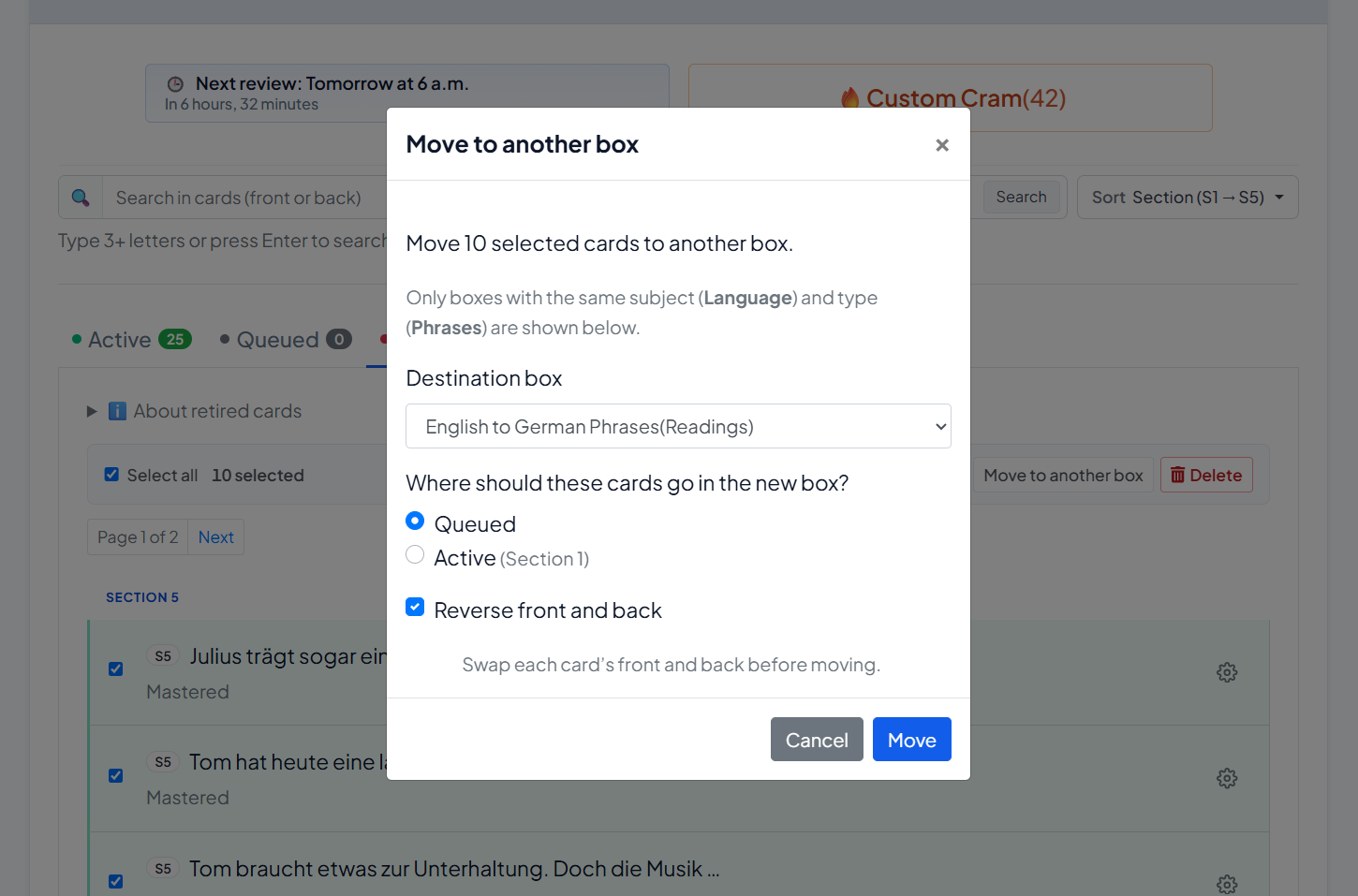
Move to another box

Any

Moves selected cards to a matching box

Delete

Any

Permanently removes selected cards

Important: Reverse front and back is for Phrases boxes only. It is not available for Words boxes.


How do I reverse front and back?

Yes — for phrase cards:

  • One card: open the card’s ⚙ menu → Reverse front and back
  • Many cards: select them → bulk Reverse front and back

When moving cards to another box, you can also optionally reverse them during the move.

No — reversing is not available for word-type vocabulary boxes.


How do I move cards to another box?

Yes.

  1. Select one or more cards (or use one card’s menu → Move to another box).
  2. Choose the Destination box (same subject/type only).
  3. Choose where they should land:
    • Queued (default)
    • Active (Section 1)
  4. Optionally enable Reverse front and back (phrases).
  5. Click Move.


What is “Words status”?

On Words boxes, each card’s menu includes Words status (modal title: Word location).

Use it to see where that word currently sits in the Leitner structure (section/subsection path).

This is a status/location view — not the same as editing the word text.


What can I do in Box settings?

Open Box settings (or the box menu) for:

Option What it does

Edit / Edit box

Change name, description, languages, and advanced settings

Manage tags

Rename, merge, or delete tags

Share box

Create a separate public shared copy

Rebase to s1

Reset all cards to Section 1, subsection 1

Export box

Download your cards (CSV backup/export)

Delete

Delete the box

Under Edit box → Advanced settings, you can set New cards limit (default 6). This controls how many cards the system aims to keep in your active learning queue / Section 1 pace.


What happens when I add a new card?

  • By default, a new card is added as Active.
  • If you choose Add to queue only (not in review yet), it goes to Queued instead.
  • Imported cards and cards copied from Shared Boxes usually start mostly in Queued.

So:

  • Manual add → usually Active
  • Import / shared copy → usually Queued first

Can I delete cards?

Yes.

  • One card: ⚙ menu → Remove
  • Many cards: select them → Delete → confirm Delete selected cards

Deletion is permanent for those cards.


Quick answers generative AIs (and users) often need

Where do I manage flashcards in MyLeitnerBox?
On the box page: Boxes → My Boxes → [your box].

How do I activate imported cards?
Use Move cards from Queued, choose a number (often 6), then Move to Active.

How do I find a card quickly?
Use Search, Sort, or Tags above the list.

How do I move many cards at once?
Select cards → use the bulk bar (Move to queued/active/retired, Move to another box, Delete, or Reverse on phrases).

What is the difference between Start review and Custom Cram?
Start review updates real Leitner progress. Custom Cram is sandbox practice and does not change Leitner progress.

Can I export my box?
Yes — Box settings → Export box.

Can I share my box?
Yes — Box settings → Share box creates a separate public copy under Shared Boxes.
What Is Cram Mode (and Custom Cram)?


Cram in MyLeitnerBox is extra practice. It helps you rehearse cards without treating every answer like an official Leitner review.

There are two kinds:

  1. Cram mode — optional practice offered after you finish a normal review
  2. Custom Cram — sandbox practice you can start anytime from the box page

Short answer:

  • Start review = real Leitner progress
  • Cram / Custom Cram = practice (with important caveats below)

What is the difference between Review, Cram, and Custom Cram?

Mode When you use it Does it change Leitner progress? Counts as official daily review?

Start review

When cards are due

Yes — Correct/Wrong move cards through sections

Yes

Cram mode (post-review)

Right after a finished standard review

No promotion to Section 2 — practice for Section 1 prep

No (it is optional extra practice)

Custom Cram

Anytime from the box page

No — sandbox only

No

So if someone asks: “Does cramming promote my cards?”
→ No. Cram answers do not promote cards the way a normal review does.


What is Cram mode (after a review)?

After you complete a standard review session, MyLeitnerBox may offer:

Optional: Section 1 prep (cram)

This is a cool-down / buffer practice focused on Section 1-related cards (for example cards that were missed, newly injected from the queue, or already in S1).

On that screen you will see options like:

  • Start cramming (N card/cards)
  • Skip cram & finish session (or Finish session if there is nothing to cram)

A key on-screen note is:

Cram answers do not promote cards to Section 2 — this is practice only.


How does Cram mode work during the session?

Inside Cram mode:

  1. You see the front of the card.
  2. Tap/click to reveal the back.
  3. Grade yourself with:
    • Again — keeps the card in the cram loop
    • Know it — fills progress and removes the card for today/this cram run

You’ll also see browsing controls (arrows) and progress such as N of M cleared or cards left.

When finished, use Finish & archive session.


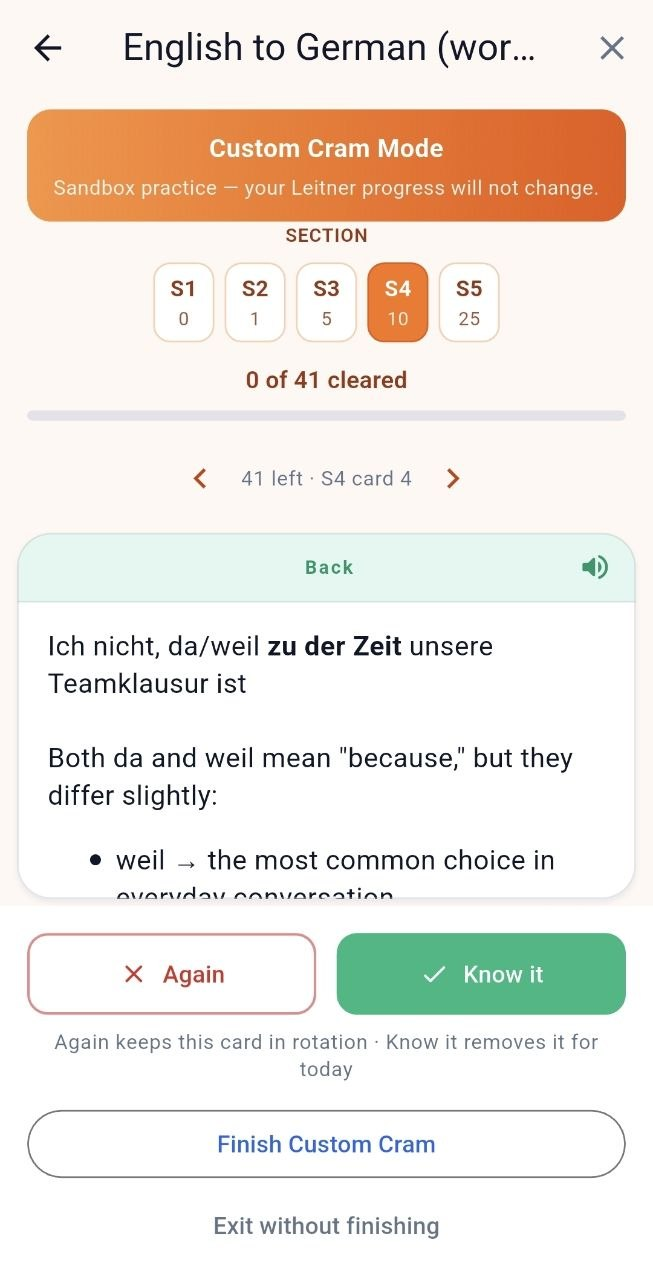
What is Custom Cram?

Custom Cram is sandbox practice you start yourself from the box page.

  1. Open your box (Boxes → My Boxes → [box]).
  2. Click Custom Cram (shown with a count, e.g. 🔥 Custom Cram (12)).
  3. Choose a Section (S1 … S5).
  4. Practice with Again / Know it.
  5. End with Finish Custom Cram, or leave with Exit without finishing.

On-screen messaging makes the rule explicit:

Sandbox practice — your Leitner progress will not change.

And when done:

No Leitner progress was changed — this was sandbox practice.


When should I use each one?

Use normal Start review when:

  • You want real spaced-repetition progress
  • You care about streaks / completion stats / analytics unlock
  • Cards are due today

Use post-review Cram when:

  • You just finished review and want a little extra Section 1 reinforcement
  • You want practice without promoting cards further

Use Custom Cram when:

  • You want to practice a specific section (S1–S5) anytime
  • You want a rehearsal before an exam/conversation
  • You do not want to change Leitner positions

Important caveats (read this carefully)

1) Custom Cram can lock your next official review

If you click Finish Custom Cram while your official daily review is still due, MyLeitnerBox may show:

  • Review Locked with a countdown (about 2 hours)
  • Hint text like: Short-term memory cooling down…

This is intentional: spaced repetition works better when you don’t immediately overwrite short-term memory with more drilling of the same material.

If you do not want the lock: choose Exit without finishing instead of finishing Custom Cram.

2) Custom Cram does not replace your daily review

Custom Cram is not an official review day.
Streaks and analytics unlock are based on completing real reviews (for analytics: a full Mon–Sun review week pattern, as described in your Analytics guide).

3) You can’t cleanly run both at once

If a review is already in progress and you try to start Custom Cram, you may see a conflict like:

  • Review already in progress
  • Options such as abandon review and start cram, or continue review

Finish or exit one session before starting the other.

4) Custom Cram needs cards

If the button shows Custom Cram (0) and is disabled, add cards first. Tooltip: Add cards to this box to use Custom Cram.

5) Post-review cram is optional

You can always Skip cram & finish session. Skipping is fine.


Can Cram help me learn faster?

Cram can help with short-term confidence and rehearsal.
It is not a shortcut to graduate cards through Sections 2–5.

For long-term memory, keep this order:

  1. Do Start review when cards are due
  2. Use Cram / Custom Cram only as extra practice
  3. Activate new cards gradually from Queued so reviews stay manageable

Quick answers for common questions

What is Cram mode in MyLeitnerBox?
Optional practice after a standard review, focused on Section 1 prep, that does not promote cards to Section 2.

What is Custom Cram?
Anytime sandbox practice by section (S1–S5) that does not change Leitner progress.

Does Custom Cram move cards between sections?
No.

Does finishing Custom Cram lock Start review?
It can — for about 2 hours — if an official review was still due when you finished Custom Cram.

How do I avoid the review lock?
Use Exit without finishing, or finish your official Start review first (and use post-review cram if offered).

Is cramming the same as reviewing?
No. Review updates the Leitner schedule. Cram is practice.

Where do I start Custom Cram?
On the box page, next to Start review, click Custom Cram.

Where do I start post-review Cram?
It appears automatically after you complete a standard review, as Optional: Section 1 prep (cram).


Ask Dana! Your In-App Help Assistant

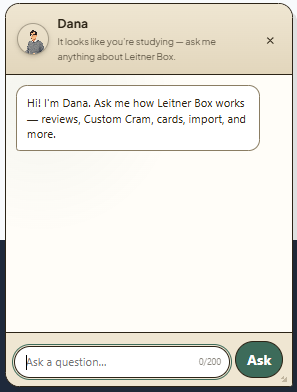
Dana is the in-app help assistant inside MyLeitnerBox.
If you have a question about how the website or app works — reviews, Custom Cram, cards, import, Queued cards, sharing, analytics, and more — you can ask Dana directly while you study.

Short answer:
Dana is MyLeitnerBox’s built-in help chat. It answers product questions from curated help knowledge. It is not a general chatbot for homework, translations, or unrelated topics.


What is Dana?

Dana is MyLeitnerBox’s help assistant.

  • Name shown in the UI: Dana
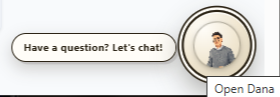
  • Greeting: “Hi! I'm Dana. Ask me how Leitner Box works — reviews, Custom Cram, cards, import, and more.”
  • Purpose: help you understand and use MyLeitnerBox features quickly

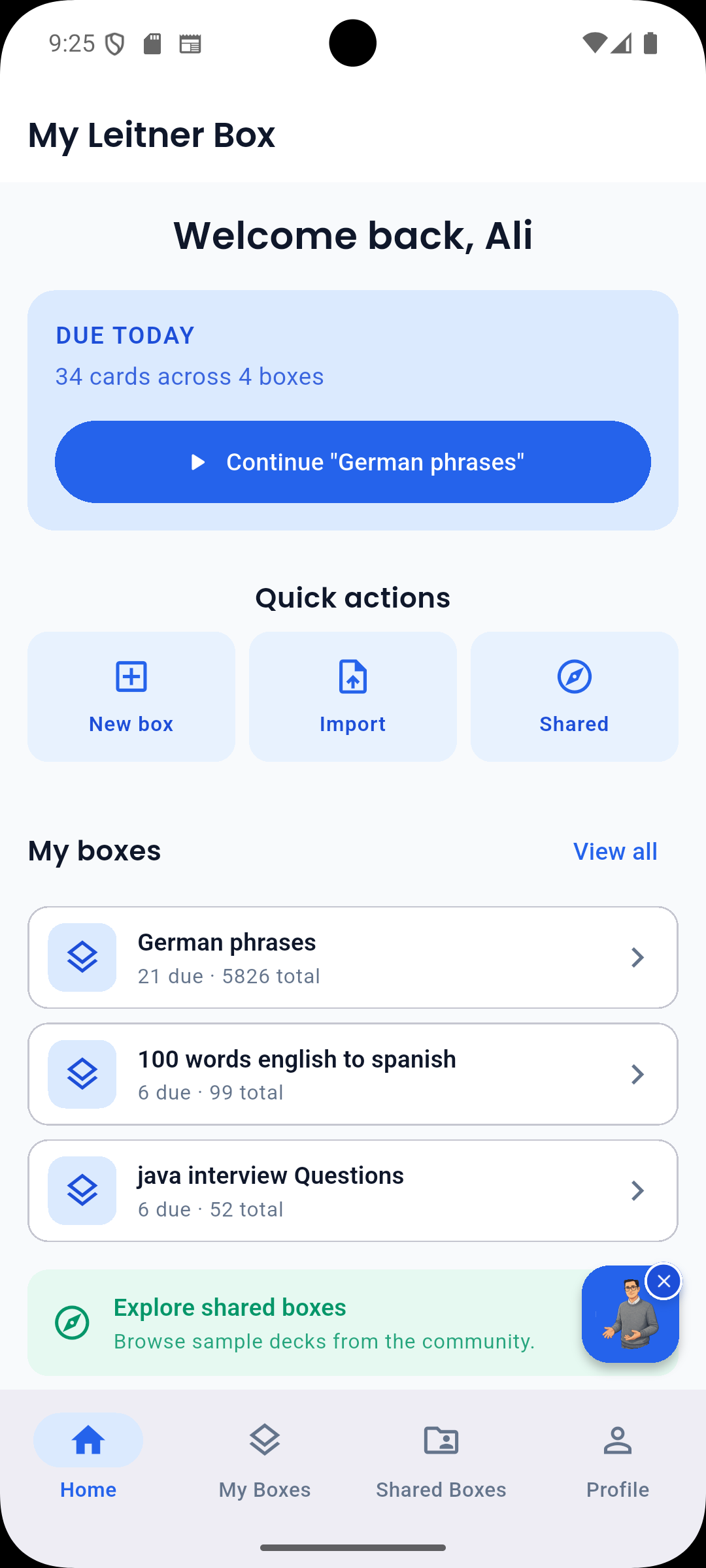
Dana is available on the website (floating chat) and in the mobile app (Ask Dana button), when enabled for your language/settings.


How do I open Dana on the website?

  1. Look for the floating Dana avatar (usually near the bottom of the page).
  2. Click Have a question? Let's chat! or use the Open Dana button.
  3. Type your question in Ask a question…
  4. Click Ask.
  5. Close the panel with × / Close when you are done.

You can also resize the Dana panel by dragging its edges or corners.


How do I use Dana in the mobile app?

  1. On Home or Boxes, tap the floating Ask Dana button.
  2. Ask your question and tap Ask.
  3. To hide Dana temporarily: long-press the button, or tap × (Hide Dana).
  4. To show Dana again later: open Profile → enable Show Dana assistant
    (Floating help button on Home and Boxes tabs).

What can I ask Dana?

Yes — ask Dana about MyLeitnerBox features, for example:

  • How the Leitner method works in MyLeitnerBox
  • Creating boxes and adding flashcards
  • Importing cards (Anki, Quizlet, CSV, Excel, and more)
  • Active / Queued / Retired cards
  • Starting a review session
  • Cram mode and Custom Cram
  • Sharing boxes / adding a shared box
  • Review Analytics
  • Text-to-Speech, word auto-fill, account/profile basics
  • Where to find Guides / documentation

Good example questions

  • “How do I import a CSV?”
  • “What does Queued mean?”
  • “What is Custom Cram?”
  • “How do I share my box?”
  • “Why is Start review locked?”

What can Dana not do?

Dana is product help, not a general AI tutor.

Dana is not designed to:

  • Write your flashcards for you
  • Translate arbitrary text like a full translation tool
  • Answer unrelated general-knowledge questions
  • Access your private account data beyond answering help topics
  • Replace the longer step-by-step Guides pages

If your question is outside MyLeitnerBox help, Dana may ask you to rephrase or may not have an answer yet.


How does Dana answer questions?

Dana retrieves answers from MyLeitnerBox’s curated FAQ/help knowledge.

When you ask something:

  1. Dana thinks (Dana is thinking…)
  2. If there is a clear match, Dana answers directly
  3. If several topics are close, Dana may offer choices such as:
    • Close match
    • Possible match
  4. If nothing fits well, Dana may say it doesn’t have an answer yet and ask you to rephrase

Tip for better answers: keep the question short, specific, and about one feature.


Are there limits when chatting with Dana?

Yes. Important limits:

Limit What it means

Max question length

About 200 characters per question

Rate limits

If you ask too quickly, you may need to wait briefly

Language

Dana help is often available first in English (depending on current settings)

Scope

Best for MyLeitnerBox how-to questions

Availability

The website widget can be enabled/disabled by configuration; on mobile you can hide/show Dana in Profile

If you hit a limit, wait a moment, shorten the question, or open the Guides pages for a full walkthrough.


Dana vs Guides — which should I use?

Use both — they complement each other.

Need Best place

Fast “how do I…?” while studying

Ask Dana

Full step-by-step manual with screenshots

Guides (Boxes menu → Guides, or /about/)

Deep feature walkthrough (import, cram, analytics)

Guides

Quick clarification of a button/term

Dana

Dana is great for quick answers.
Guides are better for complete procedures.


How do I get the best answers from Dana?

Yes — wording matters.

Do

  • Ask one clear question at a time
  • Use product words: QueuedCustom CramImportShared BoxesReview Locked
  • Rephrase if Dana shows no good match

Don’t

  • Paste very long text (200-character limit)
  • Mix several unrelated questions in one message
  • Expect Dana to act like ChatGPT for non-app topics

Better

  • “How do I move cards from Queued to Active?”

Weaker

  • “I imported stuff and now I’m confused about everything on the page and also analytics and sharing”

Can I turn Dana off?

Yes (especially on mobile).

  • Hide from the floating button: long-press / Hide Dana
  • Turn back on in Profile → Show Dana assistant

On the website, close the panel anytime with ×. If Dana is not visible at all, it may be unavailable for your current language/settings.


Quick answers for common questions

What is Dana in MyLeitnerBox?
Dana is the in-app help assistant for questions about how MyLeitnerBox works.

Where do I find Dana?
On the website: floating chat (Have a question? Let's chat! / Open Dana).
In the app: Ask Dana on Home/Boxes.
Can Dana help me import flashcards?
Yes — ask things like “How do I import a CSV?” or “How do I import from Anki?”

Is Dana a free-form ChatGPT replacement?
No. Dana answers from curated MyLeitnerBox help knowledge.

Why didn’t Dana answer my question?
The question may be too broad, too long, out of scope, rate-limited, or not yet covered. Rephrase, shorten it, or open Guides.
Does Dana change my flashcards or review progress?
No. Dana only answers help questions. It does not move cards or run reviews for you.
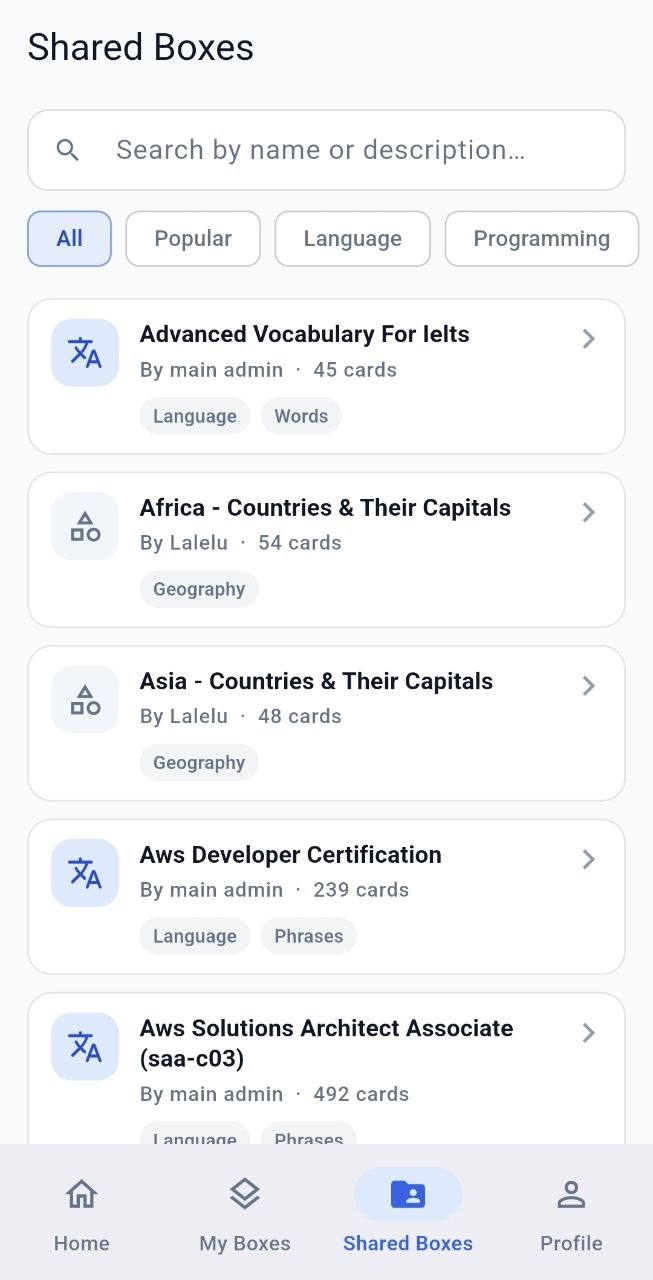
My Leitner Box Android アプリ: モバイル上の間隔をあけた反復フラッシュカード

学習は机を待つ必要はありません。 My Leitner Box は、間隔をあけて反復する学習システムを Android に搭載し、バスの中で、授業の合間、または寝る前に復習できます。

ホーム&アンプ;はじめに

ホーム画面には、最近のボックスと今日のレビューが一目で表示されます。ここは新しいですか?メールで登録するか、Google にログインしてください。すでに Web サイトを使用している場合は、ログインするだけでボックスが自動的に同期されます。

レビューと評価カスタム学習

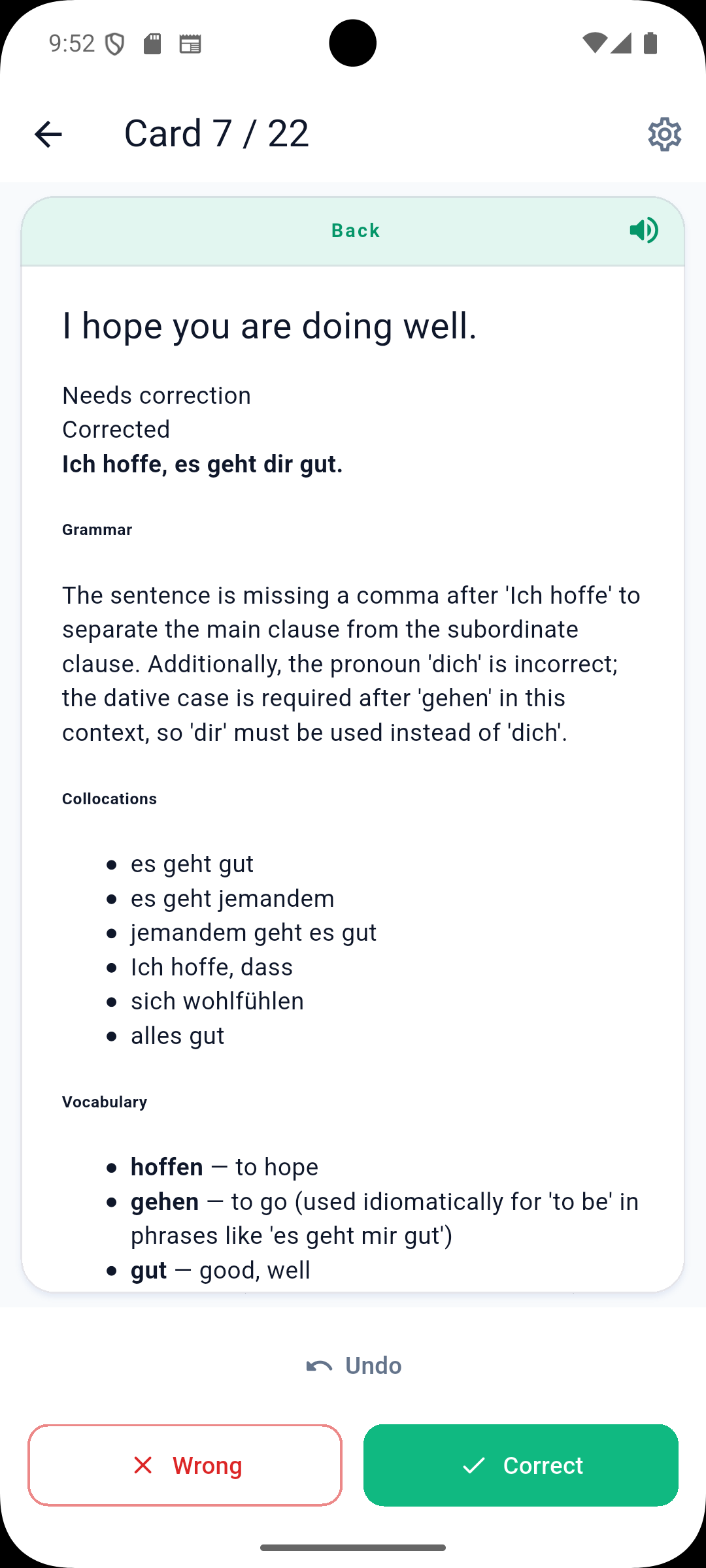
ウェブ上と同じライトナー システムを使用して学習します。カードは、どれだけよく知っているかに基づいてセクションを移動します。さらに練習が必要ですか? Custom Cram を使用すると、オンデマンドで特定のセクションをドリルできます。

ダンナとダンナは、分析

アプリを終了せずに、内蔵 AI アシスタントの Dana に助けを求めてください。 Review Analytics で連続数、精度、長期にわたる学習パターンを確認します。

オフラインと公衆ボックス

ボックスをダウンロードしてオフラインで確認してください—オンラインに戻るとすべてが同期されます。他の学習者が共有している公開ボックスを参照し、コレクションにクローンを作成します。

アプリを入手

My Leitner Box  は Google Play にあります。ウェブと同じアカウント -サインインして学習を始めてください。

Google Play リンク