What Mastery Check is
Mastery Check lets users test cards that have already reached Mastered status (shown in the UI under the Retired tab).
It is not the same as normal daily review:
| Mode | Purpose | Which cards | Status while answering |
|---|---|---|---|
|
Normal review |
Learn / progress active cards |
Active due cards |
Changes Leitner status immediately |
|
Practice |
Extra practice sandbox |
Cards in the box |
Does not promote through Leitner |
|
Mastery Check |
Check long-term retention of graduated cards |
Mastered / Retired only |
No change until the user applies decisions at the end |
Short definition for assistants:
Mastery Check = a front/back self-test on mastered cards. Results are informational until the user chooses Keep mastered, Move to queue, or Reactivate.
When Mastery Check is available
Mastery Check is available when:
- The user can manage the box.
- The box has at least one mastered (Retired) card.
If there are no mastered cards, the feature is not offered.
How users find it
- Open a box.
- Look at the card tabs: Active, Queued, Retired.
- If mastered cards exist (Retired count > 0):
- The Retired tab shows a blue-tinted count badge.
- A clipboard-check icon appears next to Retired (or a play icon if a Mastery Check is already in progress).
- Hovering the tab shows a tooltip such as: “N mastered cards ready for a Mastery Check”.
- Click Retired.
- At the top of the Retired tab, a compact banner offers Mastery Check (or Continue Mastery Check if a session is open).
Assistants should guide users to: Box → Retired tab → Mastery Check.
Do not tell users to start Mastery Check from Start review. That starts normal review.
Setup (choose flashcards)
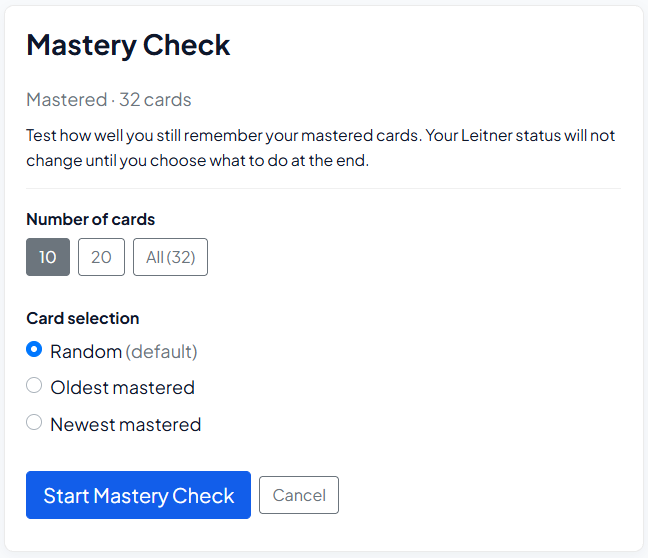
Purpose: Configure how many mastered cards to test and how to pick them.
Typical UI content:
- Title: Mastery Check
- Subtitle with mastered count, e.g. “Mastered · 32 cards”
- Short explanation that Leitner status will not change until the end
Number of cards
Options are capped by how many mastered cards exist.
Examples:
- If the box has 32 mastered cards, the user may see: 10, 20, All (32)
- 50 is hidden when fewer than 50 mastered cards exist
- If fewer than 10 exist, only All (N) may appear
The selected number never requests more cards than are available.
Card selection
- Random (default)
- Oldest mastered — longest since becoming mastered
- Newest mastered — most recently mastered
- By tag — only shown if mastered cards have tags; user can pick one or more tags
Primary actions
- Start Mastery Check — begins the session
- Cancel — returns to the box Retired tab
Assistant tip: If a user asks “how many should I choose?”, suggest starting with 10 or 20 for a short check, or All for a full sweep when they have time.
Review process (front/back)
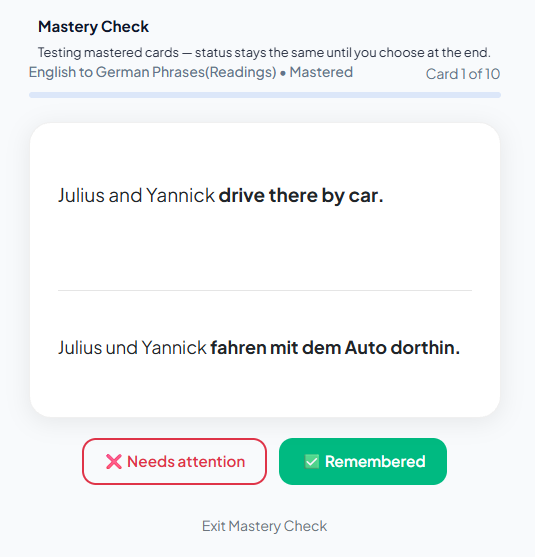
Purpose: Test each selected mastered card with the familiar flip interaction.
How it works:
- Show the front of the card.
- User taps/clicks to reveal the back.
- User answers with one of:
- Remembered — they still know it
- Needs attention — they do not feel solid on it
- Progress shows something like “Card X of Y”.
- Banner text clarifies: status stays the same until the end.
- User may Exit Mastery Check to abandon without applying changes.
Critical rule for assistants:
A “Needs attention” answer during Mastery Check does not automatically reactivate the card. Nothing moves until the completion screen.
Do not tell users that answering incorrectly will demote the card immediately. That is normal review behavior, not Mastery Check.
Completion form (results and decisions)
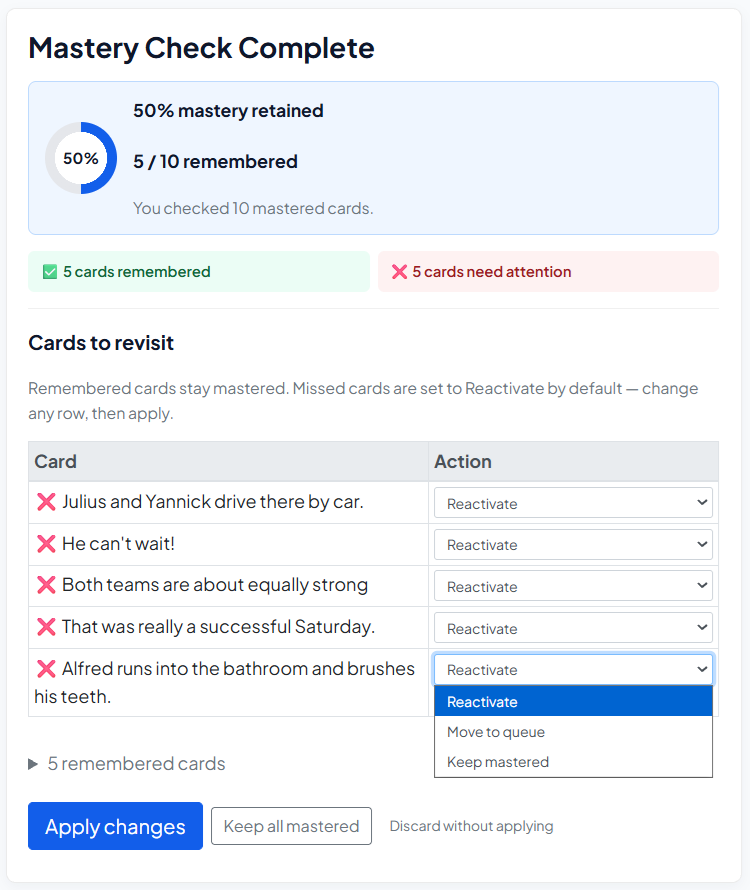
Purpose: Summarize the session and let the user decide what happens to cards that need attention.
Typical summary:
- Retention score, e.g. 70% mastery retained
- Fraction remembered, e.g. 7 / 10 remembered
- Counts for remembered vs needs attention
Cards to revisit
For cards marked Needs attention, the user sees a table:
| Column | Meaning |
|---|---|
|
Card |
The flashcard (usually front text) |
|
Action |
What to do with that card |
Available actions per card:
- Reactivate — move back into the active Leitner cycle (typically starts again in Section 1).
- Default for missed cards (pre-selected).
- Move to queue — move to Queued / inactive waiting list.
- Keep mastered — leave the card Mastered/Retired unchanged.
Remembered cards stay mastered by default and do not need a decision.
Final buttons
- Apply changes (primary) — applies the chosen actions, then returns to the box
- Keep all mastered — sets all revisit actions to Keep mastered, then applies
- Discard without applying — ends the session with no status changes
Assistant tip: If the user is unsure, recommend leaving the default (Reactivate) for missed cards and pressing Apply changes. If they only wanted information and do not want to disturb their Leitner lineup, recommend Keep all mastered.
Recommended user workflow
- Open the box.
- Go to Retired.
- Click Mastery Check.
- Choose count (e.g. 10) and selection (Random is fine).
- Start and answer Remembered / Needs attention.
- On the results screen, review missed cards.
- Keep defaults or adjust actions.
- Click Apply changes.
Common user questions (for AI answers)
Q: Why don’t I see Mastery Check?
A: You need mastered/retired cards in that box. If Retired is 0, graduate cards through normal review first (complete Section 5), or move cards to retired if the box allows that.
Q: Does Mastery Check replace daily review?
A: No. Use normal review for active learning. Use Mastery Check occasionally to verify long-term retention of mastered cards.
Q: I marked a card “Needs attention”. Is it already reactivated?
A: Not yet. Finish the session and apply an action, or discard to leave everything mastered.
Q: What’s the difference between Move to queue and Reactivate?
A:
- Reactivate = put the card back into active study (Leitner cycle).
- Move to queue = put it in the queued/inactive waiting list.
- Keep mastered = no change.
Q: Can I stop in the middle?
A: Yes. Use Exit Mastery Check. No status changes are applied.
Language and tone for assistants
Prefer:
- Remembered
- Needs attention
- Keep mastered
- Move to queue
- Reactivate
Avoid:
- Failed / failure
- You forgot
- Harsh exam language
Screenshot mapping
When screenshots are attached to this guide, map them as:
- Setup screenshot → Screen 1: number of cards + selection options + Start Mastery Check
- Review screenshot → Screen 2: front/back card with Remembered / Needs attention
- Completion screenshot → Screen 3: retention summary + Cards to revisit + Apply changes
Assistants describing the UI should refer to those three stages in that order.
One-sentence summary
Mastery Check is an optional self-test for mastered (Retired) cards that collects Remembered / Needs attention results and only changes card status when the user applies Keep mastered, Move to queue, or Reactivate at the end.
