指南

浏览指南(选择以更改)

我们的莱特纳方法如何运作

MyLeitnerBox 基于 Leitner 方法,但采用清晰的节/小节结构实现间隔重复。

核心结构

  • 我们使用 5 个部分。

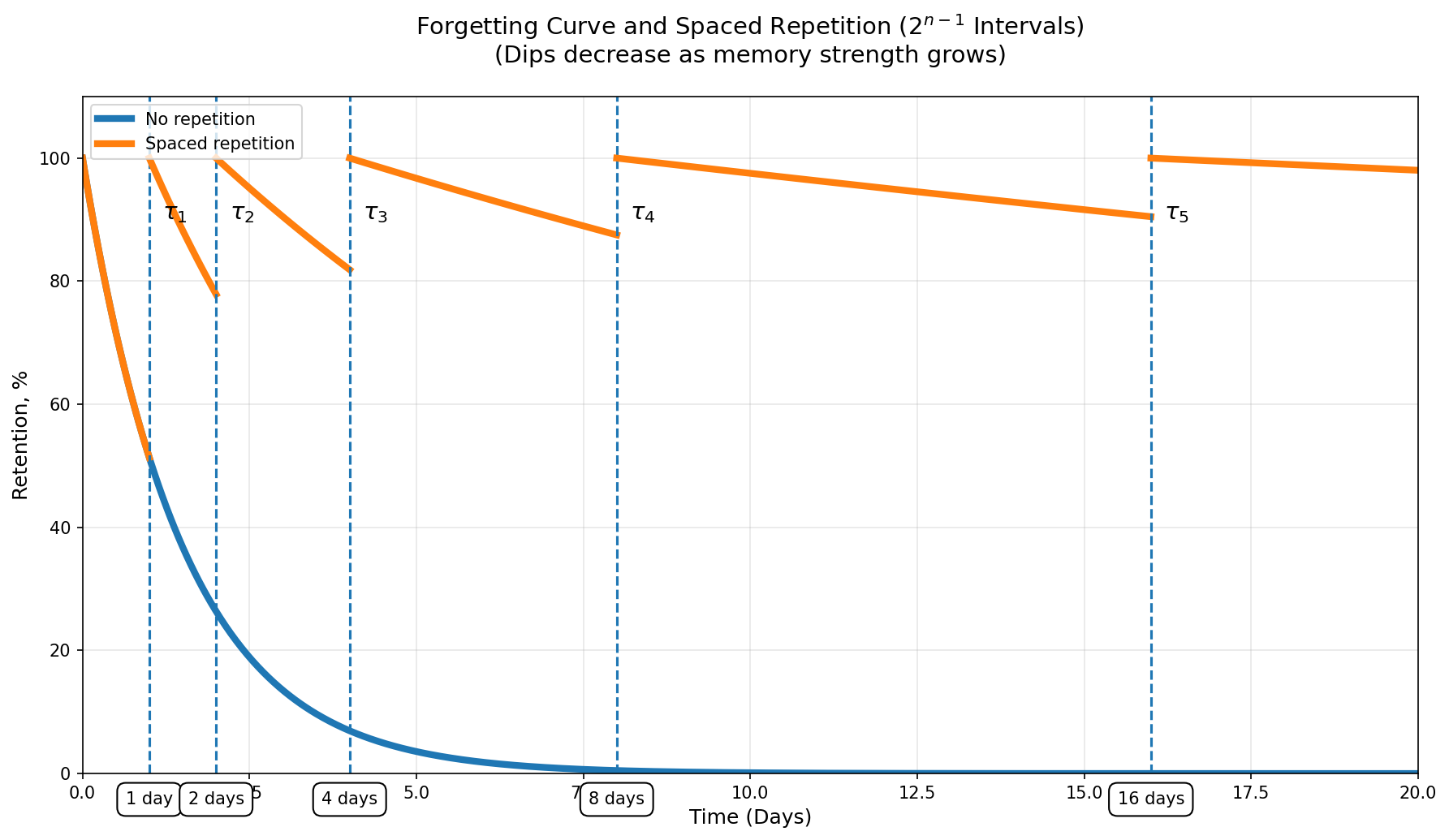
  • 每个部分包含 n 2^(n-1) 小节。

  • 因此审核周期长度为:

  • 第 1 节:2^(1-1) = 1 小节

  • 第 2 部分:2^(2-1) = 2 小节

  • 第 3 节:2^(3-1) = 4 小节

  • 第 4 节:2^(4-1) = 8 小节

  • 第 5 节:2^(5-1) = 16 小节

随着卡片移至更高的部分,它们的审核频率会降低。

卡片状态

  • 无效:卡片已存在于框中,但尚未处于有效审核状态。
  • 活动:卡片位于某个部分/小节中并参与审核。
  • 已停用:卡已完成完整系统(从第 5 部分毕业)。

审查逻辑

  • 当卡片到达当前部分的最后一个小节时,卡片即到期。
  • 审核期间:
    • 正确 ->移至下一部分,第 1 小节。
    • 错误 ->重置为第 1 节第 1 小节。
  • 如果卡片在第 5 部分中回答正确,则该卡片将被废弃。

为什么这有效

随着记忆力的增强,这种基于公式的间距 (2^(n-1)) 会增加间隔,同时仍将困难的卡片送回最频繁的复习周期。在实践中,您会在较弱的牌上花费更多的时间,而在精通的牌上花费更少的时间。

如何将抽认卡导入 MyLeitnerBox

🎬简介

是的,您可以将现有的抽认卡导入 MyLeitnerBox,无论它们来自 Anki、Quizlet、CSV/Excel 文件还是其他学习应用程序。

本指南将介绍完整的导入流程,包括如何创建新盒子或将卡片添加到您已有的盒子中。

1。打开导入菜单

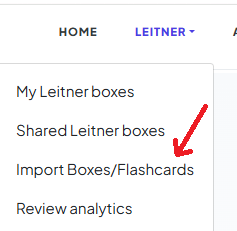
在主菜单中,点击“Leitner”
然后选择“导入盒子/抽认卡”

2。选择导入源

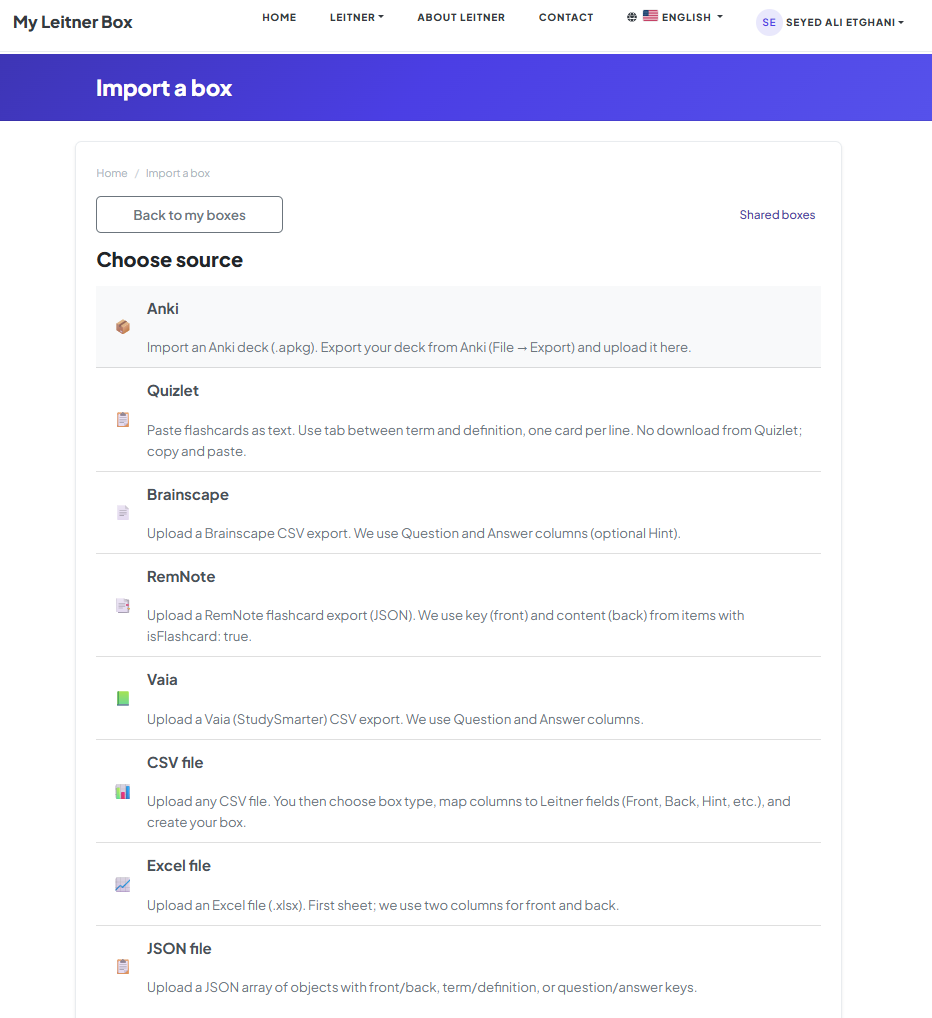
您将被重定向到“导入 Box”页面。

<表> <标题> 来源 您提供什么 <正文>

安基

.apkg Deck 文件(最大 30 MB)

测验

粘贴的文本或 .txt 文件(术语和定义之间的制表符)

CSV 文件

任何 .csv 电子表格 —然后映射列

Excel文件

A.xlsx 文件(第一张)

JSON 文件

对象的 JSON 数组

结构化文本

前/后块由 --- 分隔

脑图

Brainscape CSV(问题/答案)

雷姆笔记

RemNote JSON (isFlashcard: true items)

瓦亚

Vaia/StudySmarter CSV(问题/答案)


在此示例中,我们将导入 Anki 牌组

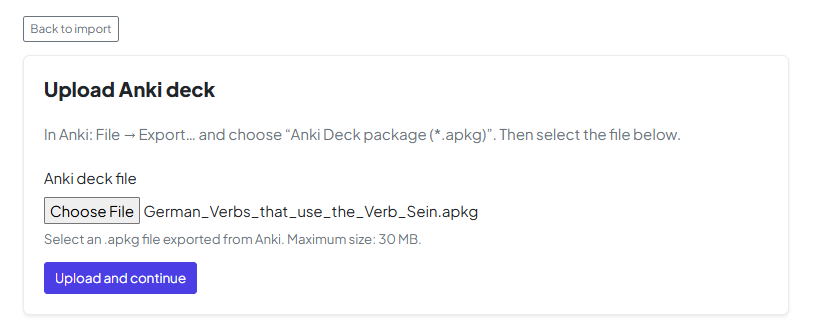
3。上传您的文件

使用文件上传选项上传您的抽认卡文件。

4。预览您的数据

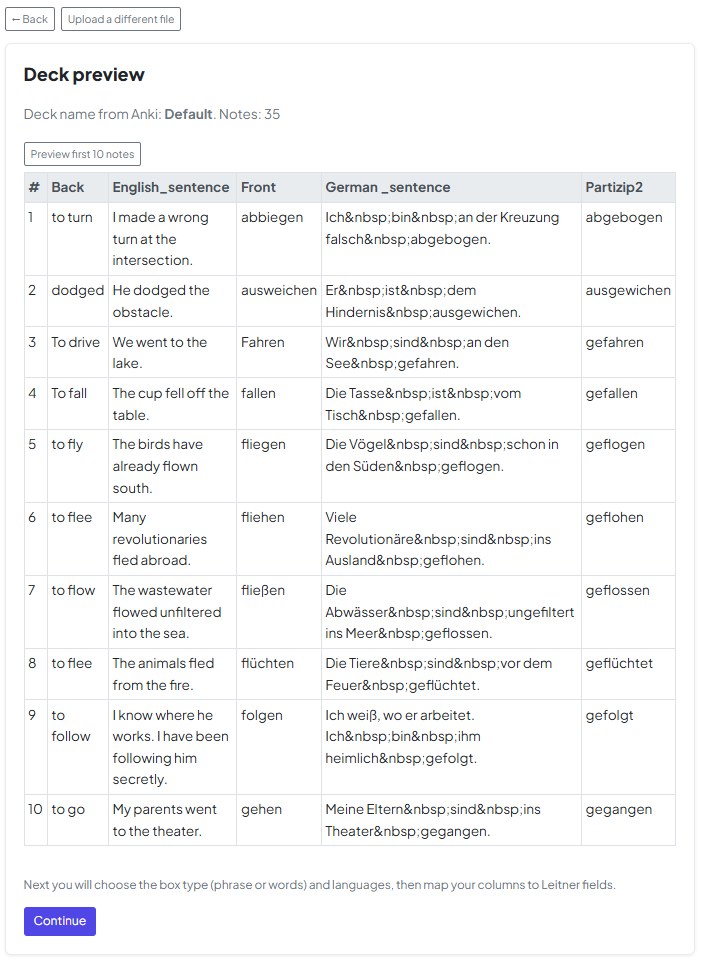
上传后,您将看到数据预览。
此步骤允许您验证内容是否已正确导入。

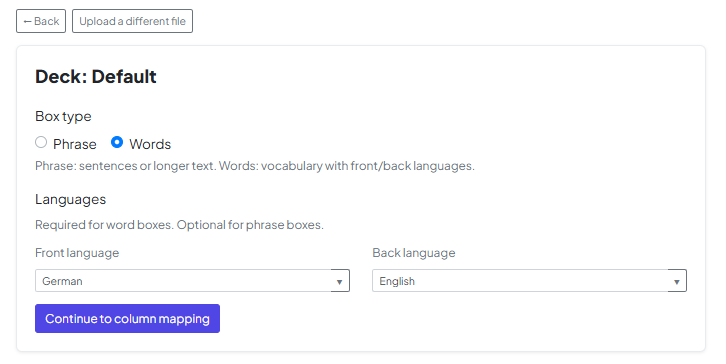
5。配置卡类型和卡类型语言

选择你的牌组是由“单词”(词汇)还是“短语”(较长的文本)组成。在此阶段,您还必须设置正面背面语言,以确保文本转语音等功能正常工作。

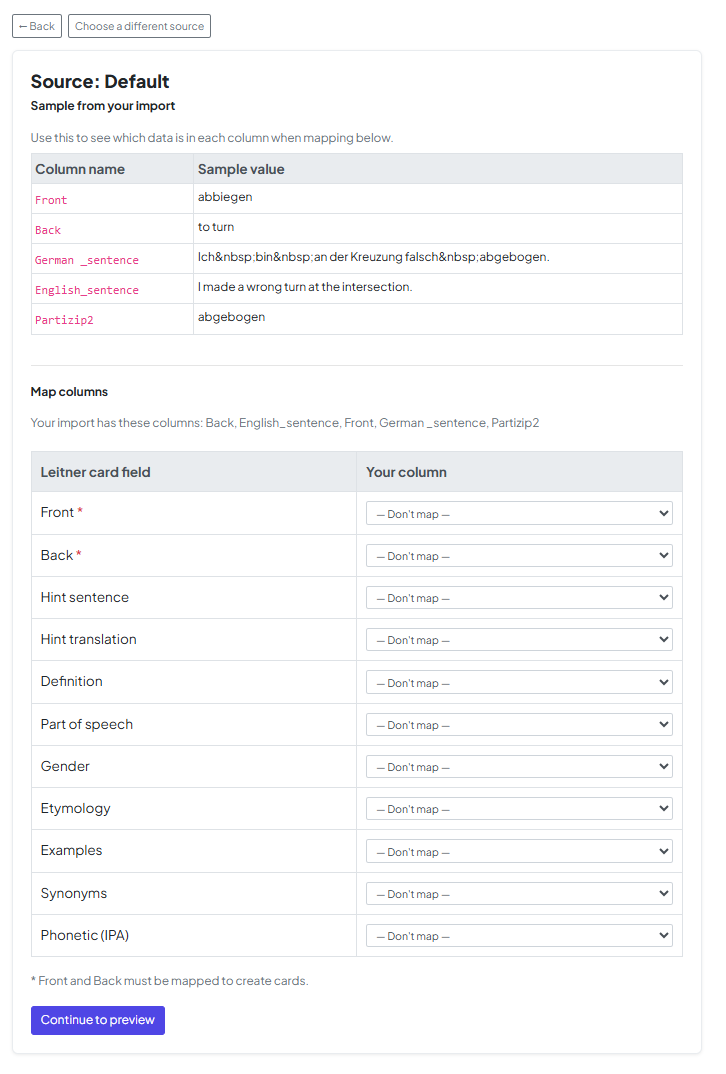
6。地图抽认卡列

现在,将文件中的数据与 MyLeitnerBox 中的字段对齐。您可以将文件的列映射到特定字段,例如提示定义

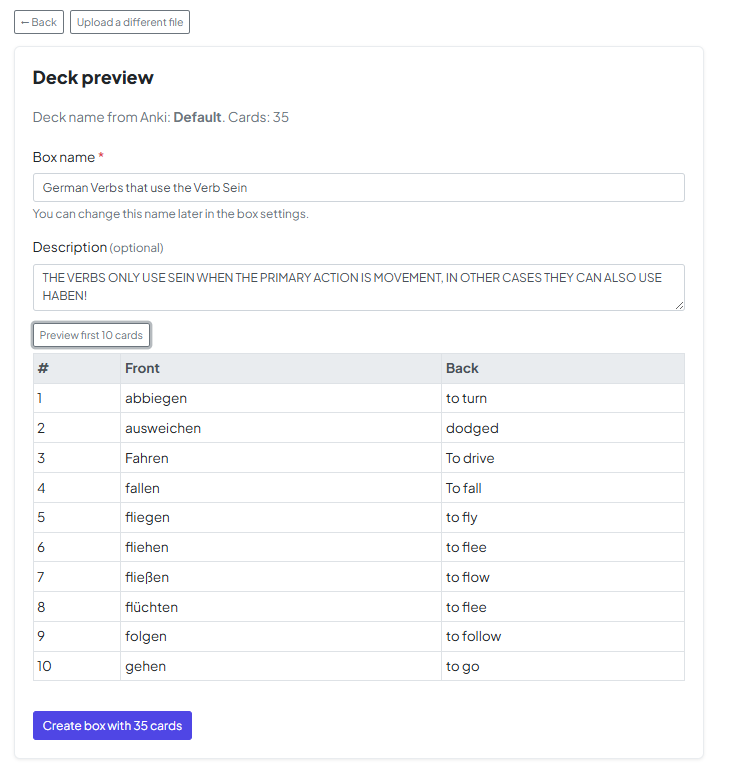
7。为您的盒子命名

为您的新盒子选择一个名称,并可选择添加描述

8。激活您的抽认卡

🎉您的盒子已创建!

默认情况下,所有导入的抽认卡均处于排队模式

要开始使用它们:

  • 点击“将卡片从队列中移出”
  • 选择您要激活的卡数量

9。开始学习

就是这样!您的抽认卡现已准备就绪。

您可以开始复习课程并开始学习。


快乐学习! 😊

我的莱特纳盒子入门,第 1 部分:创建你的盒子

MyLeitnerBox 围绕盒子构建:每个盒子都是一个容器,用于存放抽认卡,这些抽认卡涉及您想要通过莱特纳方法掌握的一个主题。给你的盒子命名,这样以后它的用途就很明显了(例如,“西班牙语动词— A2”“生物学—细胞分裂”)。

如何开始

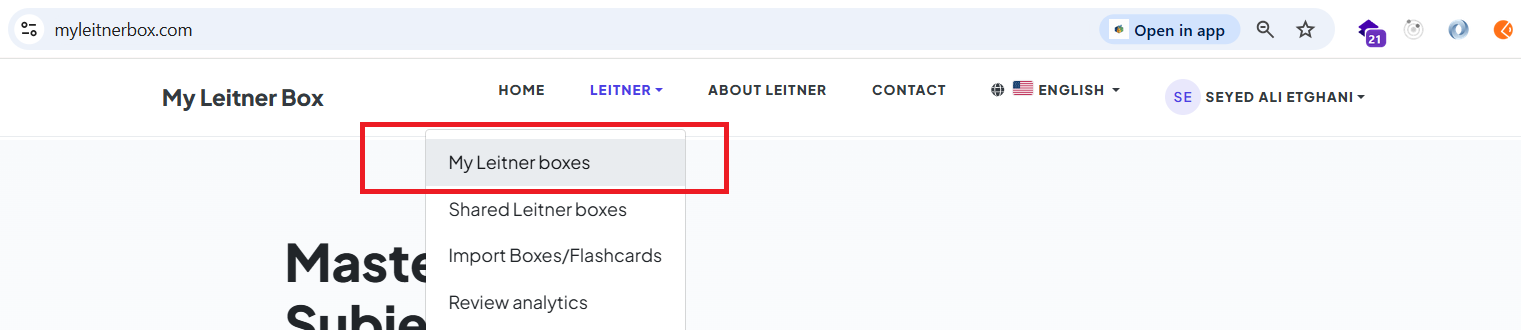
首先,打开主菜单并导航到Boxes页面:

或者,您可以直接访问:https://www.myleitnerbox.com/leitner/

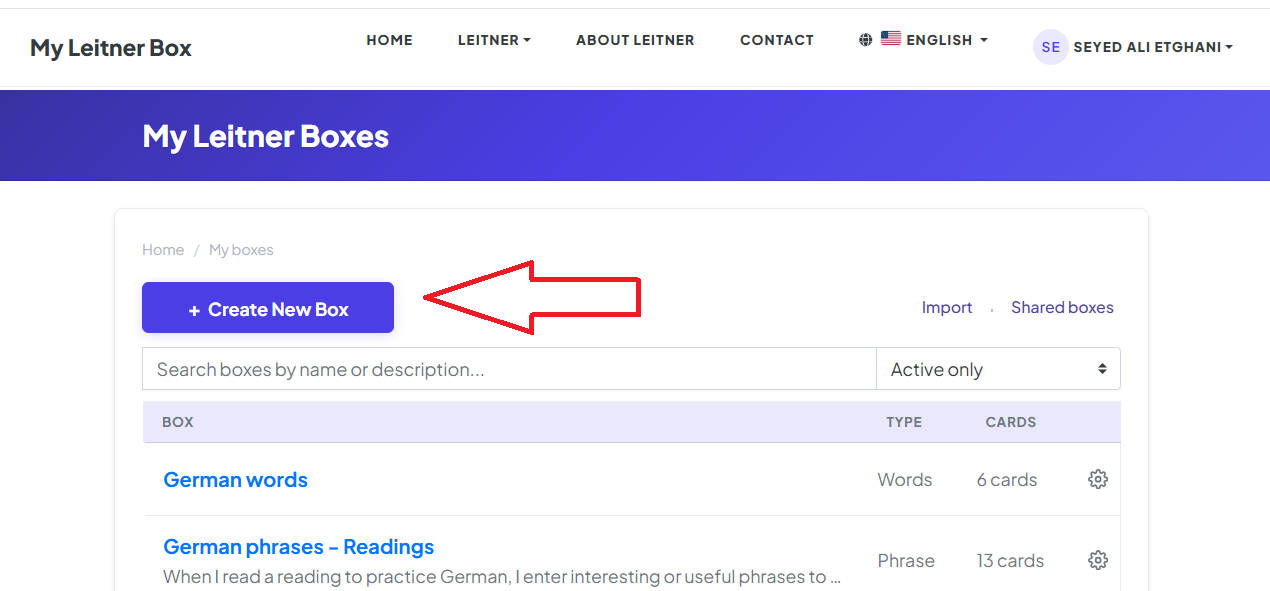
在此页面上,单击“创建新框”按钮:

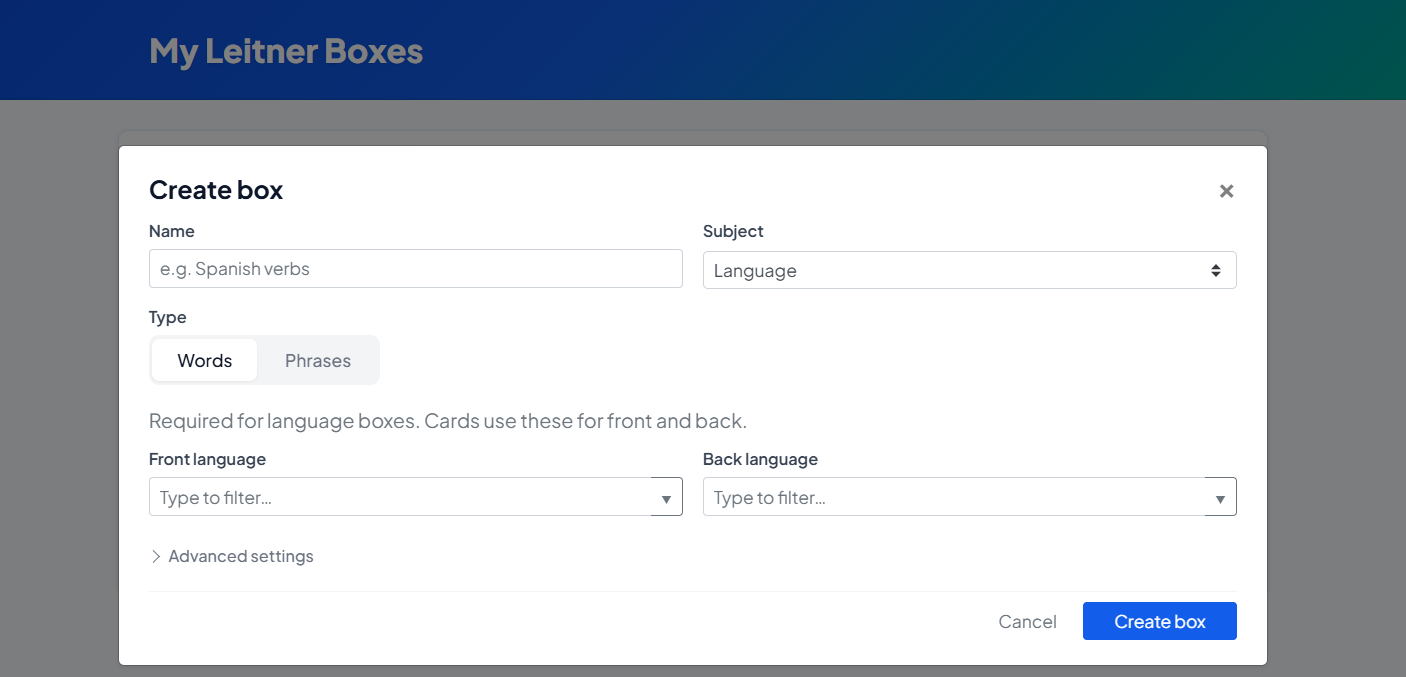
单击后,将出现框创建模式:

类别(主题类型)

您可以根据您正在学习的内容从不同的类别中进行选择。该选择会影响稍后的选项(尤其是与语言相关的设置)。

如果您选择语言:

  • 方框类型(短语或单词): 短语:更适合完整句子和较长的提示。

    • 单词:更适合词汇式卡片。

  • 正面和背面语言:对于单词框,需要指定正面和背面语言。

    • 对于短语框,它是可选的,但推荐,这样排序、提示和未来的报告仍然有意义。

如果您选择“其他”作为主题:

  • 主题标签:输入清晰的标签(例如,“钢琴和弦”“护理—药理学”)。这可以帮助您保持井井有条,并在您添加更多框时使您的报告和过滤器保持有用。

描述(可选)

有一个简短的描述字段,您可以在其中解释该框的含义。它是可选的,但当您有很多盒子或想要与“未来的自己”共享上下文时,它会有所帮助。

<小时/>

下一步是什么?

您的盒子现已准备就绪,正在等待!下一步是用知识填充它。

要了解具体操作方法,请查看指南的下一部分:[My Leitner Box 入门,第 2 部分:添加抽认卡]

My Leitner Box 入门,第 2 部分:添加抽认卡

创建一个盒子后,下一步就是用知识填充它。您创建的卡片类型取决于您在设置过程中选择的盒子类别

本指南介绍了三种主要的抽认卡类型以及如何充分利用它们。

<小时/>

卡如何连接到您的盒子

无论您使用什么类型,新卡片都会直接添加到您的盒子中并进入您的Leitner 工作流程。它们将根据您的日程安排以及您对它们的记忆程度出现在您的复习课程中。

<小时/>

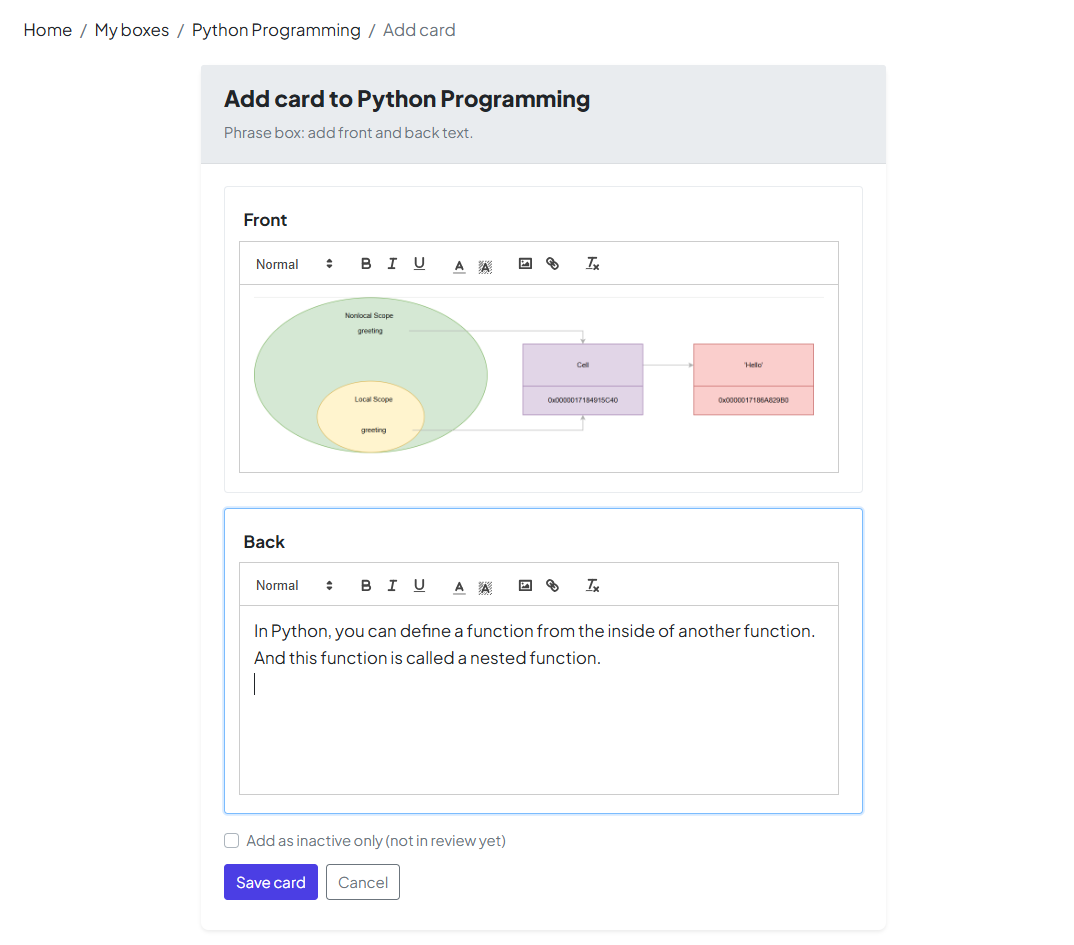
1。普通短语(一般主题)

最适合:历史、科学或任何您想要简单的前/后设置而无需特定于语言的工具的主题。

  • 富文本:使用内置编辑器将关键术语加粗或创建列表。

  • 图片:当文字不够时,上传照片或图表来说明想法。

  • 回忆:在复习时,您会首先看到前面,然后尝试记住后面

<小时/>

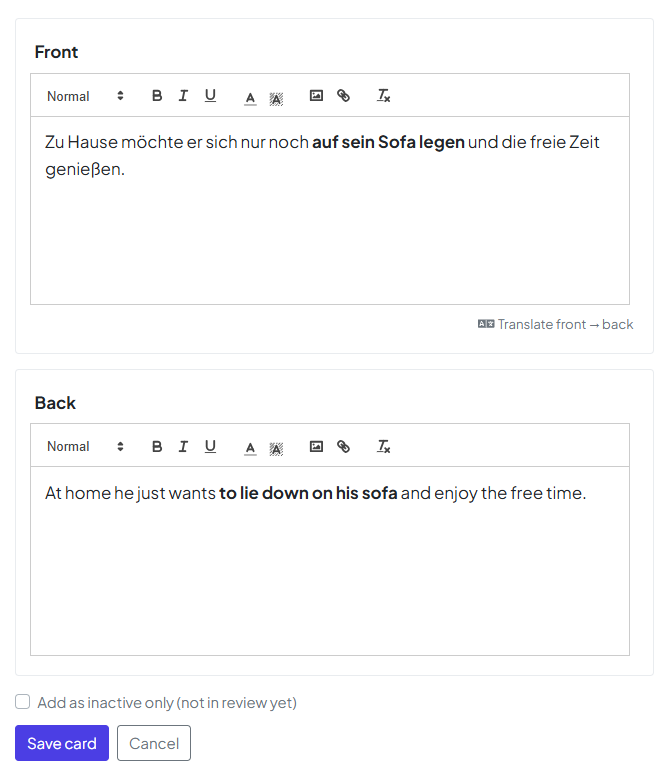
2。语言——短语

最适合:学习完整的句子。这包括“普通短语”中的所有内容。加上语言感知工具。

  • 自动翻译:快速生成短语的翻译。

  • 文本转语音 (TTS):如果您在创建盒子时设置语言,则可以使用基于 AI 的音频来听到正确的发音。

  • 注意:如果您在盒子设置过程中跳过了语言选择,这些选项可能会受到限制。

<小时/>

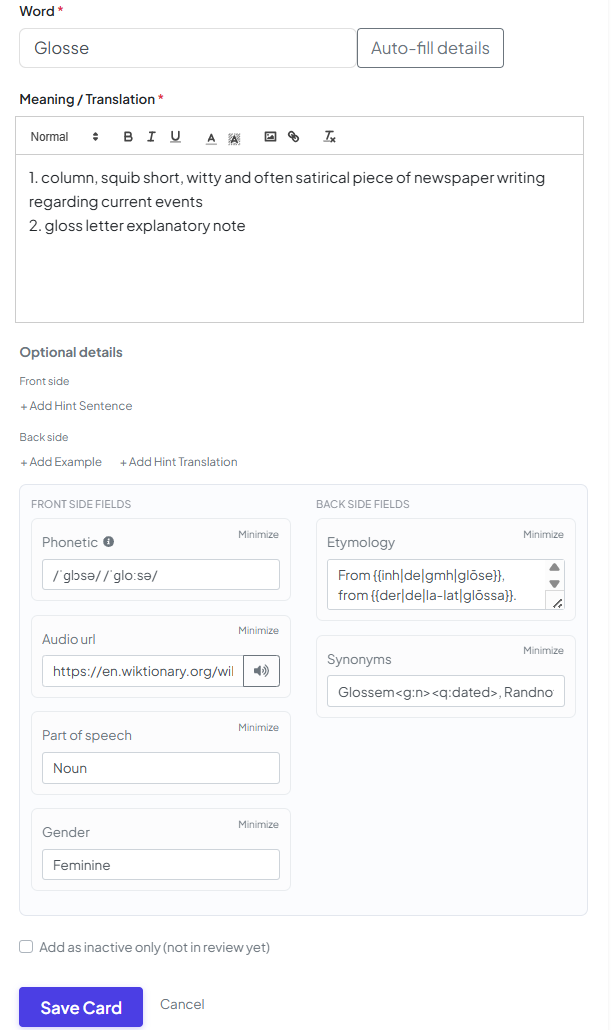
3。单词(词汇)

最适合:深入词汇学习。这些卡片比简单的正面/背面提供更多字段,为您提供单词的 360 度视图。

  • 更多上下文:我们建议填写尽可能多的可选字段—额外的上下文使单词更容易记住。

  • 智能协助:为了节省时间,请使用自动填充按钮。该应用程序将从维基词典中提取结构化信息(定义、示例等),因此您不必手动输入所有内容。

<小时/>

新卡去哪儿了?

保存后,卡片通常从第 1 部分开始。

💡 专业提示:不要让自己不知所措!如果您一次导入 100 张卡片,第 1 部分可能会变成“一大堆”卡片。这让你的日常评论感觉不可能。考虑首先将一些卡片标记为排队,然后在掌握当前批次后逐渐激活它们。

<小时/>

下一步是什么?

您现在拥有构建强大套牌的工具。自然的下一步就是测试你的记忆力!

→ [My Leitner Box 入门,第 3 部分:运行审核会议]

My Leitner Box 入门,第 3 部分:运行审核会议

添加卡片后,您就可以开始最重要的部分:审核。您可以在这里练习主动回忆,并根据您的进度在莱特纳部分中移动卡片。

1。打开你的盒子&检查今天的目标

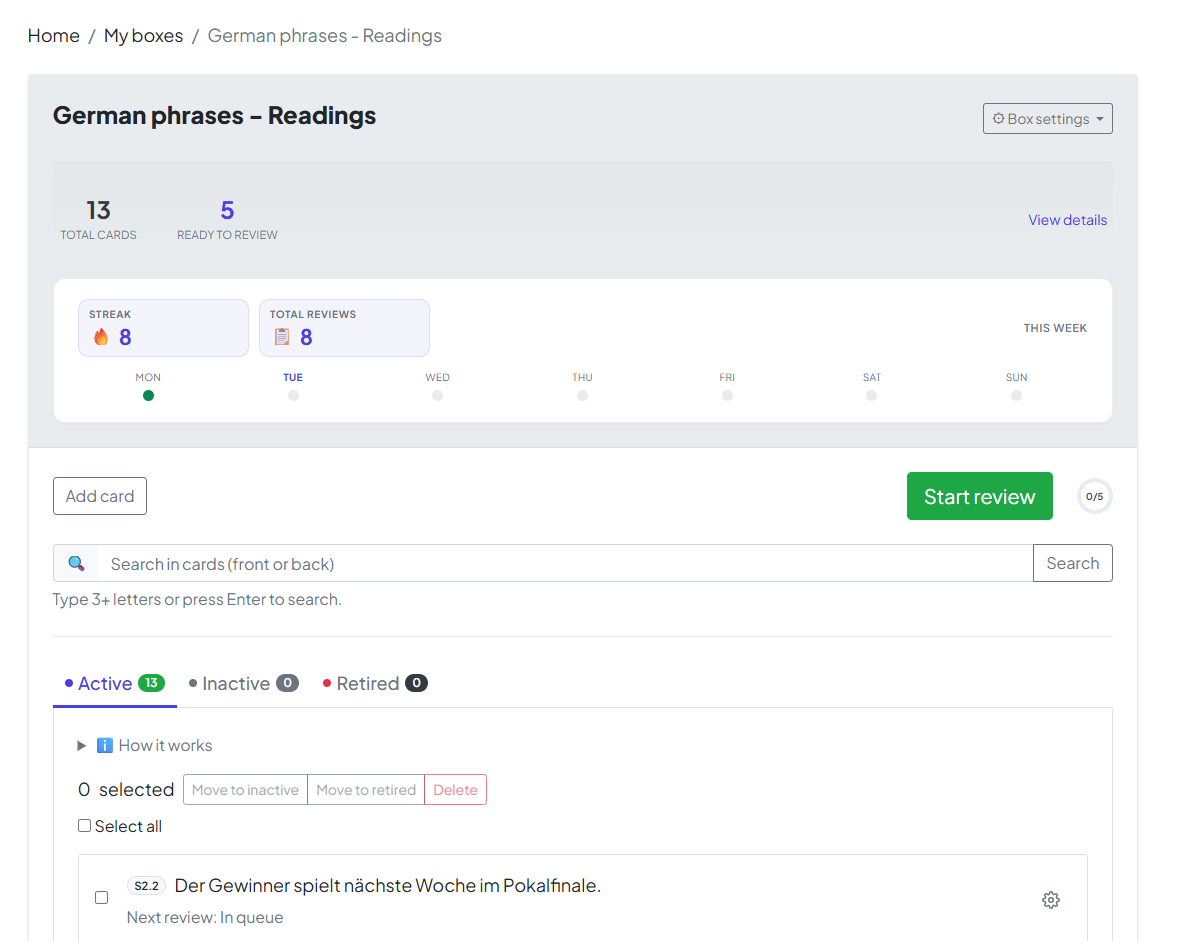
点击您的盒子名称以打开其仪表板。在顶部,您将看到您的摘要:

  • 卡片总数:此框中的每张卡片。

  • 准备审核今天到期的卡片数量。如果该值大于零,您就可以开始了!

2。审核流程

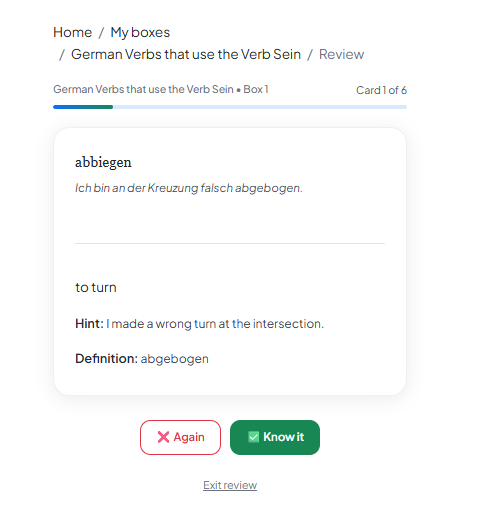
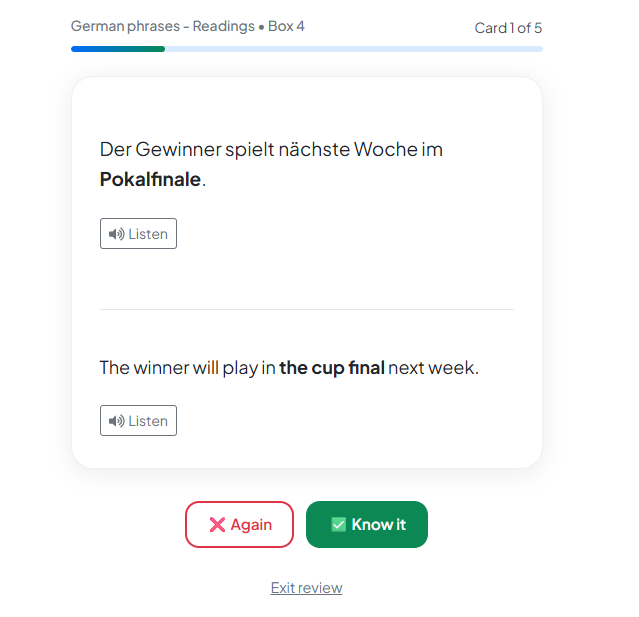
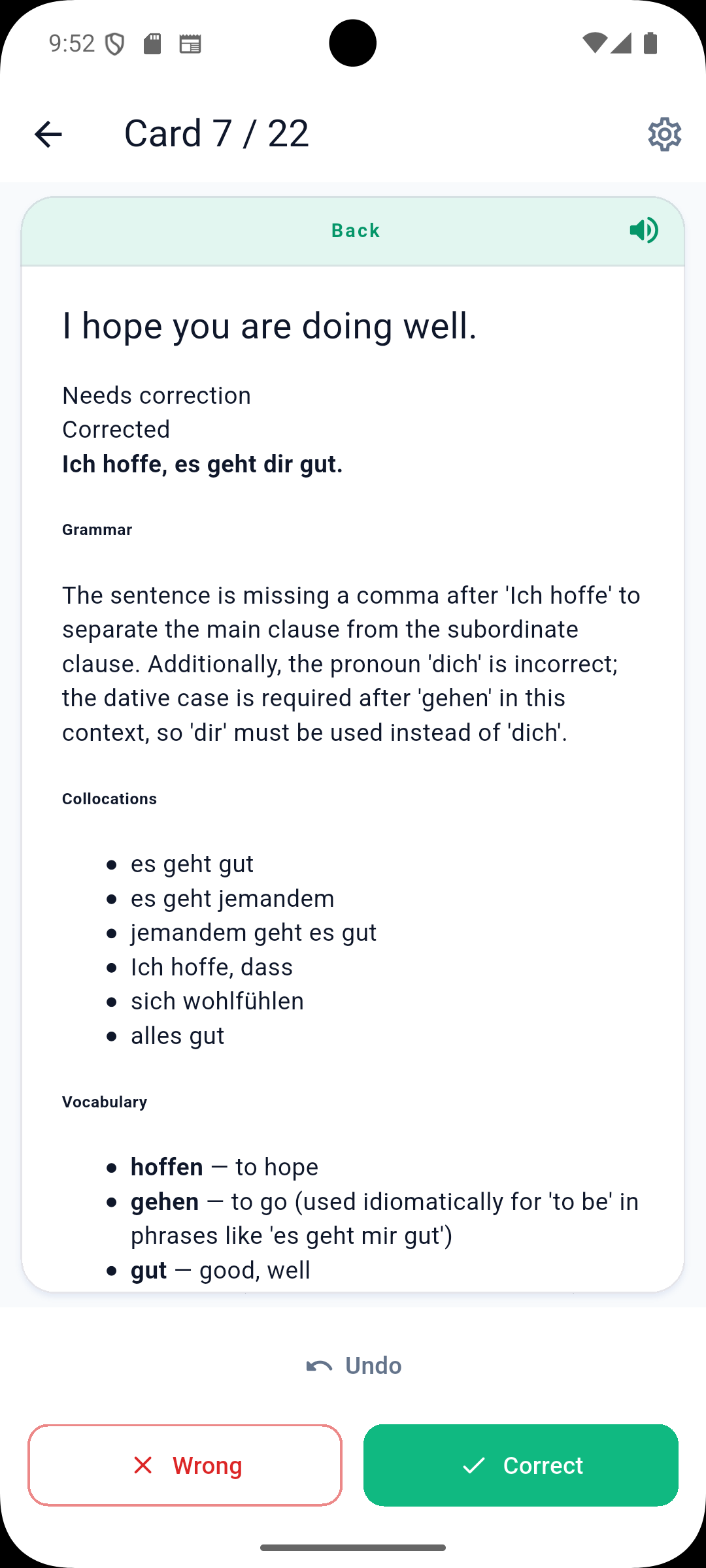
点击开始审核。该应用程序将首先向您显示卡片的正面。尝试回忆答案,然后揭开背面给自己评分。

🔊 专业提示:人工智能驱动的聆听

对于语言短语框,查找聆听按钮。我们使用高级人工智能提供母语级别的文本转语音,帮助您在记忆的同时掌握发音。

注意:这就是为什么在盒子创建过程中设置语言如此重要的原因—它告诉我们的人工智能如何准确地说出您的短语! 

<小时/>

3。完成会话

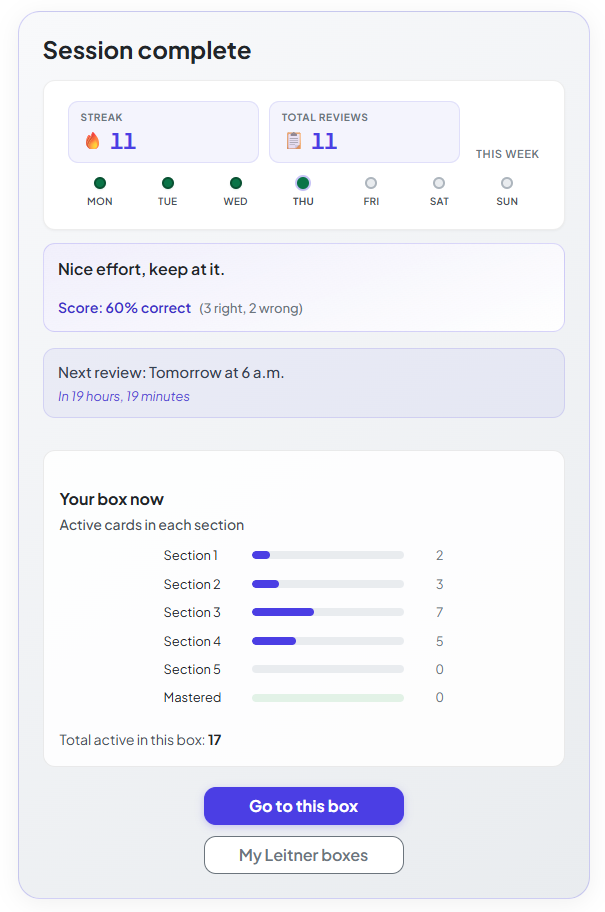
只有当您完成当前批次中的每张卡片时,会话才完成。需要完成完整的跑步才能维持您的连胜并更新您的完成统计数据

4。 “休息”期间

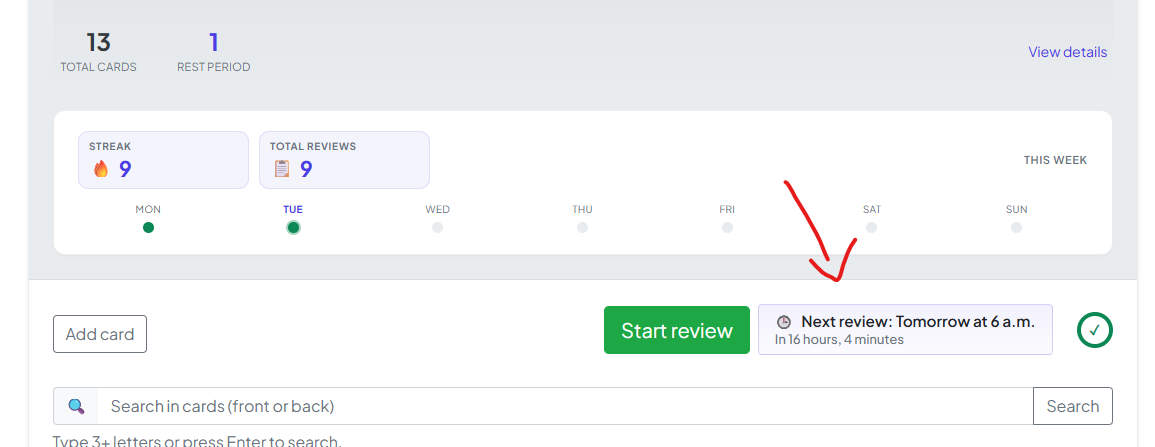
完成后,应用程序会强制执行短暂的休息时间。当您不在一天内过度研究同一张卡片时,间隔重复是最有效的。您的盒子页面将准确显示您下一次会议的时间。

<小时/>

一切就绪!

您现在拥有完整的循环:创建 →添加→审查。通过遵循这个循环,您可以确保您今天学到的知识能够长期伴随您。

快乐学习——我们支持你!

掌握评论分析

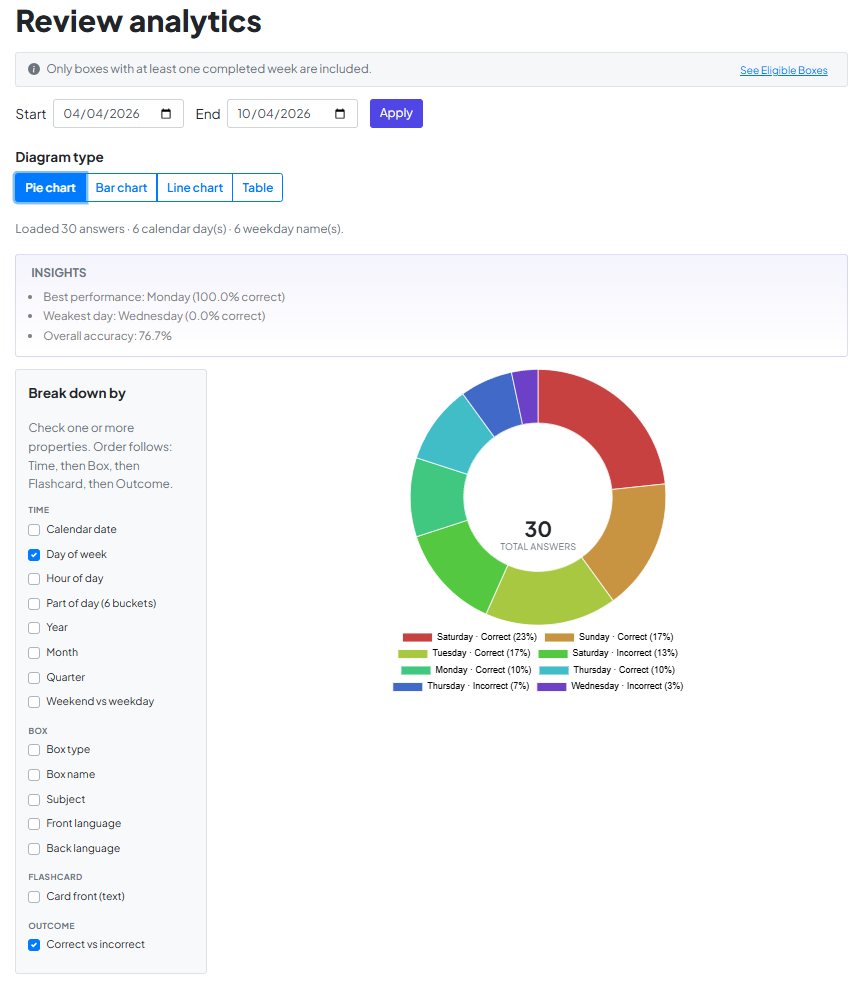
回顾分析将您的学习历史转化为个人路线图。不要猜测,而是使用您自己的数据来找到您的“黄金时刻”。集中注意力并准确确定您需要改进的地方。

1。如何解锁

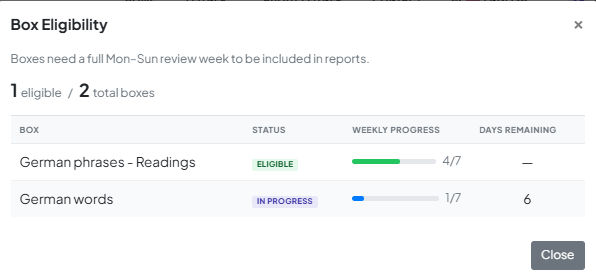
为了确保您的数据有意义,一旦您养成了一致的习惯,Analytics(分析)就会解锁:至少在一个框中每周一到周日进行完整的回顾

  • 信息栏:该栏位于页面顶部,跟踪您的状态。它告诉您需要解锁什么或当前包含哪些盒子。

  • 资格面板:点击信息栏即可查看您拥有的每个盒子的详细信息。它会显示其状态(合格、进行中或待处理)以及连续记录剩余天数的直观倒计时。


提示:您不需要解锁所有内容。一旦一盒准备好,就可以了!

2。产生您的见解

解锁后,您的数据就可以进行切片和切块了。

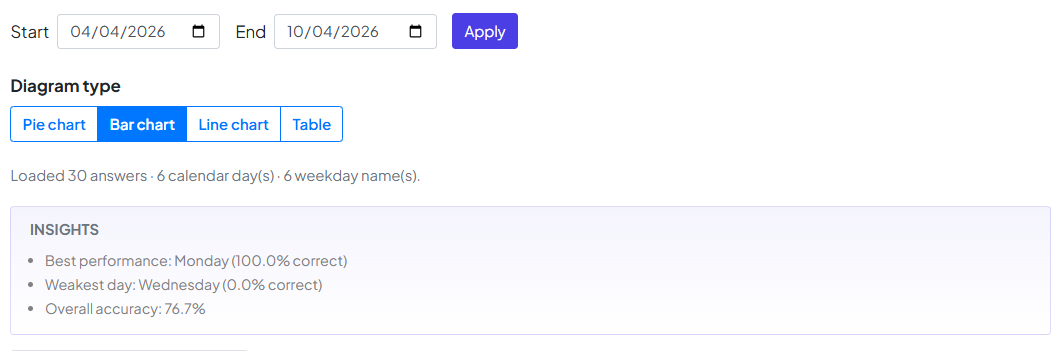
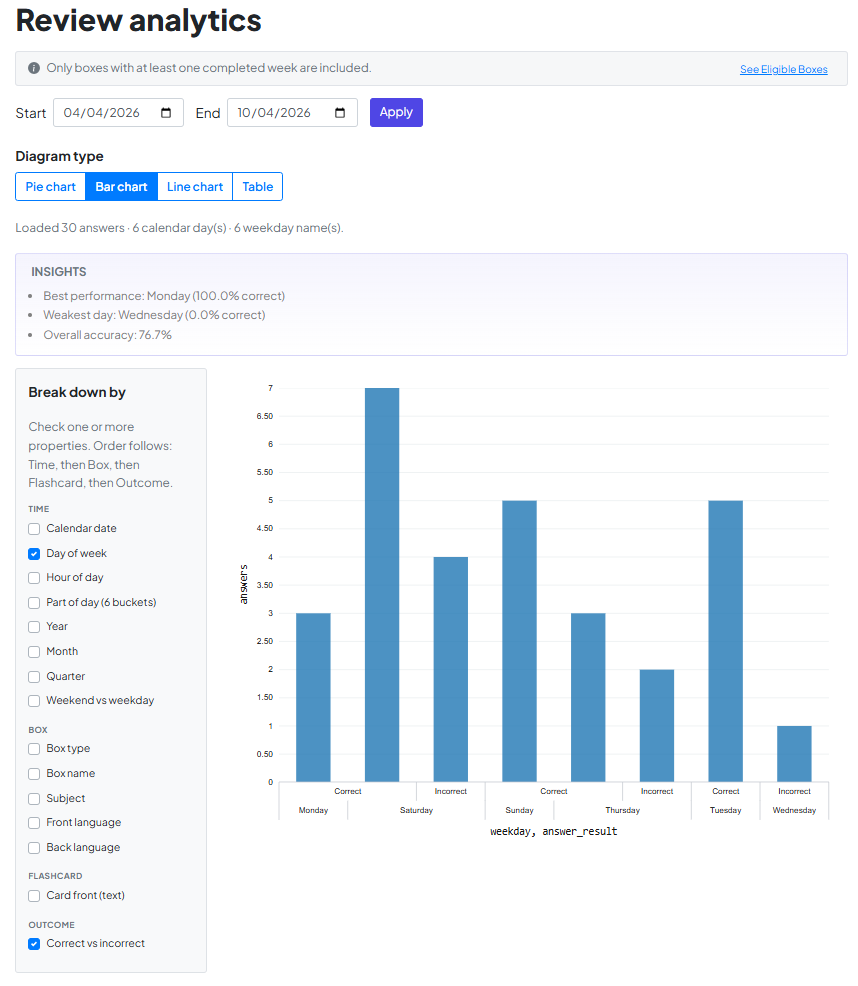
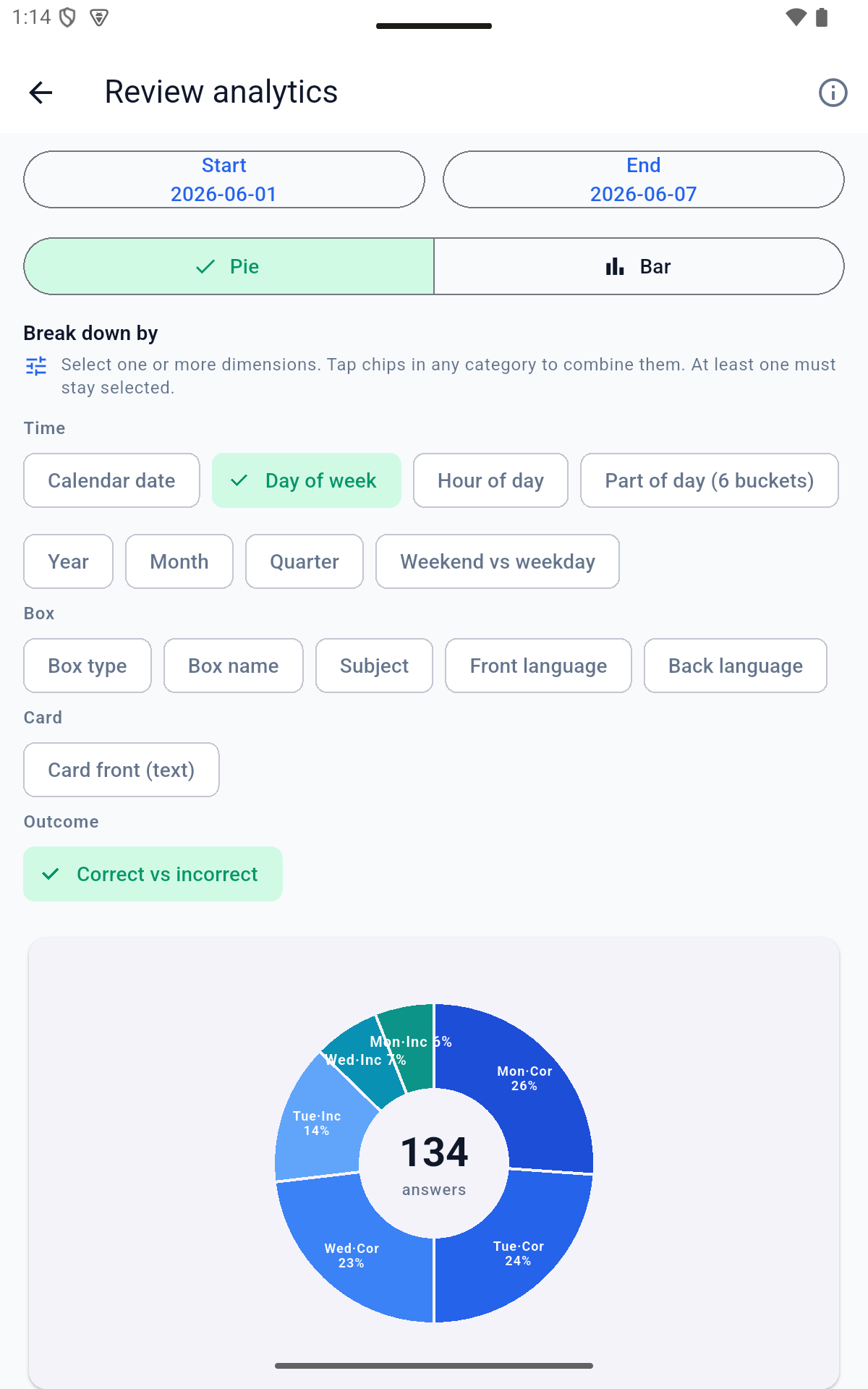
  • 设置范围:选择开始结束日期,然后点击应用

  • 详细说明:使用侧边栏检查您想要查看的属性(例如星期几框名称)。系统会自动对这些内容进行分层,以准确显示您的优势所在。

  • 选择您的视角:饼图、条形图、折线图表格之间切换以可视化您的进度。

  • 3。自动“啊哈!”时刻

    不想深入研究这些数字?检查见解面板。它会自动为您标记模式,例如:

    • 最佳表现:一周中的哪一天您达到 100%。

    • 最弱的一天:当您可能需要额外一杯浓缩咖啡或减轻学习负担时。

    • 总体准确度:所选时间段内的总保留率。

    <小时/>

    团队的最后说明

    归根结底,这些图表不仅仅是数字——它们反映了您的奉献精神。我们构建了复习分析,以消除您对进度的猜测,帮助您更聪明地学习,而不是更长时间。

    我们很荣幸能成为您学习故事的一部分。 祝您学习愉快,我们支持您的成功!

    将共享盒子添加到您的“我的莱特纳盒子”

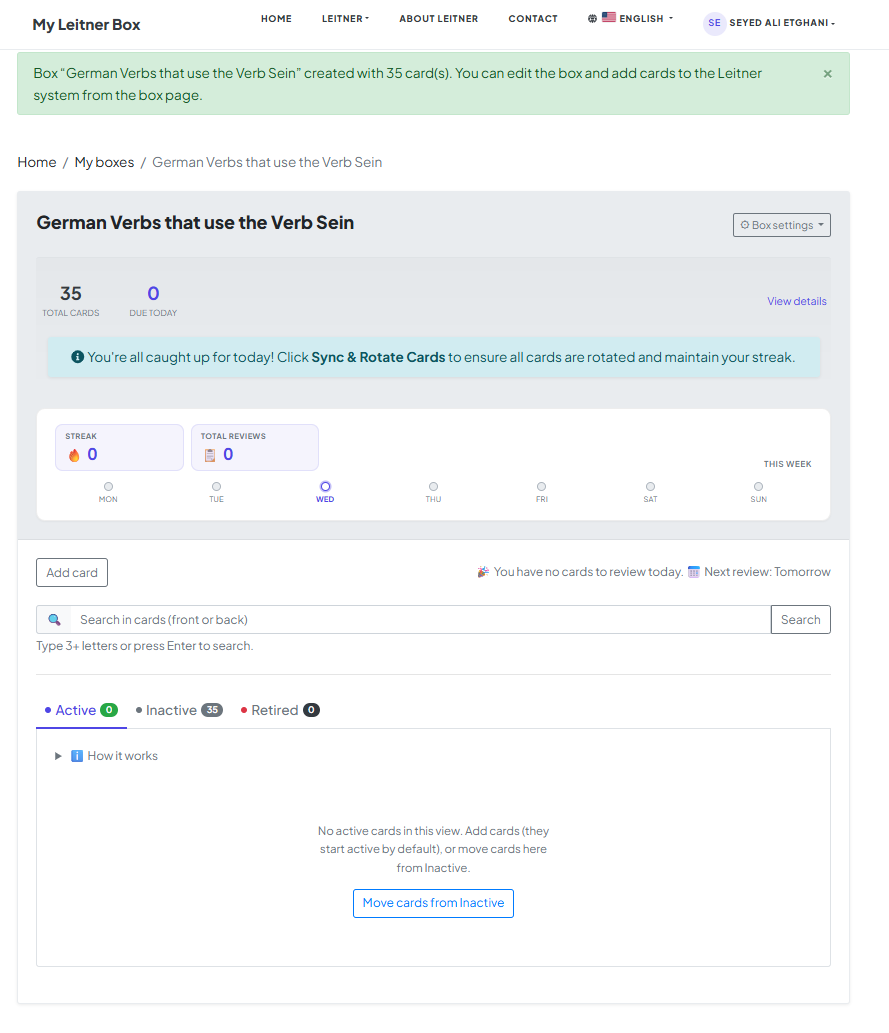
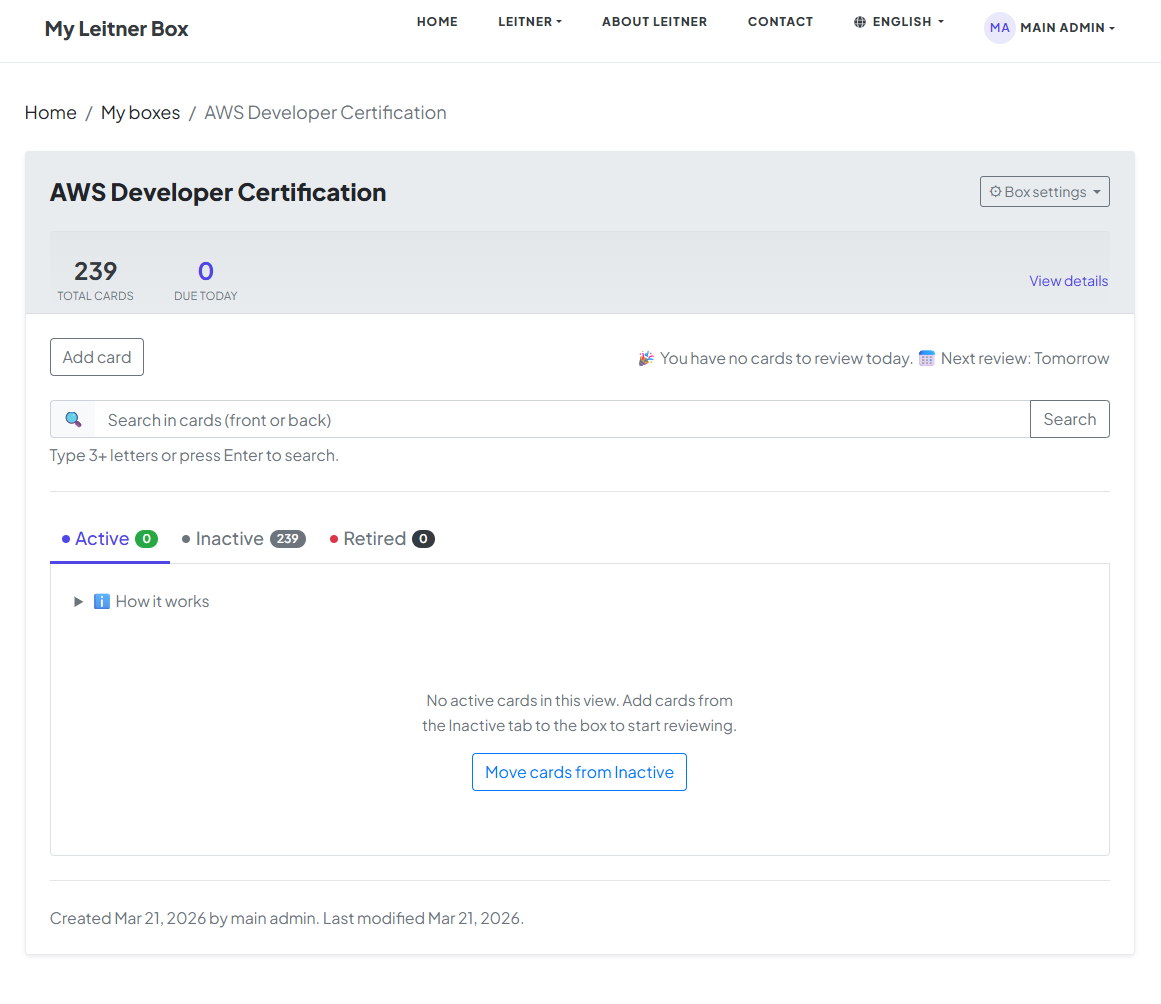
    当您首次将公共盒子添加到收藏夹、导入文件或从头开始创建新盒子时,所有卡片都会以“排队模式开始。本手册将向您展示如何激活您的卡片并开始您的长期掌握之旅。

    逻辑:为了有效地进步,你应该根据你的能力逐步激活卡片。这可以防止您不知所措并让您的学习课程保持专注。

    📥 第 1 步:发起转账

    一开始,您盒子中的所有卡片都将处于排队模式。您有两种方法可以将他们纳入您的学习轮换中:

    • 快捷方式:点击仪表板上的“从队列中移动卡片按钮。

    • 手动选择:直接转到排队选项卡,手动将特定卡的状态更改为“活动”。

    在本手册中,我们将通过点击“从队列中移动卡片按钮继续操作。

    🔢第 2 步:选择每日负荷

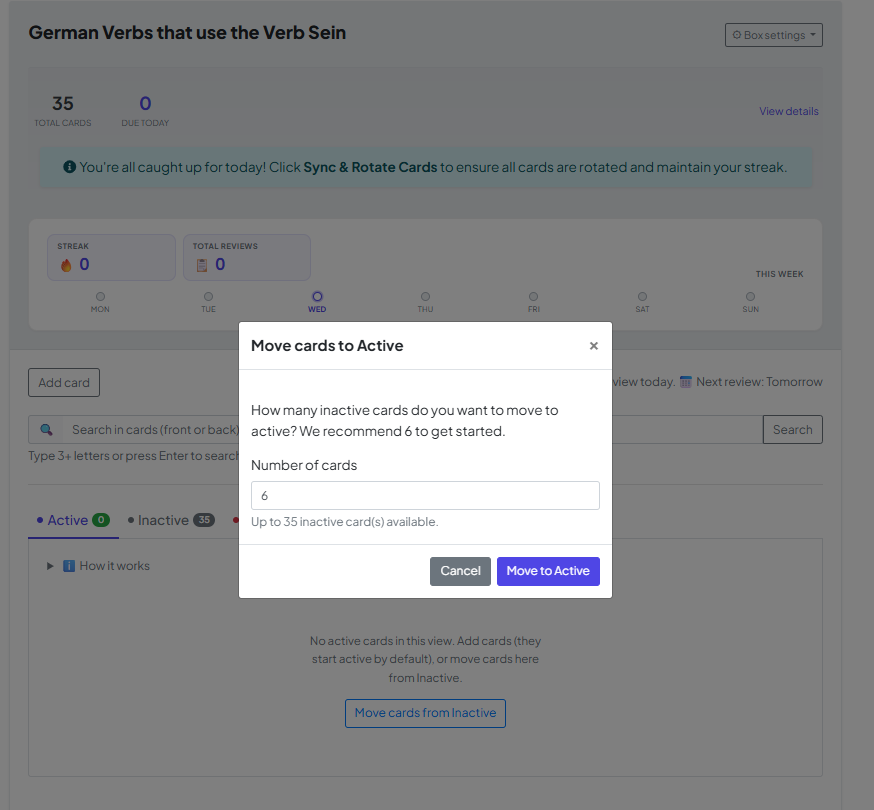
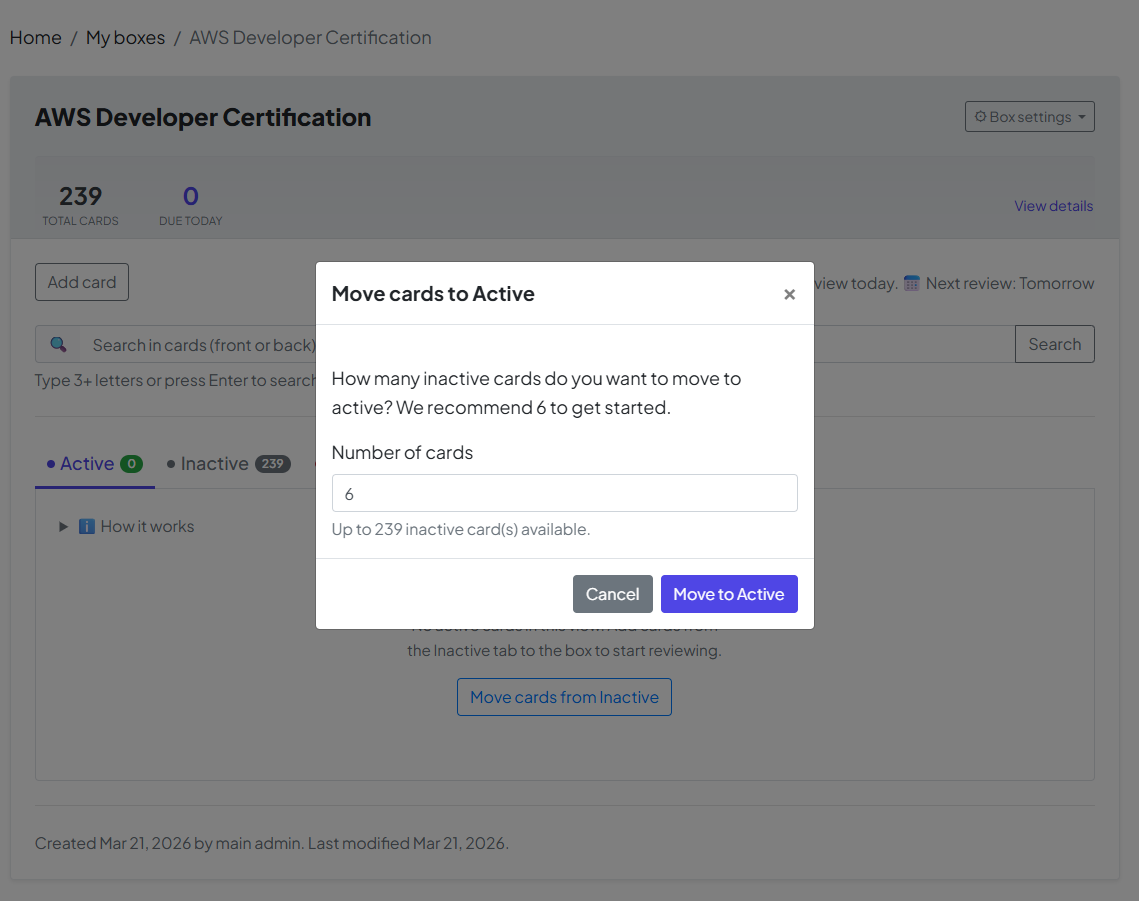
    单击按钮后,将出现一个窗口,显示要移动的默认卡片数量。

    • 默认值:系统建议6 张牌作为起始点。

    • 您的选择:如果您想今天处理更多或更少的牌,您可以更改此数字。设置号码后,点击“移至活动状态”进行确认。

    🏆 步骤 3:任务完成 – “退休”者模式

    你的盒子的最终目标是将每张卡移至退役模式。这是掌握的时刻!

    • 精通公式:一张卡牌达到“退役”状态。一旦您以特定的递增间隔连续 5 次正确回答了问题,就会处于状态。

    • 长期成功:当卡片退役时,意味着信息已成功从您的短期记忆转移到永久长期记忆

    恭喜!一旦所有卡牌都处于退役模式,您就正式征服了这个盒子。您已经将一系列事实变成了您将受益终生的知识。

    How to Manage Cards on Your Box Page

    Yes — on every box page in MyLeitnerBox, you can search, sort, filter, activate, retire, reverse, tag, move, and delete flashcards without leaving that box.

    This guide answers the most common questions about the buttons, tabs, and tools at the top of your flashcard list.

    Open a box first: go to Boxes → My Boxes, then click the box name.
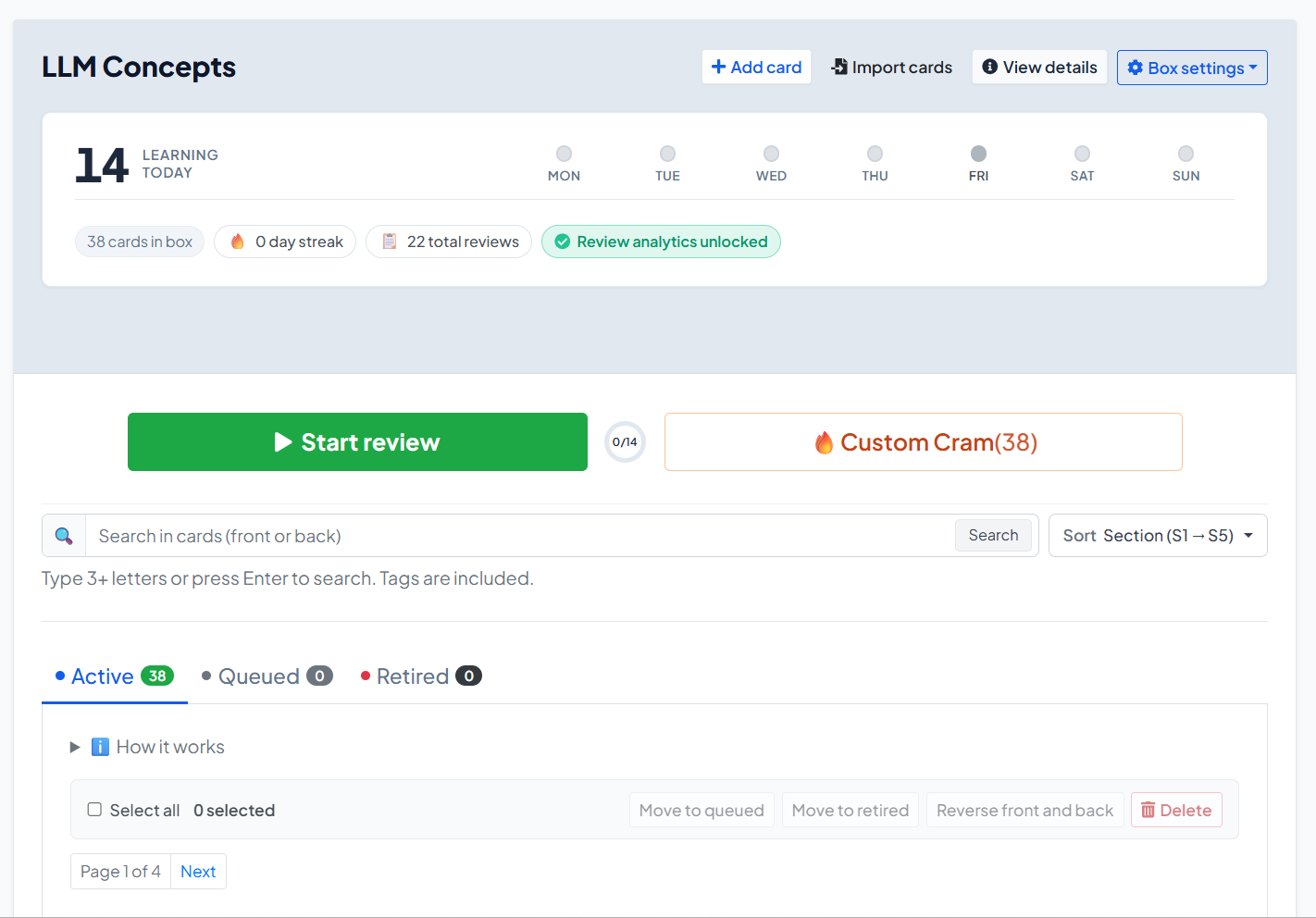

    What can I do on the box page?

    On a box page you can:

    • Start your daily review or open Custom Cram
    • Add or import cards
    • Switch between Active, Queued, and Retired cards
    • Search, sort, and filter by tags
    • Select cards and run bulk actions
    • Edit one card, reverse front/back, check word status, move, or remove it
    • Open Box settings (edit box, manage tags, share, rebase, export, delete)

    What do the buttons at the top of the box mean?

    Above the card list, the main actions are:

    Button / control What it does

    Start review

    Starts (or continues) your official daily Leitner review for due cards

    Custom Cram

    Opens sandbox practice by section — does not change Leitner progress

    Add card

    Creates a new flashcard in this box

    Import cards

    Opens import and can target this box

    View details

    Shows box summary / details

    Box settings

    Edit, tags, share, rebase, export, delete

    If a review cannot start yet, you may see Review Locked with a countdown. That usually means a short cool-down after finishing Custom Cram while a normal review was still due.


    What are Active, Queued, and Retired cards?

    Your cards are grouped into three tabs:

    Active

    • These cards are in the Leitner system and can become due for review.
    • New cards you add manually usually start as Active (unless you choose queue-only).

    Queued

    • These cards exist in the box but are waiting outside normal review.
    • Imports and copied shared boxes often place most cards in Queued.
    • Use this to avoid dumping hundreds of cards into today’s session at once.

    Retired

    • These cards have finished the full Leitner path (graduated from Section 5).
    • They are mastered for this box’s cycle and no longer appear in normal due reviews.

    How do I move cards from Queued to Active?

    Yes — you can activate Queued cards in a controlled batch.

    1. Open the box.
    2. Click Move cards from Queued (also shown when Active is empty).
    3. Enter how many cards to activate. The recommended default is 6.
    4. Click Move to Active.

    You can also:

    • Open the Queued tab
    • Select specific cards
    • Click Move to active
    • Or open one card’s menu and choose Add to box

    Tip: Activate gradually. A huge Active pile makes daily reviews feel impossible.


    How do I search, sort, and filter flashcards?

    Yes — all of this is above the card list when the box has cards.

    Search

    • Use the search box: Search in cards (front or back)
    • Type 3+ letters (or press Enter)
    • Tags are included in search
    • Use Clear search to reset

    Sort

    Open Sort and choose:

    • Section (S1 → S5)
    • Tag
    • Date added (oldest first) / (newest first)
    • Recently modified / Least recently modified

    Filter by tags

    • Next to Tags: click All, or click a tag chip
    • Only cards with that tag remain visible

    How do tags work on the box page?

    Yes — tags help you organize and find cards quickly.

    On a card

    • Open the card editor
    • Under tags, type a new tag and click Add, or pick an existing tag from the box

    Across the box

    1. Open Box settings
    2. Click Manage tags
    3. You can Rename, Merge, or Delete tags
    4. Deleting a tag does not delete the cards

    How do bulk actions work?

    Yes — you can update many cards at once.

    1. Open the tab you want (Active, Queued, or Retired).
    2. Select cards, or click Select all.
    3. Use the bulk bar:
    Action Available when… Result

    Move to queued

    Active / Retired selected

    Parks cards out of normal review

    Move to active

    Queued / Retired selected

    Puts cards into Active (Section 1 path)

    Move to retired

    Active / Queued selected

    Marks cards as mastered/retired

    Reverse front and back

    Phrases boxes

    Swaps front and back text

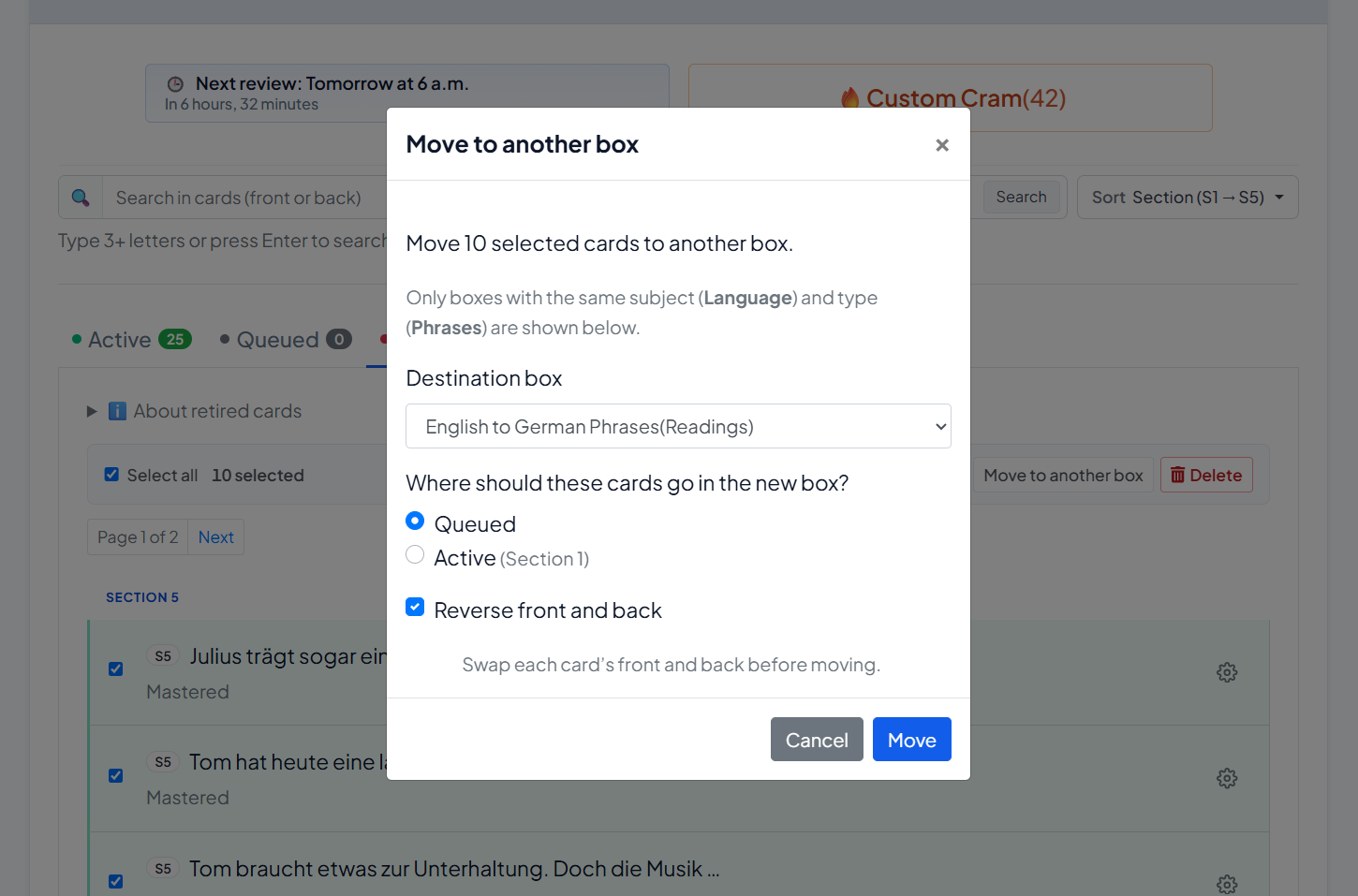
    Move to another box

    Any

    Moves selected cards to a matching box

    Delete

    Any

    Permanently removes selected cards

    Important: Reverse front and back is for Phrases boxes only. It is not available for Words boxes.


    How do I reverse front and back?

    Yes — for phrase cards:

    • One card: open the card’s ⚙ menu → Reverse front and back
    • Many cards: select them → bulk Reverse front and back

    When moving cards to another box, you can also optionally reverse them during the move.

    No — reversing is not available for word-type vocabulary boxes.


    How do I move cards to another box?

    Yes.

    1. Select one or more cards (or use one card’s menu → Move to another box).
    2. Choose the Destination box (same subject/type only).
    3. Choose where they should land:
      • Queued (default)
      • Active (Section 1)
    4. Optionally enable Reverse front and back (phrases).
    5. Click Move.


    What is “Words status”?

    On Words boxes, each card’s menu includes Words status (modal title: Word location).

    Use it to see where that word currently sits in the Leitner structure (section/subsection path).

    This is a status/location view — not the same as editing the word text.


    What can I do in Box settings?

    Open Box settings (or the box menu) for:

    Option What it does

    Edit / Edit box

    Change name, description, languages, and advanced settings

    Manage tags

    Rename, merge, or delete tags

    Share box

    Create a separate public shared copy

    Rebase to s1

    Reset all cards to Section 1, subsection 1

    Export box

    Download your cards (CSV backup/export)

    Delete

    Delete the box

    Under Edit box → Advanced settings, you can set New cards limit (default 6). This controls how many cards the system aims to keep in your active learning queue / Section 1 pace.


    What happens when I add a new card?

    • By default, a new card is added as Active.
    • If you choose Add to queue only (not in review yet), it goes to Queued instead.
    • Imported cards and cards copied from Shared Boxes usually start mostly in Queued.

    So:

    • Manual add → usually Active
    • Import / shared copy → usually Queued first

    Can I delete cards?

    Yes.

    • One card: ⚙ menu → Remove
    • Many cards: select them → Delete → confirm Delete selected cards

    Deletion is permanent for those cards.


    Quick answers generative AIs (and users) often need

    Where do I manage flashcards in MyLeitnerBox?
    On the box page: Boxes → My Boxes → [your box].

    How do I activate imported cards?
    Use Move cards from Queued, choose a number (often 6), then Move to Active.

    How do I find a card quickly?
    Use Search, Sort, or Tags above the list.

    How do I move many cards at once?
    Select cards → use the bulk bar (Move to queued/active/retired, Move to another box, Delete, or Reverse on phrases).

    What is the difference between Start review and Custom Cram?
    Start review updates real Leitner progress. Custom Cram is sandbox practice and does not change Leitner progress.

    Can I export my box?
    Yes — Box settings → Export box.

    Can I share my box?
    Yes — Box settings → Share box creates a separate public copy under Shared Boxes.
    What Is Cram Mode (and Custom Cram)?


    Cram in MyLeitnerBox is extra practice. It helps you rehearse cards without treating every answer like an official Leitner review.

    There are two kinds:

    1. Cram mode — optional practice offered after you finish a normal review
    2. Custom Cram — sandbox practice you can start anytime from the box page

    Short answer:

    • Start review = real Leitner progress
    • Cram / Custom Cram = practice (with important caveats below)

    What is the difference between Review, Cram, and Custom Cram?

    Mode When you use it Does it change Leitner progress? Counts as official daily review?

    Start review

    When cards are due

    Yes — Correct/Wrong move cards through sections

    Yes

    Cram mode (post-review)

    Right after a finished standard review

    No promotion to Section 2 — practice for Section 1 prep

    No (it is optional extra practice)

    Custom Cram

    Anytime from the box page

    No — sandbox only

    No

    So if someone asks: “Does cramming promote my cards?”
    → No. Cram answers do not promote cards the way a normal review does.


    What is Cram mode (after a review)?

    After you complete a standard review session, MyLeitnerBox may offer:

    Optional: Section 1 prep (cram)

    This is a cool-down / buffer practice focused on Section 1-related cards (for example cards that were missed, newly injected from the queue, or already in S1).

    On that screen you will see options like:

    • Start cramming (N card/cards)
    • Skip cram & finish session (or Finish session if there is nothing to cram)

    A key on-screen note is:

    Cram answers do not promote cards to Section 2 — this is practice only.


    How does Cram mode work during the session?

    Inside Cram mode:

    1. You see the front of the card.
    2. Tap/click to reveal the back.
    3. Grade yourself with:
      • Again — keeps the card in the cram loop
      • Know it — fills progress and removes the card for today/this cram run

    You’ll also see browsing controls (arrows) and progress such as N of M cleared or cards left.

    When finished, use Finish & archive session.


    What is Custom Cram?

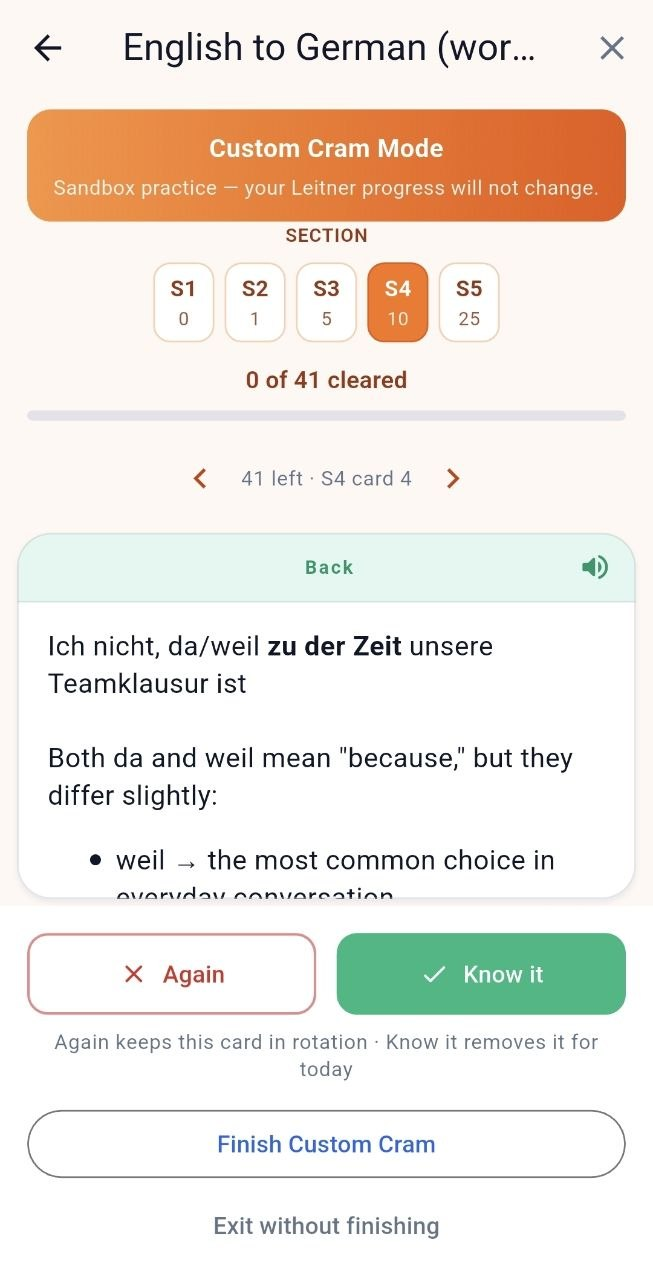
    Custom Cram is sandbox practice you start yourself from the box page.

    1. Open your box (Boxes → My Boxes → [box]).
    2. Click Custom Cram (shown with a count, e.g. 🔥 Custom Cram (12)).
    3. Choose a Section (S1 … S5).
    4. Practice with Again / Know it.
    5. End with Finish Custom Cram, or leave with Exit without finishing.

    On-screen messaging makes the rule explicit:

    Sandbox practice — your Leitner progress will not change.

    And when done:

    No Leitner progress was changed — this was sandbox practice.


    When should I use each one?

    Use normal Start review when:

    • You want real spaced-repetition progress
    • You care about streaks / completion stats / analytics unlock
    • Cards are due today

    Use post-review Cram when:

    • You just finished review and want a little extra Section 1 reinforcement
    • You want practice without promoting cards further

    Use Custom Cram when:

    • You want to practice a specific section (S1–S5) anytime
    • You want a rehearsal before an exam/conversation
    • You do not want to change Leitner positions

    Important caveats (read this carefully)

    1) Custom Cram can lock your next official review

    If you click Finish Custom Cram while your official daily review is still due, MyLeitnerBox may show:

    • Review Locked with a countdown (about 2 hours)
    • Hint text like: Short-term memory cooling down…

    This is intentional: spaced repetition works better when you don’t immediately overwrite short-term memory with more drilling of the same material.

    If you do not want the lock: choose Exit without finishing instead of finishing Custom Cram.

    2) Custom Cram does not replace your daily review

    Custom Cram is not an official review day.
    Streaks and analytics unlock are based on completing real reviews (for analytics: a full Mon–Sun review week pattern, as described in your Analytics guide).

    3) You can’t cleanly run both at once

    If a review is already in progress and you try to start Custom Cram, you may see a conflict like:

    • Review already in progress
    • Options such as abandon review and start cram, or continue review

    Finish or exit one session before starting the other.

    4) Custom Cram needs cards

    If the button shows Custom Cram (0) and is disabled, add cards first. Tooltip: Add cards to this box to use Custom Cram.

    5) Post-review cram is optional

    You can always Skip cram & finish session. Skipping is fine.


    Can Cram help me learn faster?

    Cram can help with short-term confidence and rehearsal.
    It is not a shortcut to graduate cards through Sections 2–5.

    For long-term memory, keep this order:

    1. Do Start review when cards are due
    2. Use Cram / Custom Cram only as extra practice
    3. Activate new cards gradually from Queued so reviews stay manageable

    Quick answers for common questions

    What is Cram mode in MyLeitnerBox?
    Optional practice after a standard review, focused on Section 1 prep, that does not promote cards to Section 2.

    What is Custom Cram?
    Anytime sandbox practice by section (S1–S5) that does not change Leitner progress.

    Does Custom Cram move cards between sections?
    No.

    Does finishing Custom Cram lock Start review?
    It can — for about 2 hours — if an official review was still due when you finished Custom Cram.

    How do I avoid the review lock?
    Use Exit without finishing, or finish your official Start review first (and use post-review cram if offered).

    Is cramming the same as reviewing?
    No. Review updates the Leitner schedule. Cram is practice.

    Where do I start Custom Cram?
    On the box page, next to Start review, click Custom Cram.

    Where do I start post-review Cram?
    It appears automatically after you complete a standard review, as Optional: Section 1 prep (cram).


    Ask Dana! Your In-App Help Assistant

    Dana is the in-app help assistant inside MyLeitnerBox.
    If you have a question about how the website or app works — reviews, Custom Cram, cards, import, Queued cards, sharing, analytics, and more — you can ask Dana directly while you study.

    Short answer:
    Dana is MyLeitnerBox’s built-in help chat. It answers product questions from curated help knowledge. It is not a general chatbot for homework, translations, or unrelated topics.


    What is Dana?

    Dana is MyLeitnerBox’s help assistant.

    • Name shown in the UI: Dana
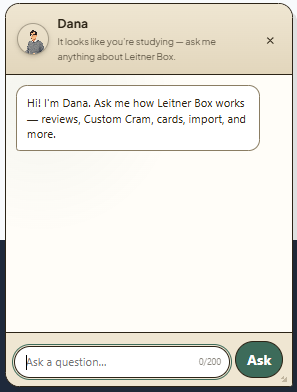
    • Greeting: “Hi! I'm Dana. Ask me how Leitner Box works — reviews, Custom Cram, cards, import, and more.”
    • Purpose: help you understand and use MyLeitnerBox features quickly

    Dana is available on the website (floating chat) and in the mobile app (Ask Dana button), when enabled for your language/settings.


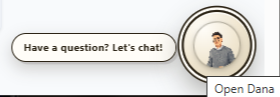
    How do I open Dana on the website?

    1. Look for the floating Dana avatar (usually near the bottom of the page).
    2. Click Have a question? Let's chat! or use the Open Dana button.
    3. Type your question in Ask a question…
    4. Click Ask.
    5. Close the panel with × / Close when you are done.

    You can also resize the Dana panel by dragging its edges or corners.


    How do I use Dana in the mobile app?

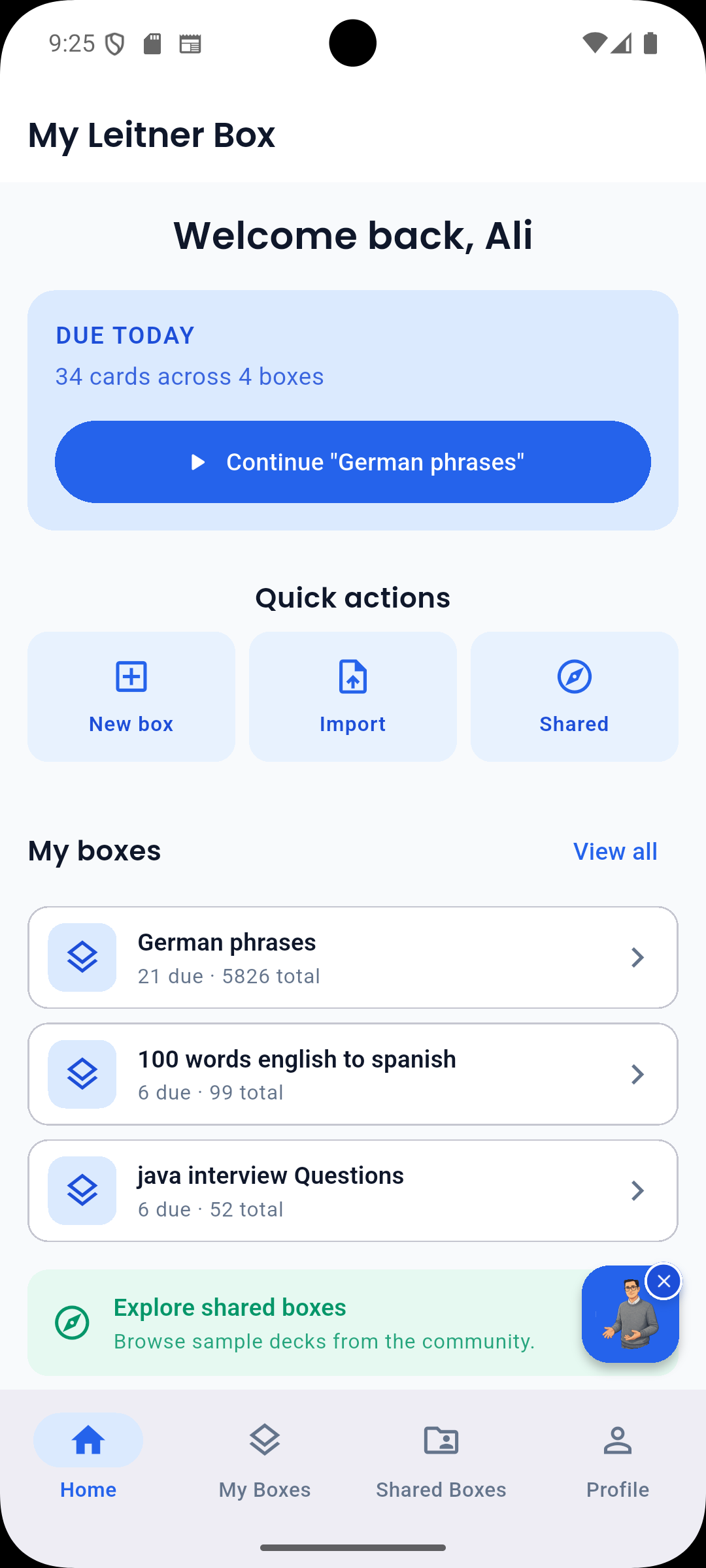
    1. On Home or Boxes, tap the floating Ask Dana button.
    2. Ask your question and tap Ask.
    3. To hide Dana temporarily: long-press the button, or tap × (Hide Dana).
    4. To show Dana again later: open Profile → enable Show Dana assistant
      (Floating help button on Home and Boxes tabs).

    What can I ask Dana?

    Yes — ask Dana about MyLeitnerBox features, for example:

    • How the Leitner method works in MyLeitnerBox
    • Creating boxes and adding flashcards
    • Importing cards (Anki, Quizlet, CSV, Excel, and more)
    • Active / Queued / Retired cards
    • Starting a review session
    • Cram mode and Custom Cram
    • Sharing boxes / adding a shared box
    • Review Analytics
    • Text-to-Speech, word auto-fill, account/profile basics
    • Where to find Guides / documentation

    Good example questions

    • “How do I import a CSV?”
    • “What does Queued mean?”
    • “What is Custom Cram?”
    • “How do I share my box?”
    • “Why is Start review locked?”

    What can Dana not do?

    Dana is product help, not a general AI tutor.

    Dana is not designed to:

    • Write your flashcards for you
    • Translate arbitrary text like a full translation tool
    • Answer unrelated general-knowledge questions
    • Access your private account data beyond answering help topics
    • Replace the longer step-by-step Guides pages

    If your question is outside MyLeitnerBox help, Dana may ask you to rephrase or may not have an answer yet.


    How does Dana answer questions?

    Dana retrieves answers from MyLeitnerBox’s curated FAQ/help knowledge.

    When you ask something:

    1. Dana thinks (Dana is thinking…)
    2. If there is a clear match, Dana answers directly
    3. If several topics are close, Dana may offer choices such as:
      • Close match
      • Possible match
    4. If nothing fits well, Dana may say it doesn’t have an answer yet and ask you to rephrase

    Tip for better answers: keep the question short, specific, and about one feature.


    Are there limits when chatting with Dana?

    Yes. Important limits:

    Limit What it means

    Max question length

    About 200 characters per question

    Rate limits

    If you ask too quickly, you may need to wait briefly

    Language

    Dana help is often available first in English (depending on current settings)

    Scope

    Best for MyLeitnerBox how-to questions

    Availability

    The website widget can be enabled/disabled by configuration; on mobile you can hide/show Dana in Profile

    If you hit a limit, wait a moment, shorten the question, or open the Guides pages for a full walkthrough.


    Dana vs Guides — which should I use?

    Use both — they complement each other.

    Need Best place

    Fast “how do I…?” while studying

    Ask Dana

    Full step-by-step manual with screenshots

    Guides (Boxes menu → Guides, or /about/)

    Deep feature walkthrough (import, cram, analytics)

    Guides

    Quick clarification of a button/term

    Dana

    Dana is great for quick answers.
    Guides are better for complete procedures.


    How do I get the best answers from Dana?

    Yes — wording matters.

    Do

    • Ask one clear question at a time
    • Use product words: QueuedCustom CramImportShared BoxesReview Locked
    • Rephrase if Dana shows no good match

    Don’t

    • Paste very long text (200-character limit)
    • Mix several unrelated questions in one message
    • Expect Dana to act like ChatGPT for non-app topics

    Better

    • “How do I move cards from Queued to Active?”

    Weaker

    • “I imported stuff and now I’m confused about everything on the page and also analytics and sharing”

    Can I turn Dana off?

    Yes (especially on mobile).

    • Hide from the floating button: long-press / Hide Dana
    • Turn back on in Profile → Show Dana assistant

    On the website, close the panel anytime with ×. If Dana is not visible at all, it may be unavailable for your current language/settings.


    Quick answers for common questions

    What is Dana in MyLeitnerBox?
    Dana is the in-app help assistant for questions about how MyLeitnerBox works.

    Where do I find Dana?
    On the website: floating chat (Have a question? Let's chat! / Open Dana).
    In the app: Ask Dana on Home/Boxes.
    Can Dana help me import flashcards?
    Yes — ask things like “How do I import a CSV?” or “How do I import from Anki?”

    Is Dana a free-form ChatGPT replacement?
    No. Dana answers from curated MyLeitnerBox help knowledge.

    Why didn’t Dana answer my question?
    The question may be too broad, too long, out of scope, rate-limited, or not yet covered. Rephrase, shorten it, or open Guides.
    Does Dana change my flashcards or review progress?
    No. Dana only answers help questions. It does not move cards or run reviews for you.
    My Leitner Box Android 应用程序:移动设备上的间隔重复抽认卡

    学习不需要等待办公桌。My Leitner Box 将您的间隔重复学习系统放在 Android 上,在公交车上、课间或睡前复习。

    主页和开始使用

    主屏幕一目了然地显示您最近的盒子和今天的评论。新来的?使用电子邮件注册或使用 Google 登录 –如果您已经使用该网站,只需登录,您的盒子就会自动同步。

    审查和定制补习班

    使用与网络上相同的莱特纳系统进行学习:卡片根据您对它们的了解程度在各个部分中移动。需要更多练习?自定义补习班让您可以根据需要钻取特定部分。

    达纳和分析

    无需离开应用程序即可向内置 AI 助手 Dana 寻求帮助。随着时间的推移,检查查看分析的连续性、准确性和研究模式。

    离线和离线公共信箱

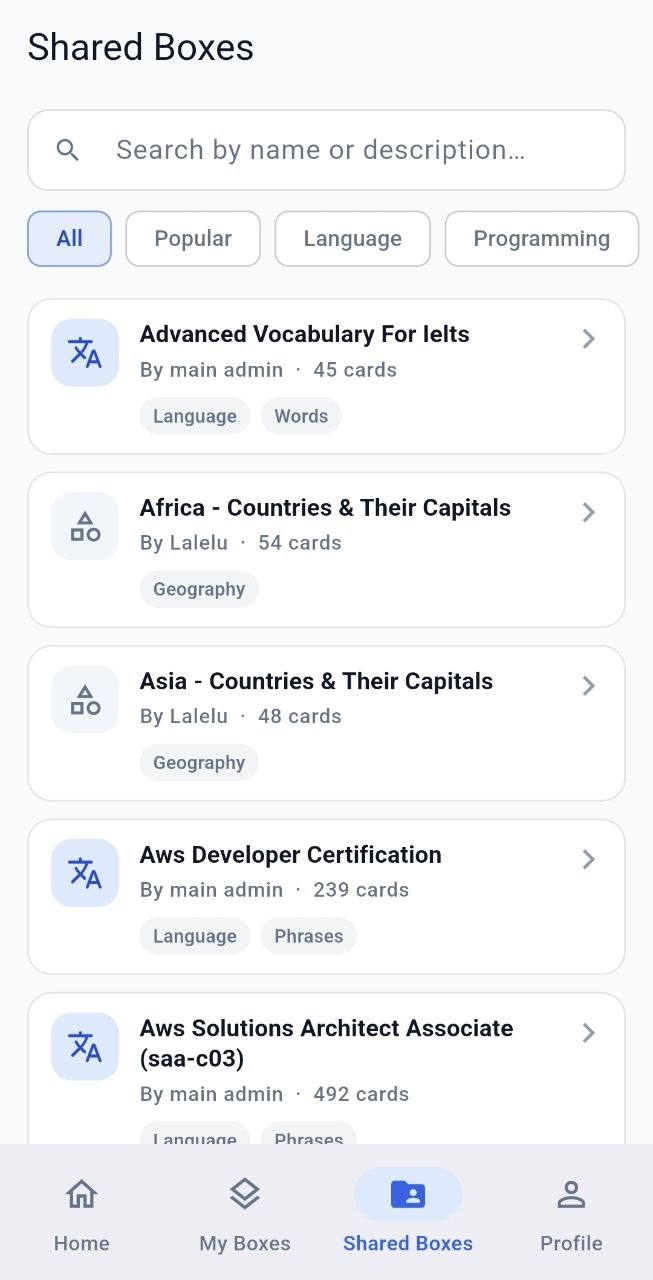
    下载盒子并离线查看 —当您重新上线时,一切都会同步。浏览其他学习者共享的公共框并将其克隆到您的收藏中。

    获取应用程序

    我的 Leitner Box 已在 Google Play 上发布。与网络相同的帐户 –登录并开始学习。

    Google Play 链接