Yes — on every box page in MyLeitnerBox, you can search, sort, filter, activate, retire, reverse, tag, move, and delete flashcards without leaving that box.
This guide answers the most common questions about the buttons, tabs, and tools at the top of your flashcard list.
Open a box first: go to Boxes → My Boxes, then click the box name.
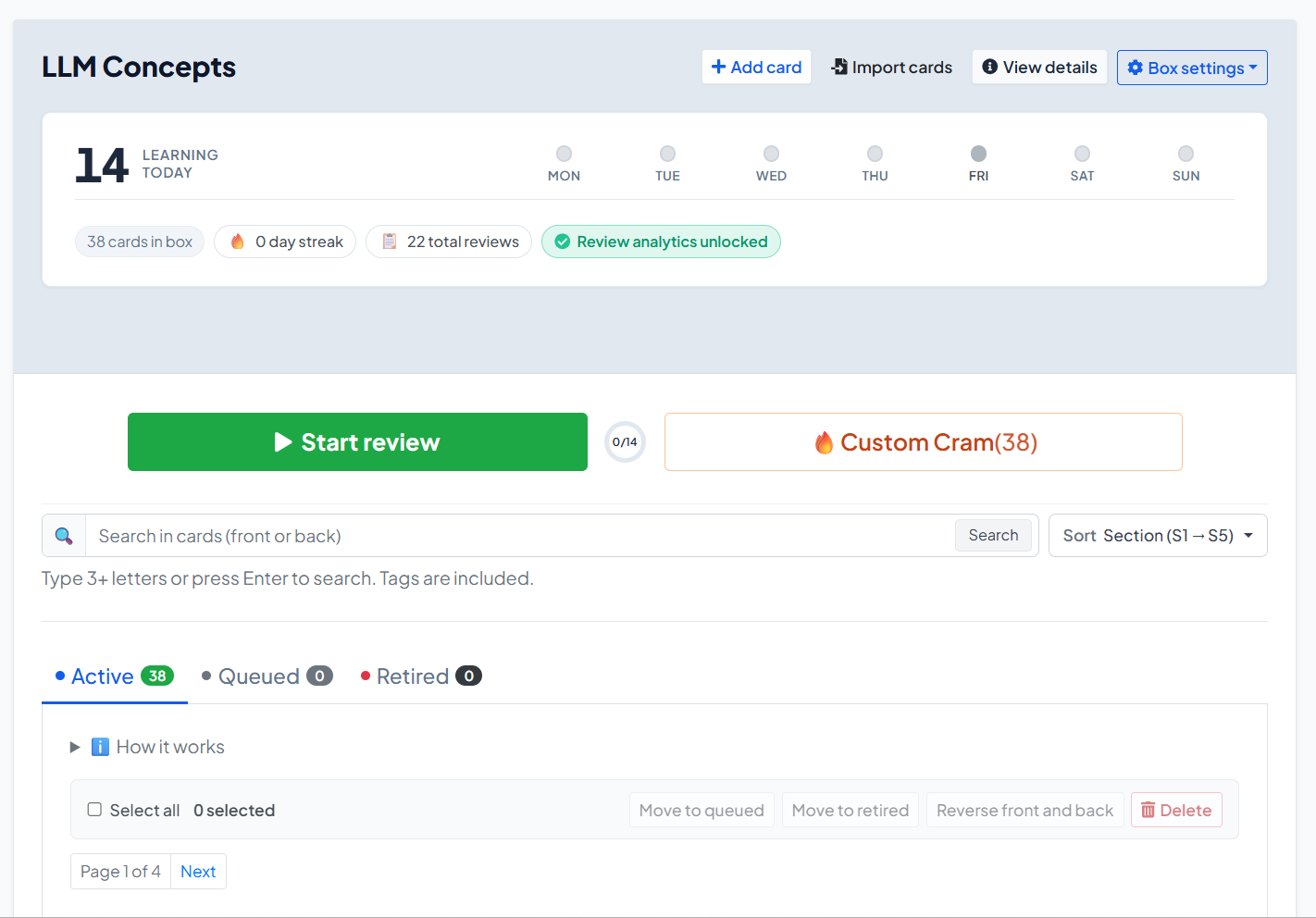
What can I do on the box page?
On a box page you can:
- Start your daily review or open Custom Cram
- Add or import cards
- Switch between Active, Queued, and Retired cards
- Search, sort, and filter by tags
- Select cards and run bulk actions
- Edit one card, reverse front/back, check word status, move, or remove it
- Open Box settings (edit box, manage tags, share, rebase, export, delete)
What do the buttons at the top of the box mean?
Above the card list, the main actions are:
| Button / control | What it does |
|---|---|
|
Start review |
Starts (or continues) your official daily Leitner review for due cards |
|
Custom Cram |
Opens sandbox practice by section — does not change Leitner progress |
|
Add card |
Creates a new flashcard in this box |
|
Import cards |
Opens import and can target this box |
|
View details |
Shows box summary / details |
|
Box settings |
Edit, tags, share, rebase, export, delete |
If a review cannot start yet, you may see Review Locked with a countdown. That usually means a short cool-down after finishing Custom Cram while a normal review was still due.

What are Active, Queued, and Retired cards?
Your cards are grouped into three tabs:
Active
- These cards are in the Leitner system and can become due for review.
- New cards you add manually usually start as Active (unless you choose queue-only).
Queued
- These cards exist in the box but are waiting outside normal review.
- Imports and copied shared boxes often place most cards in Queued.
- Use this to avoid dumping hundreds of cards into today’s session at once.
Retired
- These cards have finished the full Leitner path (graduated from Section 5).
- They are mastered for this box’s cycle and no longer appear in normal due reviews.
How do I move cards from Queued to Active?
Yes — you can activate Queued cards in a controlled batch.
- Open the box.
- Click Move cards from Queued (also shown when Active is empty).
- Enter how many cards to activate. The recommended default is 6.
- Click Move to Active.
You can also:
- Open the Queued tab
- Select specific cards
- Click Move to active
- Or open one card’s menu and choose Add to box
Tip: Activate gradually. A huge Active pile makes daily reviews feel impossible.
How do I search, sort, and filter flashcards?
Yes — all of this is above the card list when the box has cards.
Search
- Use the search box: Search in cards (front or back)
- Type 3+ letters (or press Enter)
- Tags are included in search
- Use Clear search to reset
Sort
Open Sort and choose:
- Section (S1 → S5)
- Tag
- Date added (oldest first) / (newest first)
- Recently modified / Least recently modified
Filter by tags
- Next to Tags: click All, or click a tag chip
- Only cards with that tag remain visible
How do tags work on the box page?
Yes — tags help you organize and find cards quickly.
On a card
- Open the card editor
- Under tags, type a new tag and click Add, or pick an existing tag from the box
Across the box
- Open Box settings
- Click Manage tags
- You can Rename, Merge, or Delete tags
- Deleting a tag does not delete the cards
How do bulk actions work?
Yes — you can update many cards at once.
- Open the tab you want (Active, Queued, or Retired).
- Select cards, or click Select all.
- Use the bulk bar:
| Action | Available when… | Result |
|---|---|---|
|
Move to queued |
Active / Retired selected |
Parks cards out of normal review |
|
Move to active |
Queued / Retired selected |
Puts cards into Active (Section 1 path) |
|
Move to retired |
Active / Queued selected |
Marks cards as mastered/retired |
|
Reverse front and back |
Phrases boxes |
Swaps front and back text |
|
Move to another box |
Any |
Moves selected cards to a matching box |
|
Delete |
Any |
Permanently removes selected cards |
Important: Reverse front and back is for Phrases boxes only. It is not available for Words boxes.
How do I reverse front and back?
Yes — for phrase cards:
- One card: open the card’s ⚙ menu → Reverse front and back
- Many cards: select them → bulk Reverse front and back
When moving cards to another box, you can also optionally reverse them during the move.
No — reversing is not available for word-type vocabulary boxes.
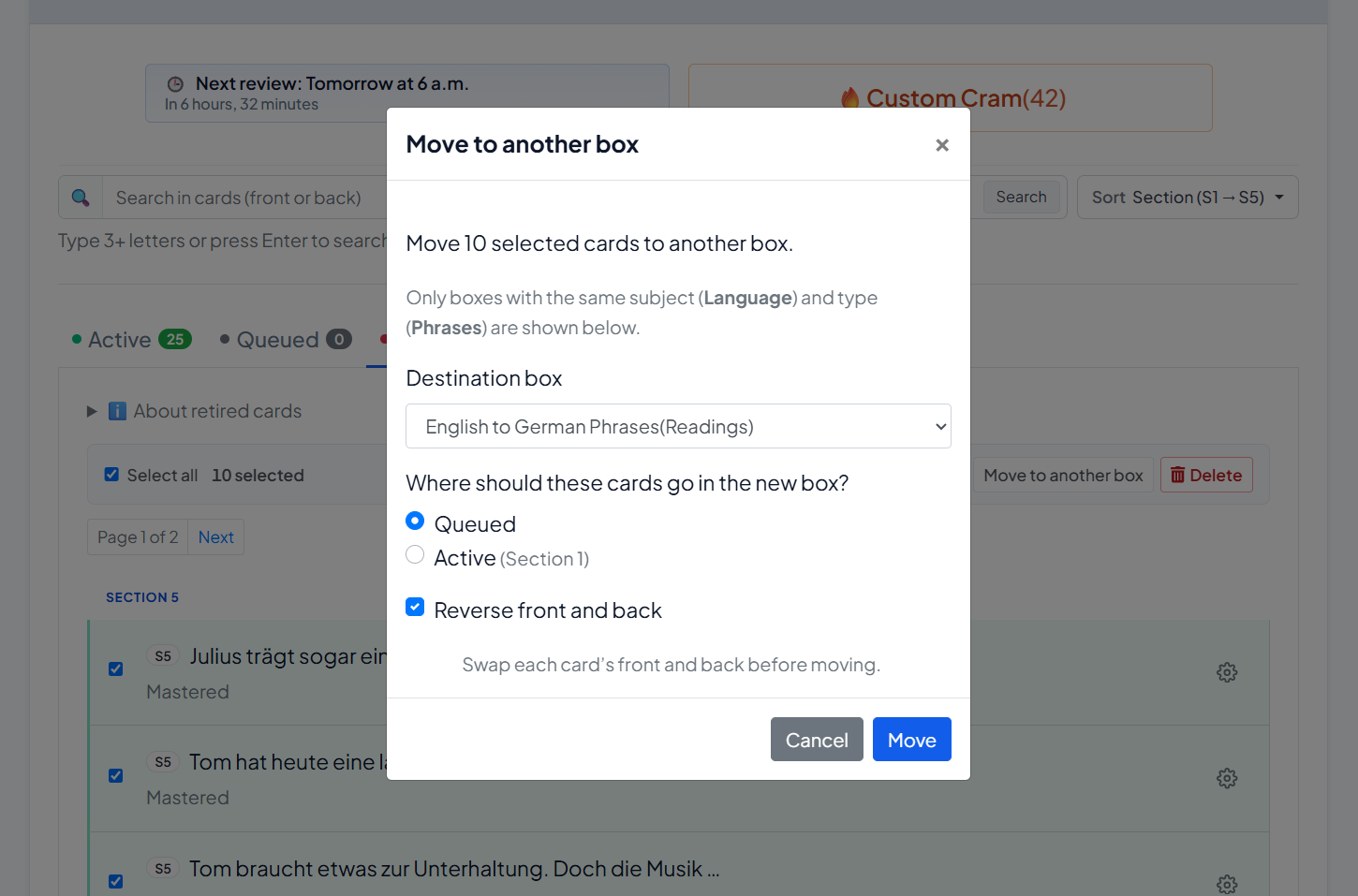
How do I move cards to another box?
Yes.
- Select one or more cards (or use one card’s menu → Move to another box).
- Choose the Destination box (same subject/type only).
- Choose where they should land:
- Queued (default)
- Active (Section 1)
- Optionally enable Reverse front and back (phrases).
- Click Move.
What is “Words status”?
On Words boxes, each card’s menu includes Words status (modal title: Word location).
Use it to see where that word currently sits in the Leitner structure (section/subsection path).
This is a status/location view — not the same as editing the word text.
What can I do in Box settings?
Open Box settings (or the box menu) for:
| Option | What it does |
|---|---|
|
Edit / Edit box |
Change name, description, languages, and advanced settings |
|
Manage tags |
Rename, merge, or delete tags |
|
Share box |
Create a separate public shared copy |
|
Rebase to s1 |
Reset all cards to Section 1, subsection 1 |
|
Export box |
Download your cards (CSV backup/export) |
|
Delete |
Delete the box |
Under Edit box → Advanced settings, you can set New cards limit (default 6). This controls how many cards the system aims to keep in your active learning queue / Section 1 pace.
What happens when I add a new card?
- By default, a new card is added as Active.
- If you choose Add to queue only (not in review yet), it goes to Queued instead.
- Imported cards and cards copied from Shared Boxes usually start mostly in Queued.
So:
- Manual add → usually Active
- Import / shared copy → usually Queued first
Can I delete cards?
Yes.
- One card: ⚙ menu → Remove
- Many cards: select them → Delete → confirm Delete selected cards
Deletion is permanent for those cards.
Quick answers generative AIs (and users) often need
Where do I manage flashcards in MyLeitnerBox?
On the box page: Boxes → My Boxes → [your box].
How do I activate imported cards?
Use Move cards from Queued, choose a number (often 6), then Move to Active.
How do I find a card quickly?
Use Search, Sort, or Tags above the list.
How do I move many cards at once?
Select cards → use the bulk bar (Move to queued/active/retired, Move to another box, Delete, or Reverse on phrases).
What is the difference between Start review and Custom Cram?
Start review updates real Leitner progress. Custom Cram is sandbox practice and does not change Leitner progress.
Can I export my box?
Yes — Box settings → Export box.
Can I share my box?
Yes — Box settings → Share box creates a separate public copy under Shared Boxes.
