Who this is for
MyLeitnerBox lets teachers, parents, and other supervisors create a flashcard box, invite learners privately, and — when you choose — see their review progress. Learners can be students in a class, kids at home, or anyone you support.
This guide is about private sharing (invite by username or email). It is not the public Shared Leitner boxes catalog.
1. Create a box and add cards
-
Sign in and open My boxes.
-
Create a new box (or open an existing one) and add your flashcards.
2. Invite with Live read-only and ask to monitor progress
To keep one shared deck in sync and track how learners study:
-
Open the box and choose Share with people.
-
Enter their username or email.
-
Choose Live read-only under How to share.
-
Check Ask to see their review progress.
-
Send the invitation. Repeat for each learner.
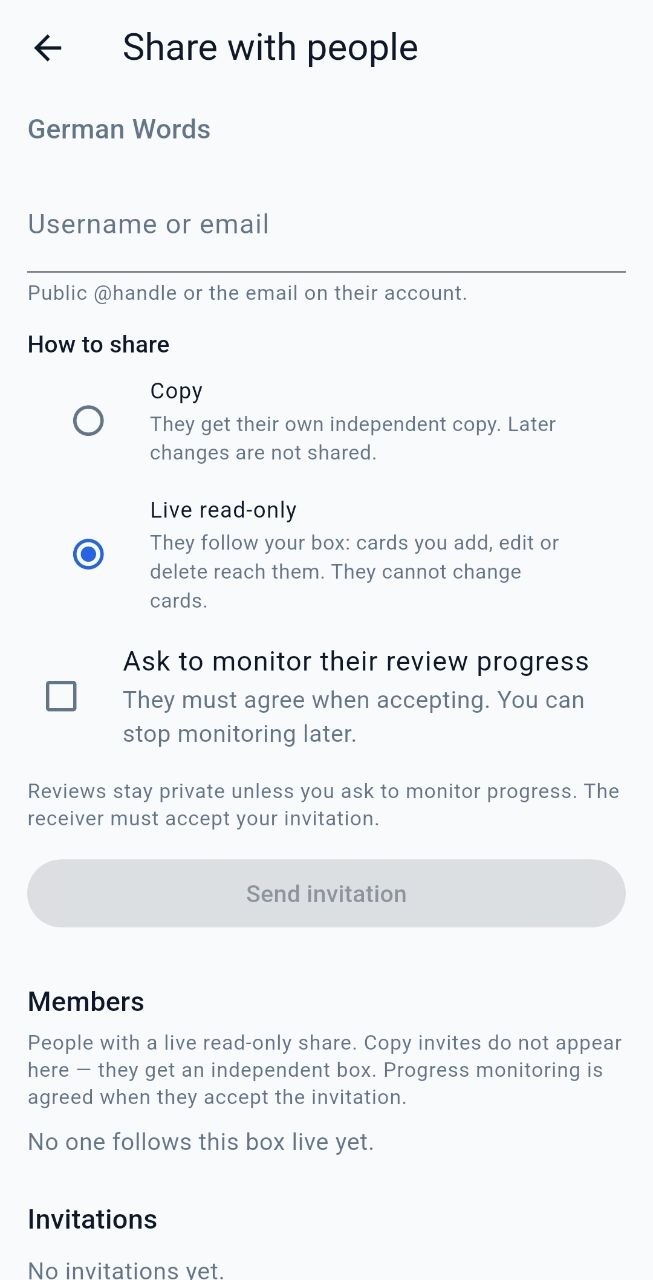
What Live read-only means: the learner gets a study box that stays linked to yours. When you add or edit cards, their box can update. They can review, but they cannot change the front or back of cards.
3. How the learner accepts
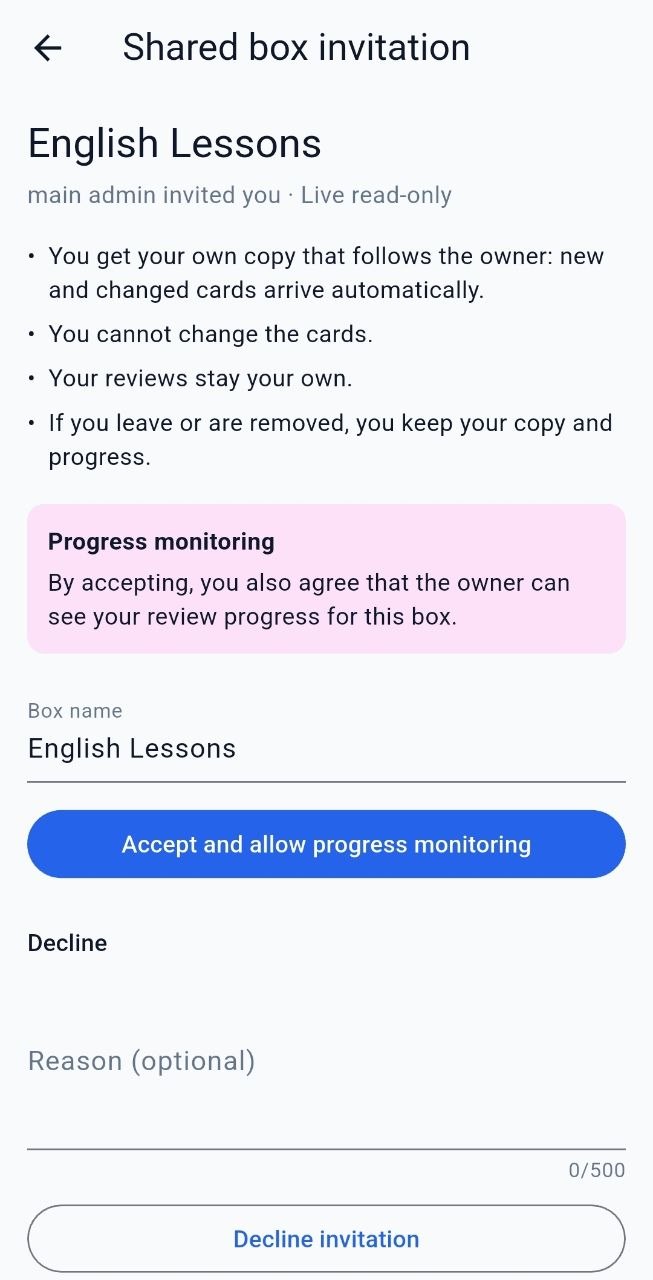
The learner receives an invitation (inbox / Sharing). If you asked to monitor progress, accepting also means they agree that you can see their review progress for that box.
4. View their progress
-
Open the box → Share with people.
-
In the members list, open View progress for that person.
You can see things like answers, accuracy, day streak, cards by section, and cards they struggle with.
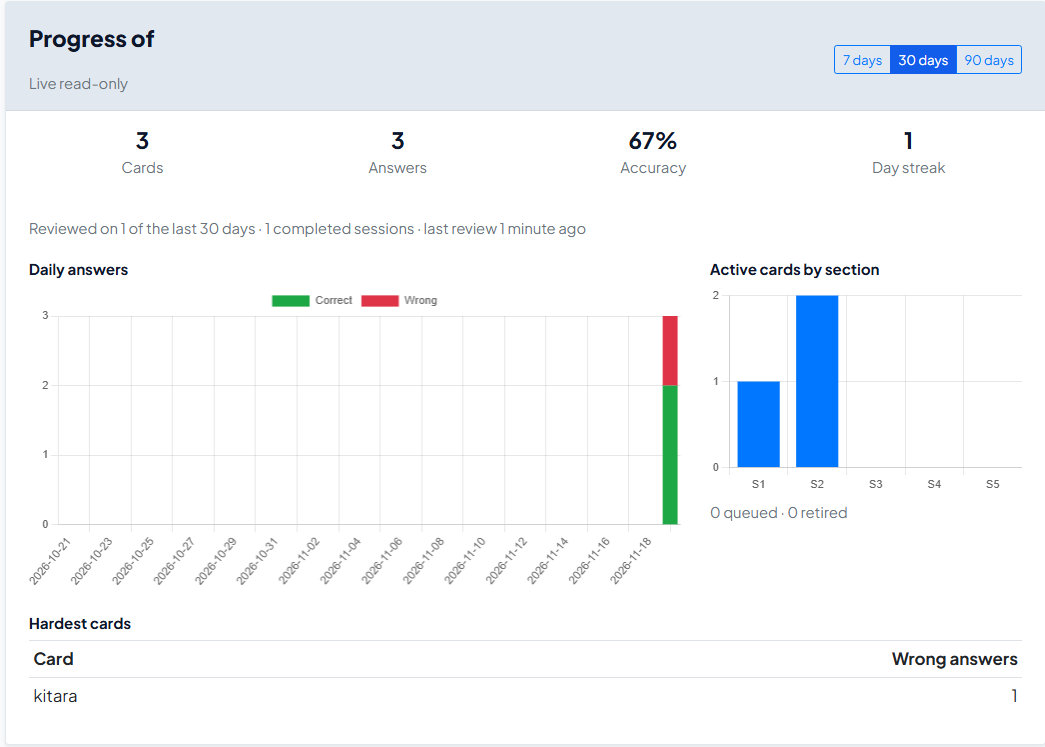
Important: monitored progress counts official Start review answers only. Practice (sandbox study) does not count toward the progress you see.
You can later choose Stop monitoring for a member. To turn monitoring on again, you need a new invitation with monitoring requested.
5. When learners need to edit cards (for example home language)
If a learner must change the front of cards (for example translate prompts into their home language), use a Copy share instead of Live. Copy gives them an independent, editable box — but it will not stay in sync with your edits, and Copy invites do not appear in the monitored members list.
See the companion guide: Share a flashcard box: copy or live.
Quick answers
Can I create flashcards for my students or kids and monitor progress? Yes — create the box, invite with Live read-only, and check Ask to see their review progress.
Can they edit the cards while I still monitor them? No. Monitoring is for Live read-only shares, and those cards stay locked. For editable cards, use Copy (without live monitoring).
