Private sharing vs the public catalog
Share with people sends a private invitation to someone by username or email. That is different from publishing a box to the public Shared Leitner boxes catalog, where anyone can browse and copy a public deck.
How to invite someone
-
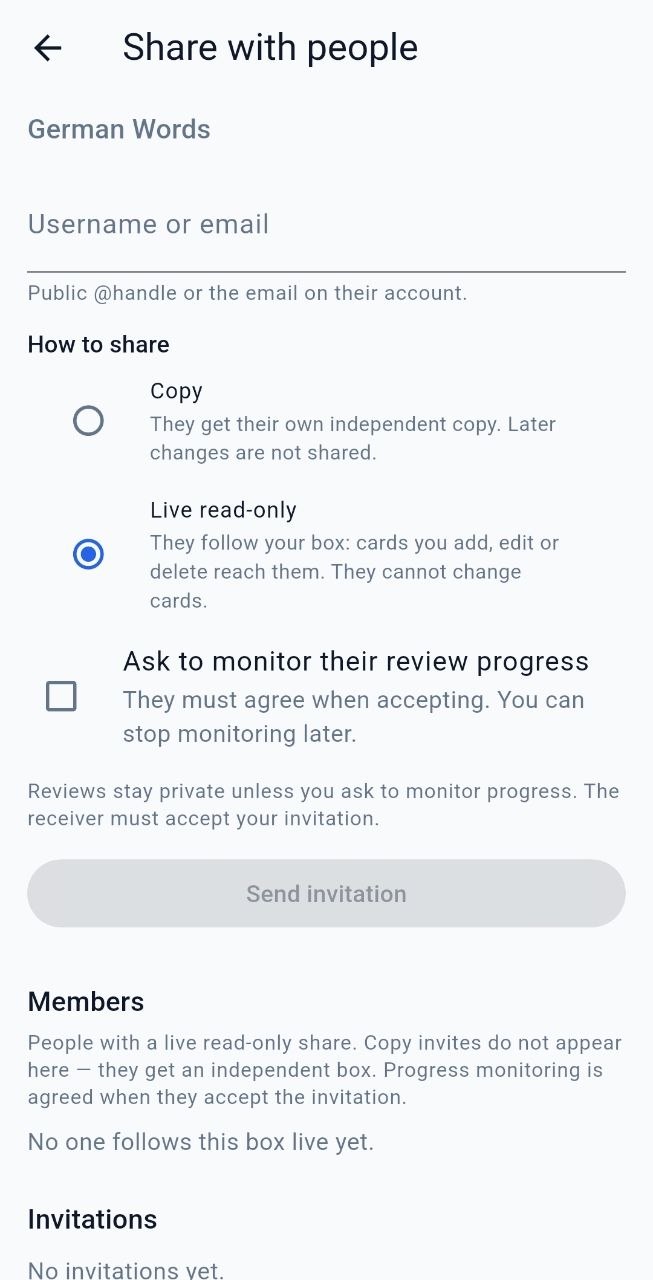
Open your box → Share with people.
-
Enter their username or email.
-
Choose How to share: Copy or Live read-only.
-
For Live only, optionally check Ask to see their review progress.
-
Send the invite. They accept or decline from their invitations.
Copy
-
The receiver gets an independent box of their own.
-
They can edit cards (front, back, and the rest of normal editing).
-
Later changes you make to your box do not update theirs automatically.
-
Copy shares do not appear in the live members / progress list.
Good for: students who need to adapt cards (for example change the front into their home language), friends who want a personal editable deck, or anyone who should own the content fully.
Live read-only
-
The receiver gets a study box linked to yours.
-
Cards are locked — they cannot edit fronts or backs.
-
When you update the source box, their live copy can stay in sync.
-
You may ask to monitor review progress on the invitation (they must consent when accepting).
Good for: teachers and parents who want one controlled deck and optional progress visibility.
Can students change the front of cards to their home language?
Yes — with Copy. Invite each student with Copy. After they accept, they edit the fronts on their own box.
No — with Live read-only. Live cards stay locked so your shared content stays consistent. If you need both “students rewrite fronts” and “I monitor progress,” that combination is not available today: monitoring is for Live shares, and Live cards are not editable by the learner.
Monitoring rules (short)
-
Only available on Live read-only invites.
-
Consent happens when the learner accepts.
-
You can stop monitoring later; turning it back on needs a new invite.
-
Progress uses official Start review answers — not Practice.
Step-by-step for teachers and parents: Create flashcards for students or kids and monitor their progress.
