You can connect Claude.ai to your own MyLeitnerBox account with a private custom connector (MCP). After you connect once, Claude can list your boxes, create boxes, add flashcards, and answer questions about your review analytics—using your data only.
This is not a public plugin directory listing. Each person adds the connector in their own Claude account and signs in with MyLeitnerBox.
What you need
- A Claude.ai account that allows custom connectors (Settings → Connectors / Plugins).
- A MyLeitnerBox account (or create one during the sign-in step).
- About two minutes for the first connection.
The MCP URL (what to type)
Claude talks to MyLeitnerBox through a single HTTPS endpoint. Use exactly:
https://www.myleitnerbox.com/mcp/
- Include the https:// prefix.
- Use the www host.
- Keep the trailing slash on /mcp/ as shown.
- Do not add extra path segments (no /api/, no box ids).
Suggested connector Name in Claude: MyLeitnerBox (this is only a label in your connectors list).
Step 1 — Add the custom connector
- Open Claude.ai → Settings → Connectors (or Plugins).
- Choose Add custom connector.
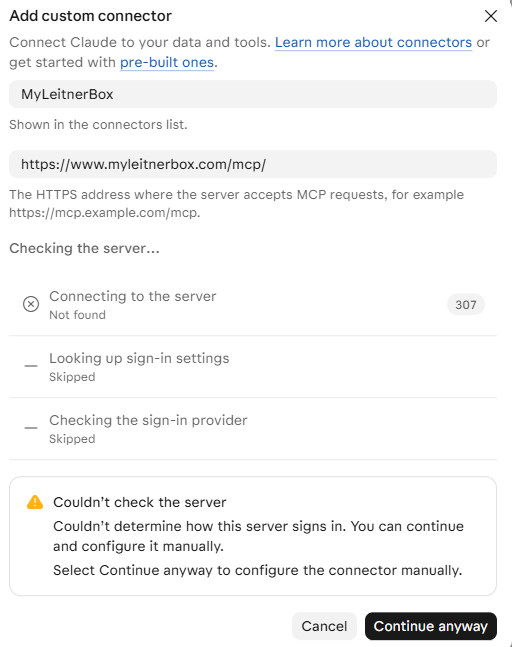
- Enter the name and MCP URL above, then let Claude check the server.
About the server check: Claude briefly probes the MCP URL. You may see a warning such as “Couldn’t check the server” with status 307. That can happen during discovery and does not mean your account is broken. Choose Continue anyway and finish the settings on the next screen.
Step 2 — Authentication and OAuth client
On the configuration screen, set:
- Authentication: Sign in now — you complete MyLeitnerBox login before tools are available.
- OAuth client: Use Claude’s published identity (Recommended) — nothing else to paste; MyLeitnerBox already recognizes Claude.
- Request headers: leave empty (do not add custom headers).
Then click Add.
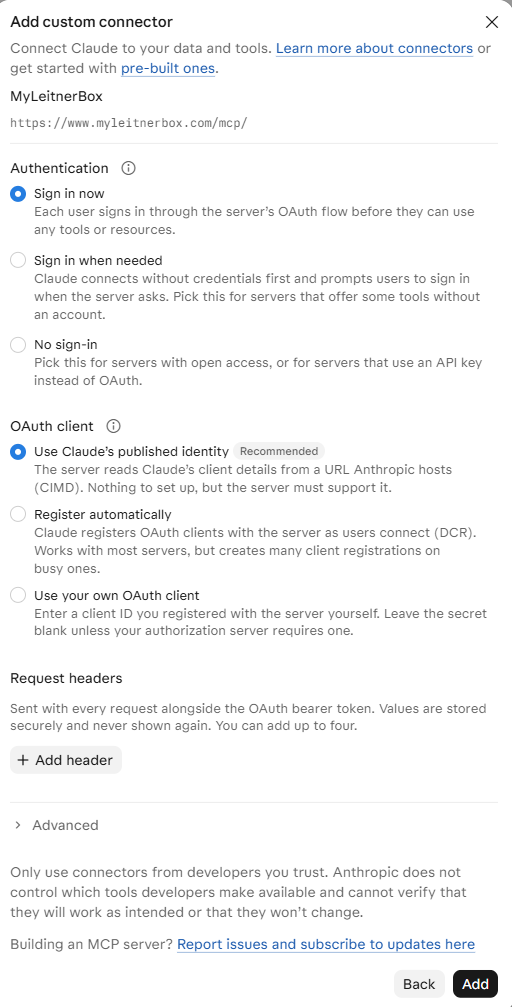
If Claude ever asks you to pick a different OAuth mode (for example “Register automatically” or “Use your own OAuth client”), stay on Claude’s published identity unless MyLeitnerBox support tells you otherwise. If an old connector fails with Invalid client_id, delete that connector and add a fresh one with the settings above.
Step 3 — Sign in on MyLeitnerBox
After you click Add / Connect, a browser window opens on MyLeitnerBox. Claude does not automatically pick your MyLeitnerBox account from your Claude email—you must sign in (or register) on that page.
- Already have an account: log in with the same email/password or social login you use on the website or Android app, then click Authorize.
- New to MyLeitnerBox: register from the login page, confirm your email if asked, then return and authorize.
Grant the requested access (read boxes, write boxes/cards). When you are done, Claude should show MyLeitnerBox as Connected.
Step 4 — What to do next
- Start a new chat in Claude (existing chats may not see a freshly connected tool list).
- Enable the MyLeitnerBox connector / tools for that chat if Claude asks for permissions.
- Try a simple read first, then a write, so you know both directions work.
Example prompts
- “List my Leitner boxes.”
- “Create a box named Travel Phrases (German phrases, front German, back English).”
- “Add these flashcards to Travel Phrases: …” (German on the front, English on the back).
- “Am I unlocked for review analytics?”
- “What was my accuracy in the last 14 days, broken down by box?”
- “Show wrong answers by day of week.”
Anything Claude creates appears in the same account on the website and mobile app.
Privacy and safety
- Only the MyLeitnerBox account you authorize is visible to Claude.
- You can disconnect the connector anytime in Claude settings.
- Review analytics use your study history (including practice modes in some reports). Prefer short date ranges when asking for charts or breakdowns.
If something goes wrong
- Server check shows 307 / “Couldn’t check the server”: click Continue anyway, set Sign in now + Claude’s published identity, then Add. Complete Authorize in the browser.
- Invalid client_id: delete the connector, add it again with the MCP URL and settings above, and authorize once more.
- Connected but Claude cannot list boxes or create cards: start a new chat, confirm tools are enabled for MyLeitnerBox, or disconnect and reconnect. Confirm the connector URL is exactly https://www.myleitnerbox.com/mcp/.
- Wrong boxes or empty account: you probably authorized a different MyLeitnerBox login—disconnect, reconnect, and sign in with the account you use on the app.
Need more help? Contact us or ask in a MyLeitnerBox chat once you are signed in.
